
Key Takeaways
- XCS (xTool Creative Space) is xTool's free all-in-one software for designing artwork, setting laser parameters, and controlling your xTool machine — in one app.
- You design on a canvas (text, shapes, images, imported SVG/DXF), set power/speed per object, then send the job to your machine over USB, Wi-Fi, or the app.
- It supports most xTool machines (M1, M2, S1, D1 series, F1 and more), runs on Windows and macOS (plus mobile), and is free.
- Projects save as an .xcs file (newer versions use .xs) that stores your artwork and processing settings together.
- Newer/updated builds are being rebranded xTool Studio, with built-in AImake AI image generation.
If you've just bought an xTool laser — or you're deciding whether to — you'll quickly run into “XCS.” It's the software that turns your ideas into finished engravings and cuts, and it's central to how xTool machines work. This guide explains what XCS is, what it does, which machines and files it supports, and how it compares to alternatives — so you know exactly what you're working with.
What is XCS?
XCS stands for xTool Creative Space. It's xTool's free, official software that combines two jobs most brands split across separate programs: designing your artwork and controlling your laser machine. In one app, you lay out a design, tell the laser how to process each part, and run the job — no separate design suite required.
That all-in-one approach is what makes xTool machines beginner-friendly: you can go from a blank canvas to a finished, engraved product without learning multiple tools. And because XCS is free, it's included with every xTool machine at no extra cost.

What is xTool?
xTool is a maker-focused brand, part of Makeblock, that builds desktop laser cutters, engravers, and all-in-one crafting machines. Its users range from weekend hobbyists to Etsy sellers and small production shops.
The lineup spans beginner diode lasers, enclosed all-rounders like the M2 and S1, compact fiber engravers like the F1, and professional systems such as the F2 Ultra and MetalFab — plus product printers like the O1 Omni.
What ties the range together is a focus on being approachable out of the box: enclosed designs, smart cameras, safety features, and one piece of free software that drives them all. That software is XCS — which is exactly why understanding it matters.
What is xTool Creative Space (xTool Studio)?
“XCS” is short for xTool Creative Space, the official app that powers every xTool machine. It bundles a design canvas and full machine control in one place, so you lay out your artwork and run the laser without switching between programs.
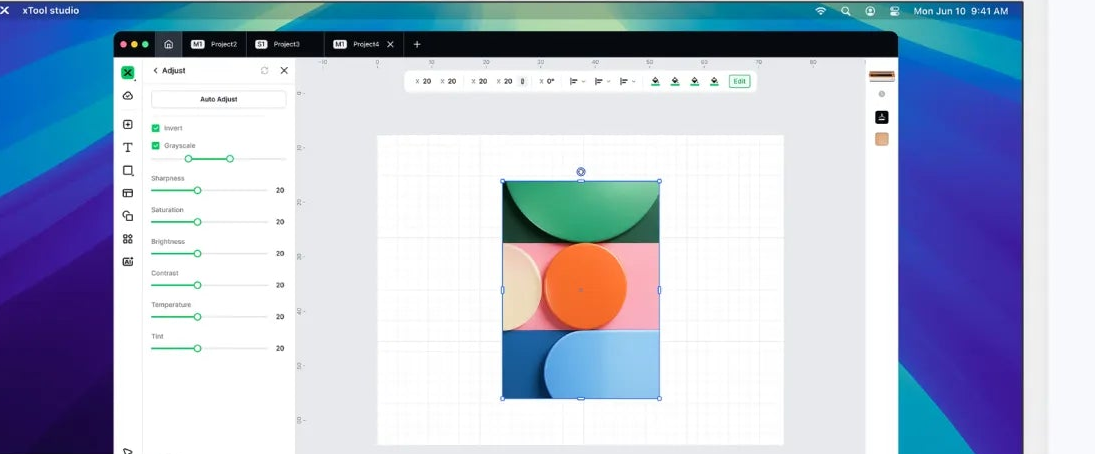
xTool is now rolling the software forward under a new name, xTool Studio. It's the same core tool with a refreshed interface and added features like built-in AImake AI image generation. Existing XCS projects and workflows carry over — so if you see “xTool Studio,” think of it as the current version of XCS.

What can XCS do? Key features
XCS packs a surprising amount into one free app:
- Canvas design editor — add and edit text, shapes, images, and vector paths directly on a work area.
- Built-in AImake AI — generate artwork from a text prompt without leaving the app.
- Per-object processing — set power, speed, and mode (score, engrave, or cut) individually, with material presets to start from.
- Smart-camera preview — on supported machines, see your design placed over the real material before you run it.
- Batch & production tools — grid and circular arrays, material test grids, batch fill, and serial-number/QR/barcode generation.
- Rotary support — a cylindrical mode for engraving tumblers and round objects with the RA2 rotary.
- Import & export — brings in JPG, PNG, SVG, DXF, and even G-code, and exports common image and vector formats.
Which machines does XCS support?
XCS runs most of xTool's laser lineup, including the M1 and M2, S1, D1 / D1 Pro series, F1 (and F-series), and the Laserbox machines. If you're choosing a machine, see our guide to the best xTool machine for your projects, or the full xTool lineup compared.
One thing to know: xTool's newest professional fiber machines (like the F2 Ultra) and the MetalFab may run on updated or companion software builds, and xTool is rolling the software forward under the xTool Studio name. The core idea — design plus control in one free app — stays the same; confirm the exact software for a specific machine on its product page.
What is an .xcs file?
An .xcs file is XCS's native project format — the “xTool Creative Space Project” file. Unlike a flat image, it stores your artwork and its processing settings together: the layout, plus the power, speed, and mode for each element. That means you can reopen a project and run it again exactly as before, or tweak one setting without redoing the design.
In newer versions (from XCS/Studio v1.7.30 onward), xTool introduced a new default project format, .xs, for better stability with large projects. Older .xcs files still open and edit normally — think of .xs as the modern successor to .xcs.
How to download and use XCS
Getting started is straightforward:
- Download it free from xTool's software page for Windows or macOS (mobile options are available too).
- Connect your machine over USB or Wi-Fi and select it in XCS.
- Design or import your artwork on the canvas — type text, add shapes, or bring in an SVG.
- Set parameters for each part (or start from a material preset), then preview placement with the camera.
- Run the job and watch your design come to life.

XCS vs. LightBurn: which should you use?
The most common alternative is LightBurn, a popular paid laser program. Here's how the two compare for an xTool owner:
| Factor | XCS | LightBurn |
|---|---|---|
| Price | Free (included with every xTool) | Paid license |
| Built for | xTool machines, officially tuned | Many laser brands |
| Ease of use | Beginner-friendly, all-in-one | Powerful, steeper learning curve |
| Design tools | Canvas editor + built-in AImake AI | Strong layout & node editing |
| Camera & rotary | Native on supported xTool machines | Supported (setup varies) |
| Best for | xTool owners & beginners | Advanced users & mixed hardware |
Handily, XCS can even import G-code (for example, exported from LightBurn), so the two aren't mutually exclusive. For most xTool owners, XCS is the natural place to start.
SVG vs. STL vs. DXF: which files work in XCS?
XCS is a 2D laser program, so it works with flat vector and image files — not 3D models. Here's how the three formats makers ask about most compare, and which you can actually load into XCS:
| Format | Type | Best for | Works in XCS? |
|---|---|---|---|
| SVG | 2D vector | Logos, icons, cut & engrave art | Yes — import & cut |
| DXF | 2D CAD vector | CNC/laser parts with real-world units | Yes — import & cut |
| STL | 3D mesh | 3D printing | No — it's a 3D format |
In short, feed XCS an SVG or DXF for cutting and engraving; an STL is meant for 3D printers, not lasers. New to these formats? See what an SVG, a DXF, and an STL file are.
Frequently asked questions
What does XCS stand for?
XCS stands for xTool Creative Space. It's xTool's free official software that combines a design editor and machine control in one app, so you can design artwork, set laser parameters, and run your xTool machine without separate programs.
Is XCS free?
Yes. XCS is free to download and use, and it's included with every xTool machine at no extra cost. You can get it for Windows or macOS from xTool's software page, with mobile options also available.
What is an .xcs file?
An .xcs file is XCS's native project format. It stores your artwork together with its processing settings — the power, speed, and mode for each element — so you can reopen and rerun a project exactly as designed. Newer versions default to a .xs format, while older .xcs files still open normally.
Which xTool machines work with XCS?
XCS supports most of xTool's lineup, including the M1 and M2, S1, D1 and D1 Pro series, and F1. Some of the newest professional machines use updated or companion software builds under the xTool Studio name, so check a specific machine's product page to confirm.
Can XCS open SVG or import from LightBurn?
Yes. XCS imports common formats including SVG, DXF, and images, and it can also import G-code, such as files exported from LightBurn. That makes it flexible even if you design in another program before processing on your xTool.
In short: XCS (xTool Creative Space) is the free, all-in-one software that makes xTool machines easy to use — design, set parameters, and run your laser in one place. If you own or are considering an xTool, XCS is the software you'll live in, and it's built to get you from idea to finished product with as little friction as possible.
