
The xTool M1 is a compact, fully enclosed desktop craft machine that combines diode laser engraving, laser cutting, and Cricut-style blade cutting in one body.
First launched via Kickstarter in 2021 and released to retail in 2022, the M1 comes in 5W and 10W diode versions and was aimed squarely at crafters — especially Cricut users who wanted a laser without giving up vinyl and paper cutting.
This guide covers what the M1 is, what it costs, what it can make, and how to set it up and use it.
Key Takeaways
- The xTool M1 is a 3-in-1 desktop machine — a 5W or 10W diode laser plus a fine-point cutting blade.
- It has a 385 × 300 mm work area, a 16MP positioning camera, and runs on XCS.
- It supports 300+ laser materials plus vinyl, HTV, and cardstock on the blade.
- xTool has since moved on to the newer M1 Ultra, so the original M1 is now found via the xTool store and third-party retailers.
What is the xTool M1?
The xTool M1 is a fully enclosed desktop machine that does three jobs in one footprint: it engraves with a diode laser, cuts materials like wood and acrylic with that same laser, and blade-cuts vinyl, paper, and heat-transfer vinyl (HTV) with a magnetic fine-point drag blade that swaps into the laser head.
That blade is what made the M1 stand out at launch — it gave Cricut and Silhouette users a single machine that could both laser and knife-cut.
A built-in 16MP HD camera handles positioning, so you can place designs on screen over a live view of your material and run batches accurately.
The M1 ships in two laser strengths: a 5W diode for lighter engraving and cutting, and a 10W diode that cuts thicker stock (up to roughly 8 mm wood or 3 mm acrylic in a single pass). It is controlled through xTool Creative Space (XCS), and also works with LightBurn for the laser side.
| Spec | xTool M1 |
|---|---|
| Type | 3-in-1: diode laser engrave + laser cut + blade cut |
| Released | Kickstarter 2021; retail 2022 |
| Laser options | 5W diode or 10W diode |
| Blade | Magnetic fine-point drag blade (vinyl, paper, HTV) |
| Work area | 385 × 300 mm (~15.2 × 11.8 in) |
| Camera | Built-in 16MP HD (visual positioning, batch) |
| Software | xTool Creative Space (XCS); LightBurn compatible |
| Connectivity | USB, plus Wi-Fi after setup |
| Rotary | Supports the RA2 Pro 4-in-1 rotary |
| Enclosure | Fully enclosed desktop body |
What is the pricing of the xTool M1?
The original xTool M1 has largely been succeeded by the newer M1 Ultra, so pricing is no longer officially quoted the way it once was and availability varies.
Treat the figures below as approximate and historical guidance, and always confirm the live number on the official xTool M1 page. Prices are in USD as of July 2026 and move with promotions.
| Configuration | What you get | Price (approx.) |
|---|---|---|
| xTool M1 5W | The 5W diode laser + blade machine with the 16MP camera | ~$999 (historical MSRP) |
| xTool M1 10W | The stronger 10W diode version for thicker cutting | ~$1,199–$1,299 (historical MSRP) |
| M1 Deluxe / bundles | M1 10W plus extras such as the RA2 Pro rotary, honeycomb, and material packs | higher; bundle pricing varies by retailer |
Because the M1 is being phased out in favor of the M1 Ultra, new units are increasingly found through third-party retailers (Amazon, Micro Center) and refurbished listings, while xTool runs seasonal sales that can push bundles below list. Check the official page and authorized sellers for what is currently in stock.
What can the xTool M1 engrave, cut, and blade-cut?
The M1 splits its work across the laser and the blade, which is what makes it a true crafting hybrid:
- Diode laser — engraves: wood, bamboo, MDF, leather, acrylic, slate, stone, glass, ceramic, and coated or anodized metals for detailed personalized designs.
- Diode laser — cuts: wood, plywood, cardboard, felt, and acrylic; the 10W version cuts noticeably thicker stock (about 8 mm wood or 3 mm acrylic per pass) than the 5W.
- Fine-point blade — cuts: adhesive vinyl, sticker paper, cardstock, fabric, thin leather, and heat-transfer vinyl (HTV) for apparel — the delicate materials you would normally send to a Cricut.
In total the M1 handles 300+ laser materials on top of its blade-cut media, which makes it popular for layered wood decor, personalized gifts, stickers and decals, and mixed-material projects that combine engraved wood with vinyl lettering. Browse real results in the M1 project gallery.
Where can you buy the xTool M1?
- xTool official store (xtool.com) — the M1 landing page, plus current bundles, warranty, and any remaining stock as the line transitions to the M1 Ultra.
- Amazon — the M1 10W (often paired with the RA2 rotary) is listed under Arts, Crafts & Sewing for fast shipping.
- Authorized resellers — retailers such as Micro Center and craft specialists carry the M1 and its Deluxe bundles.
Real projects people make with the xTool M1
Here are a few community projects made on the M1 — most show off its diode laser cutting and engraving on wood — from the xTool M1 project gallery:
1. Cat & Coffee Cup Wooden Light Panel

A layered wooden light panel showing a cat curled beside a coffee cup, lit from behind for a warm glow. The M1 laser both cuts the silhouette and engraves the fine linework, a good example of turning a single sheet of wood into cozy, giftable decor.
Get this design →2. “250 Years of Freedom” Engraved Cutting Board
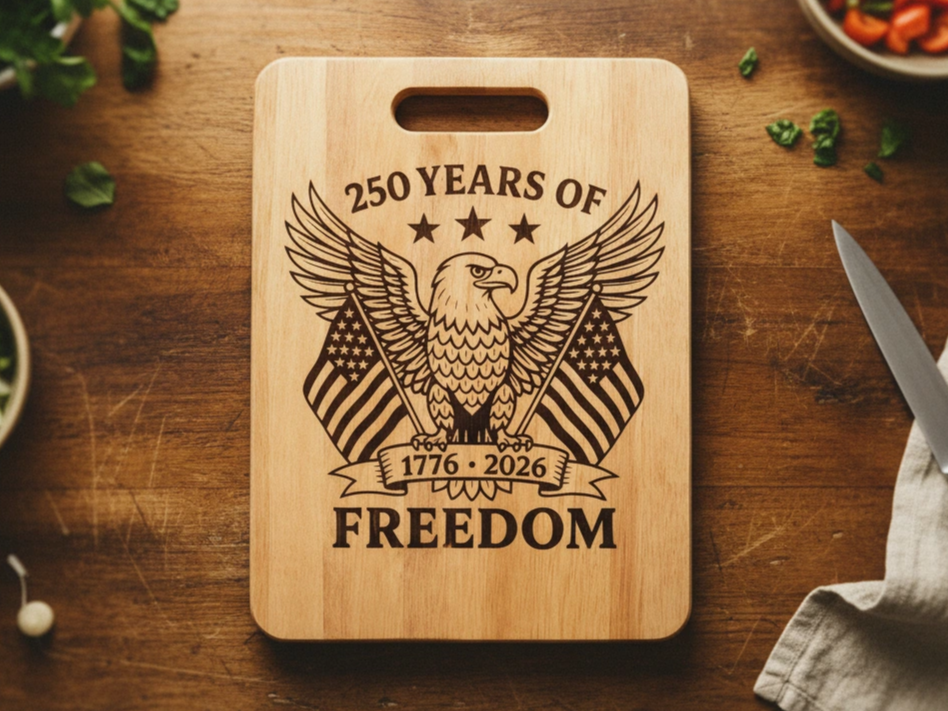
A wooden cutting board engraved with an eagle, flags, and anniversary lettering. Engraving onto a ready-made board is one of the fastest M1 wins — no cutting required, just clean deep-contrast marking that turns an everyday item into a keepsake or seasonal gift.
Get this design →3. Magical World Book Nook
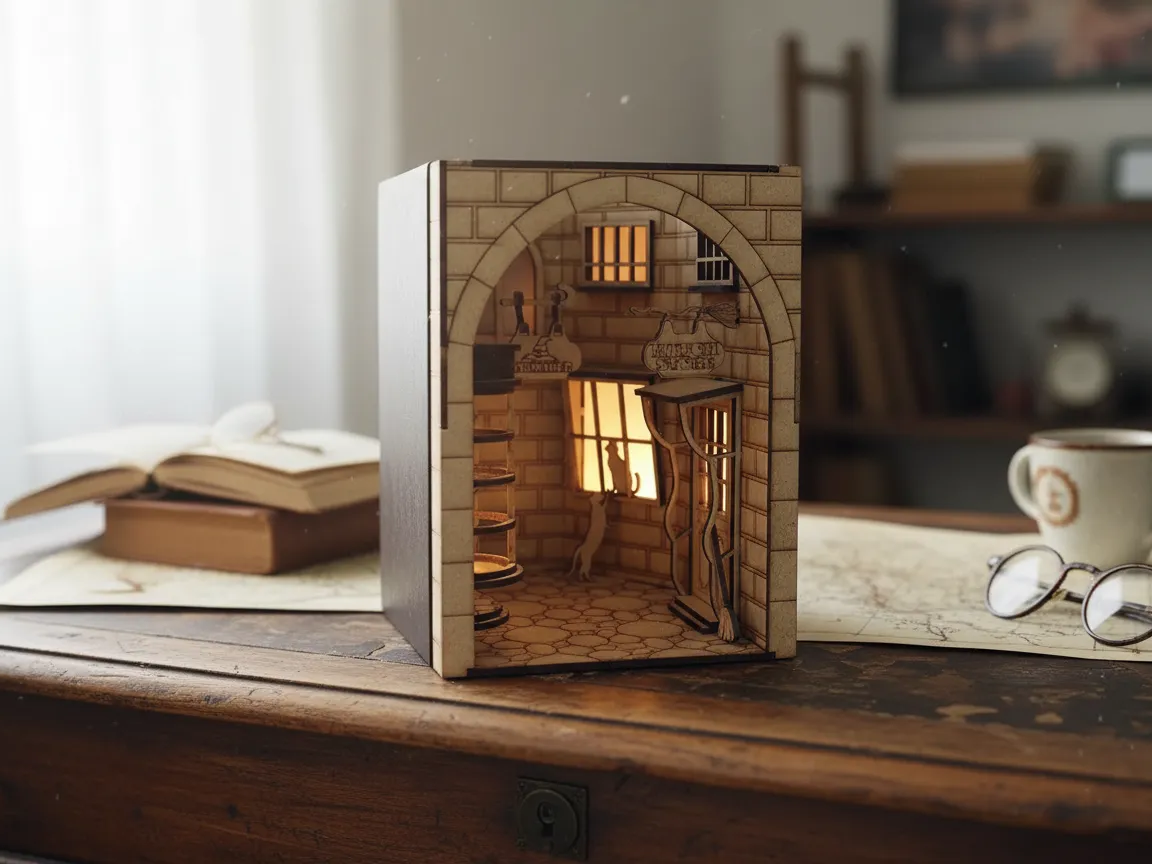
An assembled book-nook diorama that slots between real books on a shelf, with cut wooden walls and engraved detailing. It shows the M1 handling a multi-part build where dozens of laser-cut pieces fit together into a finished 3D scene rather than a single flat piece.
Get this design →4. Open-Number Wooden Wall Clock
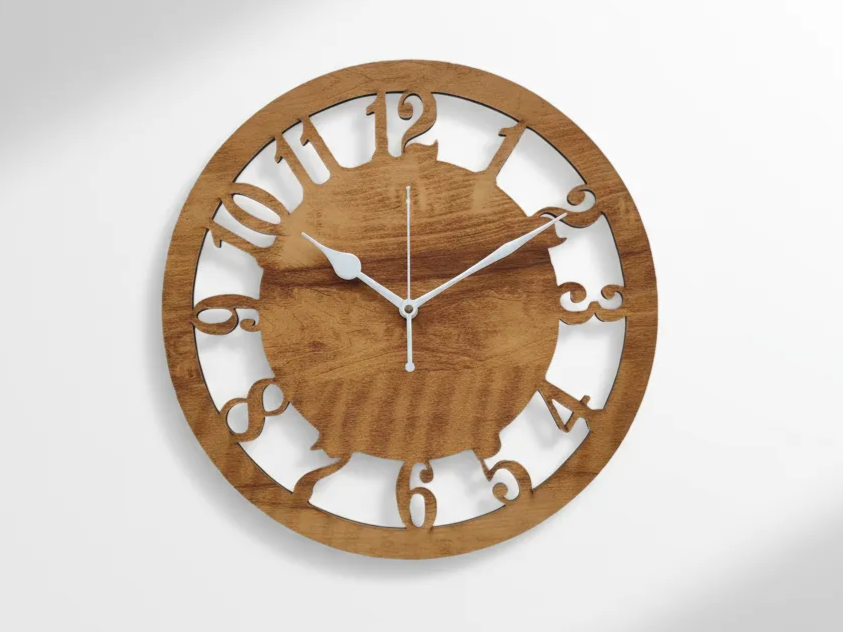
A wall clock with open, laser-cut numerals set into a wooden face. Precise cutouts like these are where the M1 shines — the enclosed bed and camera positioning keep the numbers crisp and evenly spaced, and you just add a movement kit to finish it.
Get this design →5. Millennium Falcon Blueprint Wall Art
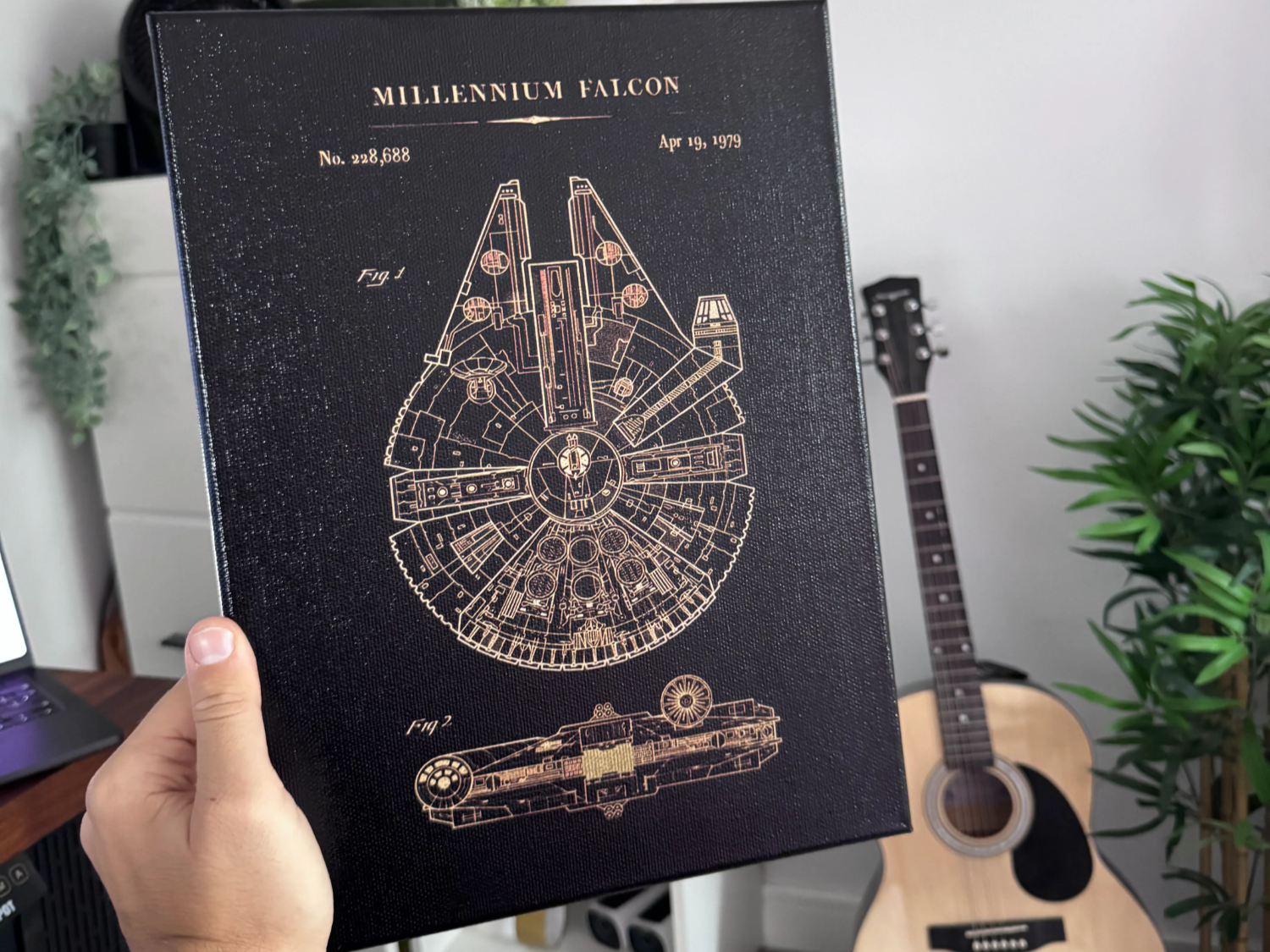
A blueprint-style Millennium Falcon rendered as fine engraved linework on a panel. This piece leans entirely on the laser’s detail resolution, packing dense technical lines into a single engrave — the kind of fandom wall art that sells well at maker markets.
Get this design →6. Laser-Cut Wooden Bookmarks
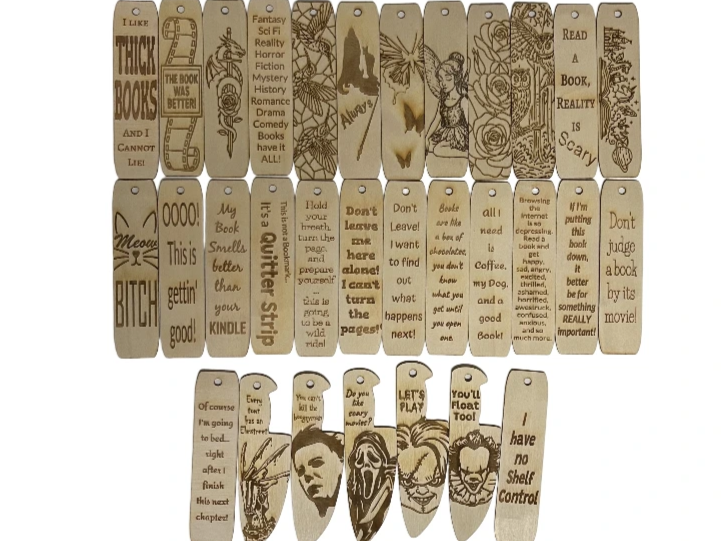
A set of thin wooden bookmarks cut to shape and engraved with quotes and art. Small, quick, and low-material, bookmarks are an ideal starter project and a repeatable batch product — run several at once using the M1 camera to lay them out across the bed.
Get this design →How to set up the xTool M1
- Unbox and check the machine, power adapter, USB cable, blade holder and blade, laser module, exhaust hose, and test materials.
- Place it on a flat, stable surface with clearance around the vent, near a window or the smoke purifier so it can exhaust fumes.
- Connect power and link the M1 to your computer with the USB cable; you can switch to Wi-Fi once initial setup is done.
- Install xTool Creative Space (XCS), open it, let it detect the M1, and apply any firmware update.
- Let the 16MP camera calibrate so the on-screen preview lines up with the real work bed.
- Set focus and pick the tool: mount the laser module for engraving/cutting or the fine-point blade for vinyl, and attach the RA2 Pro rotary if your project is cylindrical.
How to use the xTool M1
- Design or import your artwork in XCS — text, SVG, image, or DXF — and lay out multiple pieces if you are batching.
- Place visually with the camera: the 16MP camera shows your material on screen, so you drag the design exactly where you want it.
- Choose the process: laser engrave or cut for wood, acrylic, leather, and metal; or switch to the blade to cut vinyl, HTV, and cardstock.
- Select the material preset or set power, speed, and passes, then run a frame preview to confirm placement before you commit.
- Close the lid and run; the enclosure and exhaust contain light and smoke while it works. Weed or assemble the finished piece and repeat for the next one.
What materials does the xTool M1 support?
The M1 works with 300+ materials across its laser, plus a range of delicate media on the blade. A quick reference:
| Category | Examples | Tool |
|---|---|---|
| Wood & paper | Basswood, plywood, MDF, bamboo, cardboard | Laser (engrave + cut) |
| Acrylic | Cast & extruded acrylic (engrave + cut; thicker on 10W) | Laser |
| Leather & fabric | Genuine & faux leather, felt, canvas | Laser (thick) / blade (thin) |
| Stone & glass | Slate, marble, ceramic tile, coated glass | Laser (engrave) |
| Metal | Anodized aluminum, stainless steel, coated metal | Laser (marking) |
| Vinyl & HTV | Adhesive vinyl, sticker paper, cardstock, heat-transfer vinyl | Fine-point blade |
Always test on scrap first and follow xTool’s material settings; never laser PVC or unknown coated plastics, and use the blade (not the laser) for vinyl and HTV.
xTool M1 alternatives
The M1 combines a laser and a cutting blade. Here are five alternatives and where each fits.
xTool S1
Bigger enclosed laser
A more powerful enclosed diode with a larger bed than the M1, though without the M1’s vinyl-cutting blade. The pick if you mainly laser and want more cutting muscle.
xTool F1
Portable laser
A compact portable laser that also marks metal. A good move if you want portability and IR marking rather than the M1’s laser-plus-blade combo.
Glowforge Aura
Simplest laser
A beginner-friendly enclosed diode laser with a simple app. Easier to start than the M1, but laser-only (no blade) and lower-powered.
Ortur Laser Master 3
Budget open-frame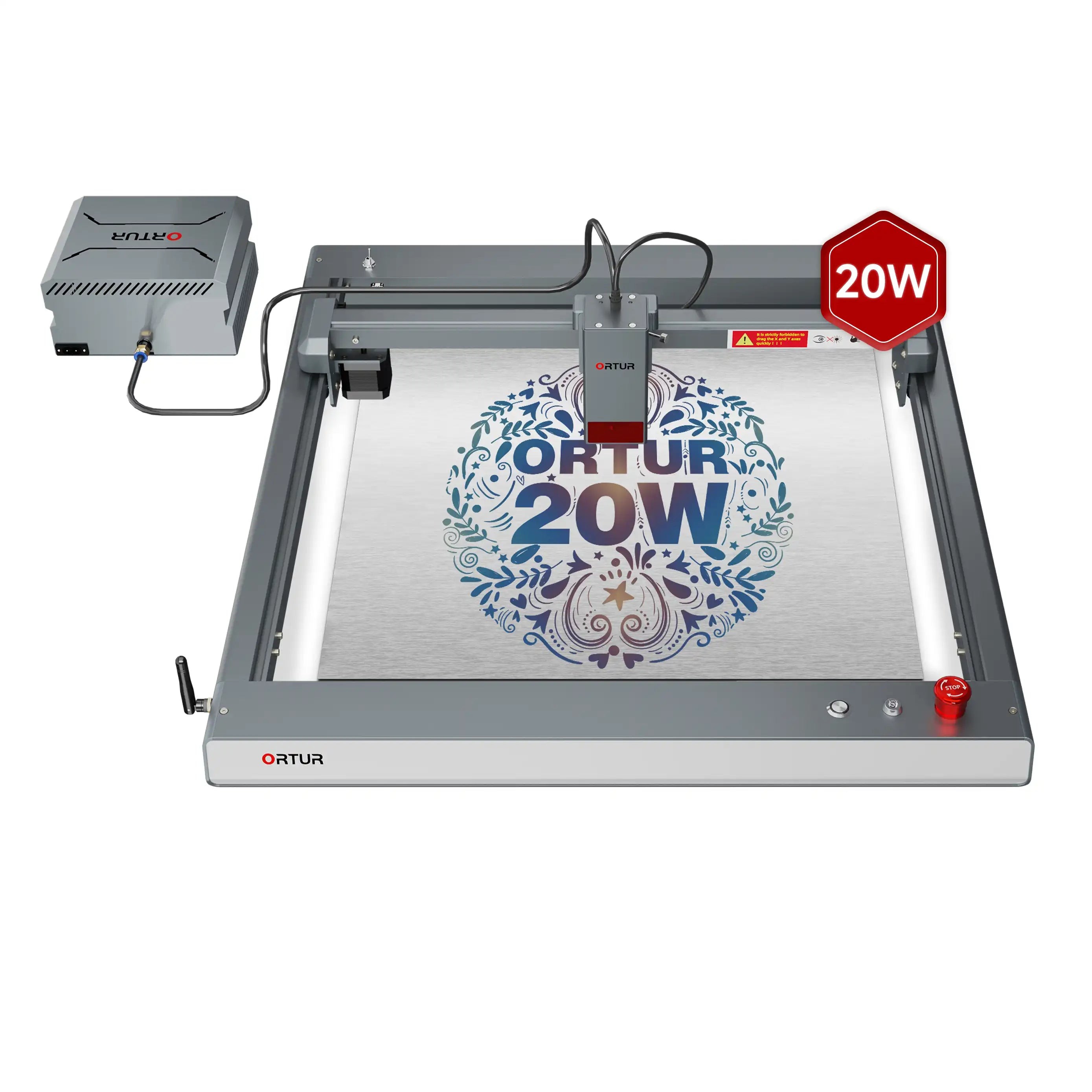
A cheap open-frame diode laser. It saves money but is open (less safe), laser-only, and without the M1’s enclosure or blade cutting.
LaserPecker 4
Portable dual laser
A portable dual-laser that marks metal and non-metals. Different from the M1 — no blade, but very portable with IR metal marking.
How to choose a laser and cutting machine
Decide whether you need blade cutting alongside a laser, then match the machine:
| Priority | What to check | Points to |
|---|---|---|
| Blade + laser | Cuts vinyl/paper with a blade too | xTool M1 (laser + blade) |
| Laser power | Diode wattage & bed size | S1, M1 |
| Metal marking | IR/fiber capability | xTool F1, LaserPecker 4 |
| Budget | All-in cost | Ortur (cheapest), Glowforge Aura |
The xTool M1 is unusual in pairing a laser with a vinyl-cutting blade, making it a two-in-one crafter. If you mainly laser, the S1 offers more power; for portability plus metal, the F1 fits.
For blade cutting alone, a dedicated machine like the Cricut Maker is the better-known option, while an Ortur or Glowforge Aura covers laser-only needs.
Final thoughts
The xTool M1 earned its following by folding a diode laser and a Cricut-style blade into one enclosed desktop machine, letting crafters engrave wood, cut acrylic, and slice vinyl without buying two tools.
With a 385 × 300 mm bed, a 16MP positioning camera, and 5W or 10W laser options, it remains a versatile pick for personalized gifts, layered decor, and mixed-material projects — just note that xTool has moved the line forward with the M1 Ultra.
See real builds in the M1 project gallery, then check current availability on the official xTool M1 page.
Frequently asked questions about the xTool M1
Is the xTool M1 a laser or a cutting machine?
Both. The M1 is a 3-in-1 machine: a diode laser that engraves and cuts wood, acrylic, leather, and more, plus a fine-point drag blade that cuts vinyl, paper, and HTV like a Cricut.
What is the difference between the xTool M1 and the M1 Ultra?
The original M1 is a 3-in-1 (laser engrave, laser cut, and single-blade cutting) with a 16MP positioning camera. The newer M1 Ultra is a 4-in-1 that adds color inkjet printing and pen drawing, a more versatile cutting module, faster engraving, and Pinpoint positioning. This guide covers the original M1.
What is the difference between the 5W and 10W xTool M1?
Both engrave the same materials, but the 10W diode cuts thicker stock in fewer passes — roughly 8 mm wood or 3 mm acrylic per pass — so it is the better pick if you cut a lot of wood or acrylic.
Can the xTool M1 cut vinyl like a Cricut?
Yes. Its magnetic fine-point blade cuts adhesive vinyl, sticker paper, cardstock, and HTV, which is exactly why crafters chose it as a laser-plus-cutter hybrid.
Does the xTool M1 need a computer?
You design and control jobs through xTool Creative Space (XCS) on a computer, connected by USB or Wi-Fi. The laser side is also compatible with LightBurn.
