5 Generation Settings
5.1 Ratio
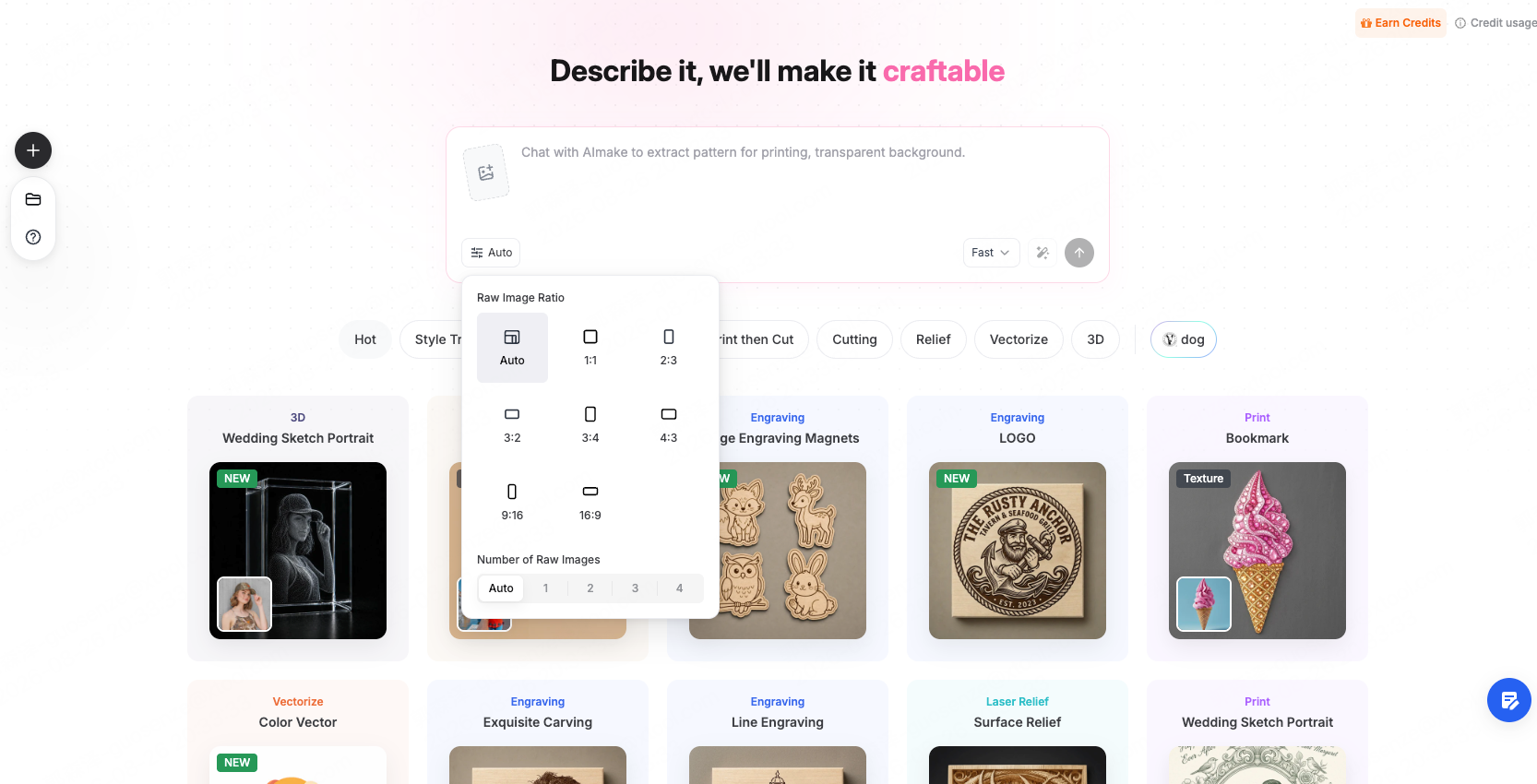
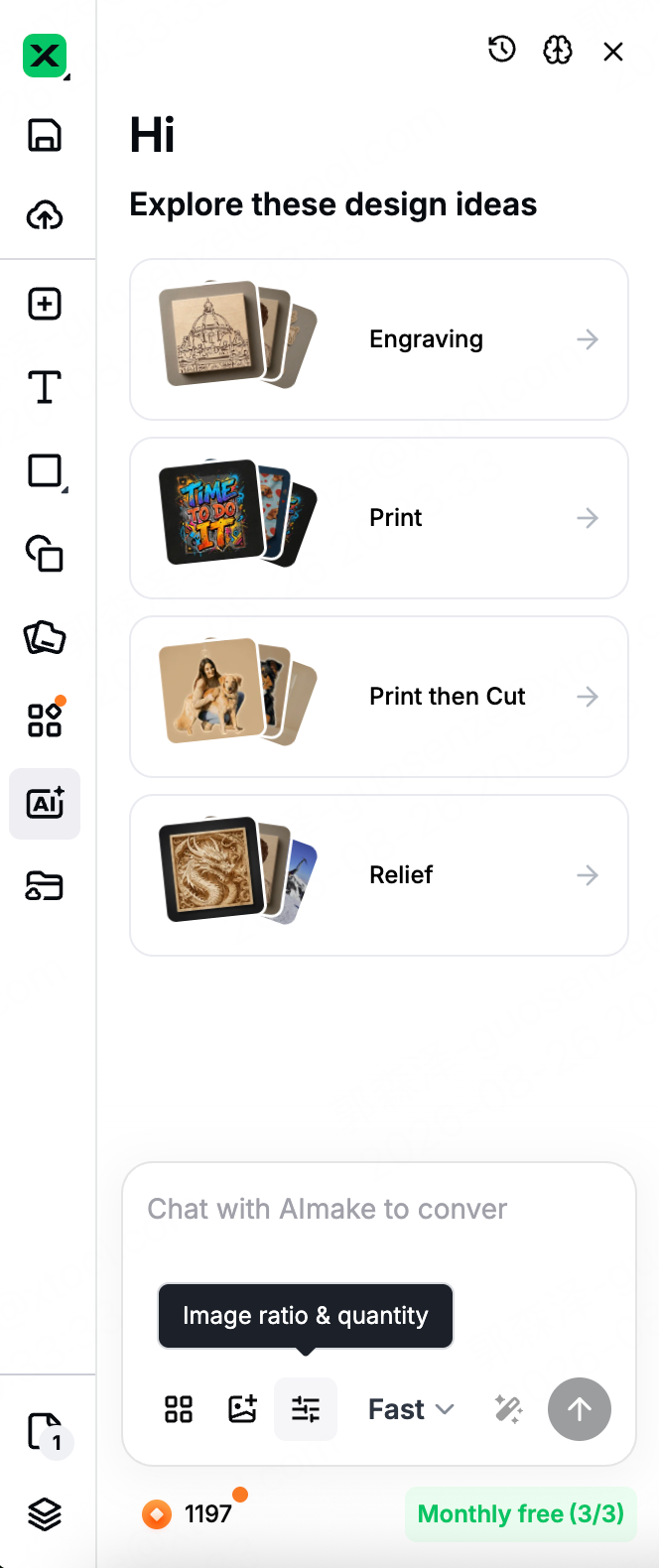
Click the settings button at the bottom-left of the input box to open the settings panel; ratio and count are both here.
The default is Auto, where AImake decides the composition from your description. In most cases, leave it on Auto.
Set it manually in these three situations:
- Fixed-spec products such as phone cases and keycaps
- Engraving or printing material of a fixed size
- A design that must match an existing set
Choose by the shape of the finished piece:
| Finished shape | Choose |
|---|---|
| Square | 1:1 |
| Landscape | 3:2, 4:3, 16:9 (wider as you go) |
| Portrait | 2:3, 3:4, 9:16 (taller as you go) |
5.2 Count
Set in the same panel: Auto, 1, 2, 3, or 4; the default is Auto.
Auto generates 1 image — but if your description states a number, it follows it. "Generate 4 different directions" gives you 4 images.
The results appear together on the canvas so you can compare them side by side and keep what you need.
| Your situation | What to do |
|---|---|
| Direction is clear, you need one result | Leave it on Auto |
| You want to see a few directions | State the number in the description |
| You always want a fixed number | Choose 1 to 4 manually |

5.3 Fast / Quality
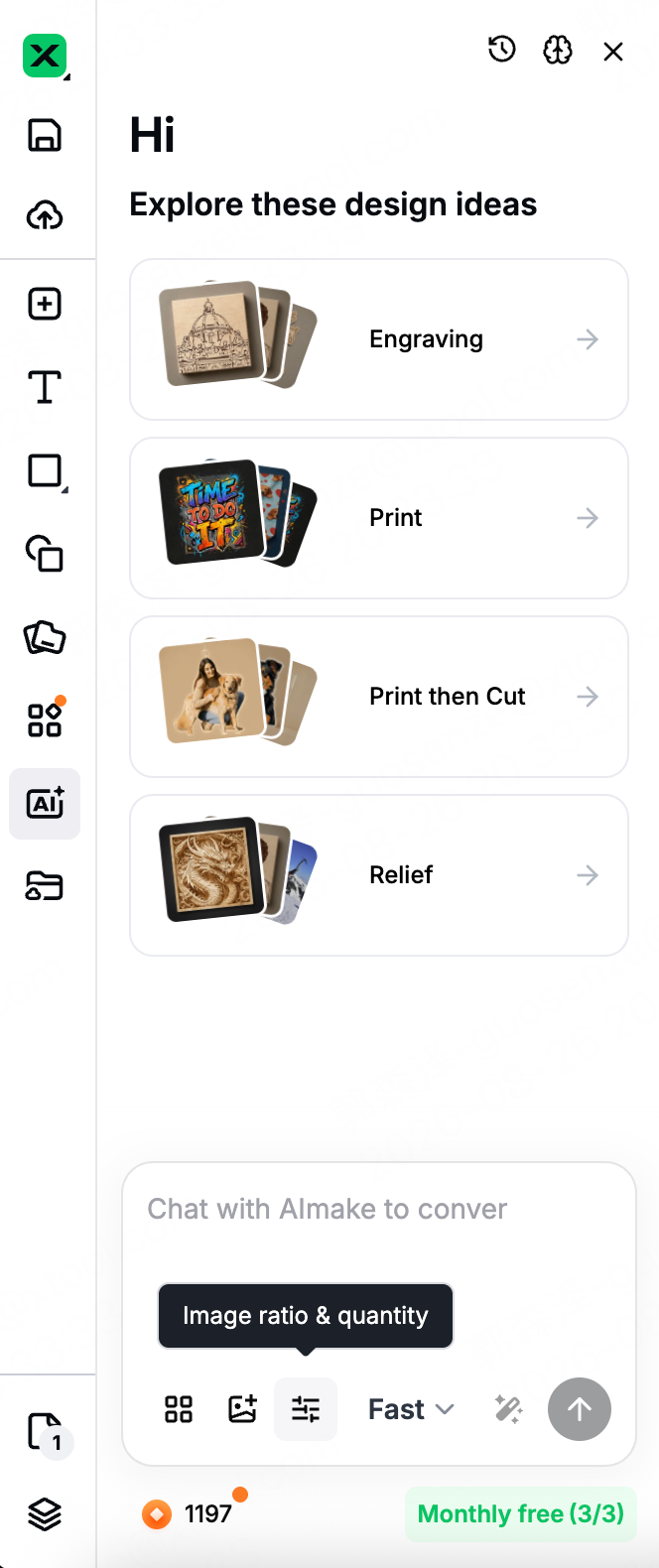
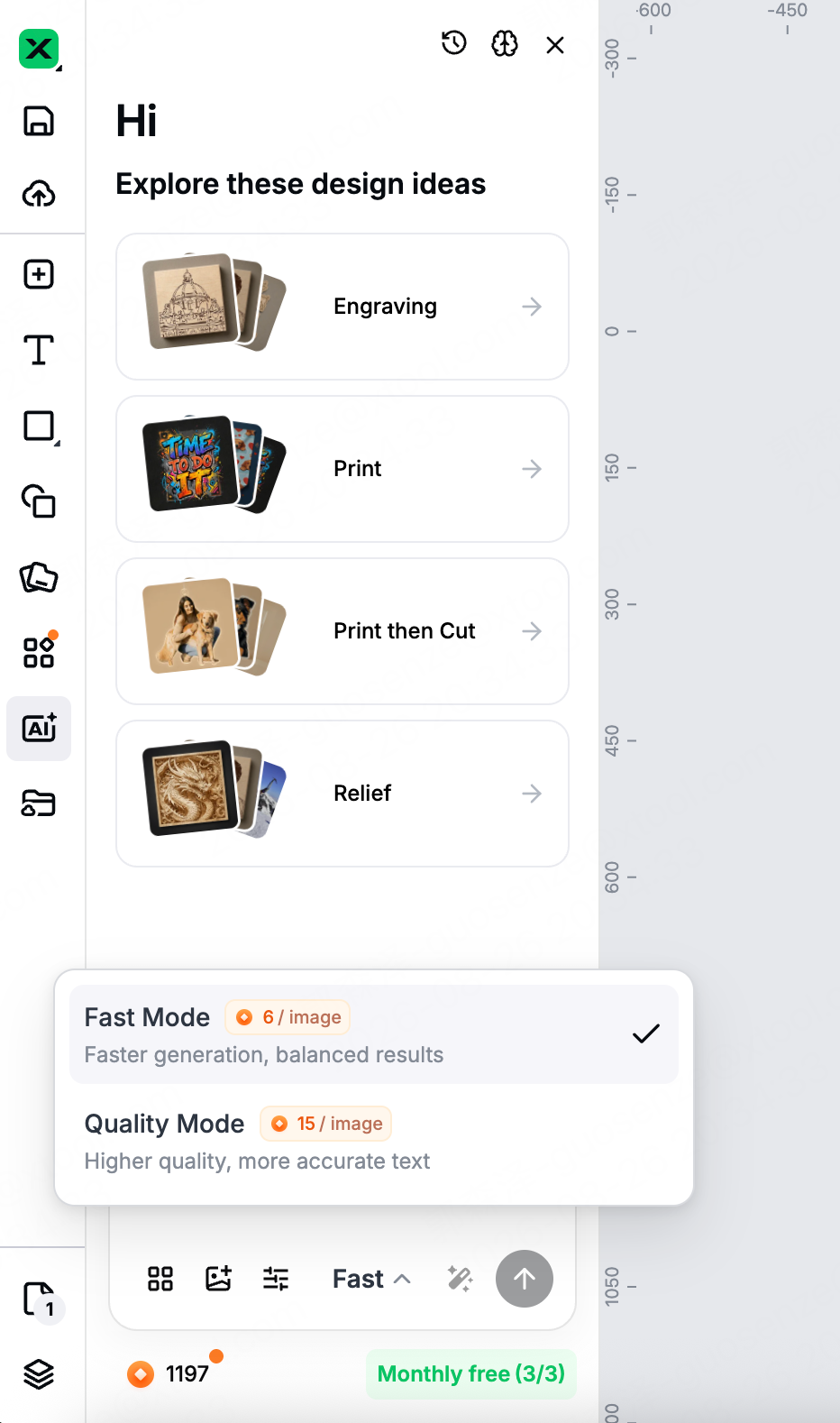
Switch with the mode button at the bottom-right of the input box, to the left of Send. The button shows the current mode; the default is Fast.
Credits used = mode price × number of images.
For example: 4 images in Fast Mode use 24 credits; 4 images in Quality Mode use 60 credits.
⚠️ Note: the interface only shows the per-image price in the mode list, not the total for this request. When your description mentions a number of images, the cost multiplies — check before you send.
| Mode | Credits | Character |
|---|---|---|
| Fast Mode | 6 / image | Faster, balanced results |
| Quality Mode | 15 / image | Higher quality, more accurate text |
| Your situation | Choose |
|---|---|
| Exploring directions | Fast Mode |
| Generating several images to compare | Fast Mode |
| The image contains text — signs, logos, plaques | Quality Mode |
5.4 Magic wand: when you're not sure how to write the prompt
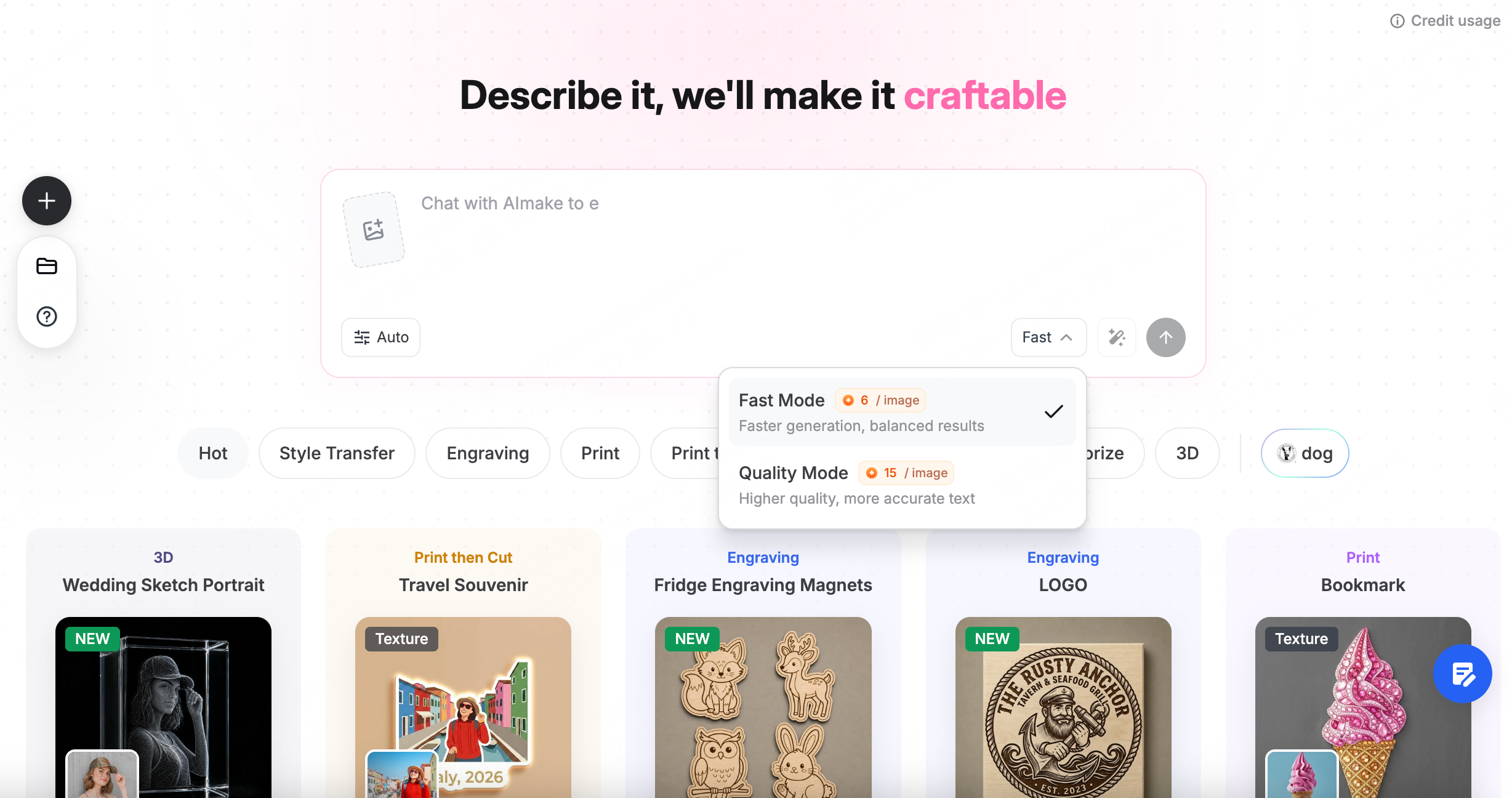
The magic wand expands a one-line idea into a fuller description, so you don't have to hunt for the right words.
- Type what you want to make in the input box — one sentence is enough
- Click the magic-wand icon at the bottom-right of the input box, to the right of the mode button
- The text in the input box is replaced with the polished description
- Confirm, or keep editing, then send
When you can't think how to describe something, or your descriptions keep coming out vague, click the wand before you send.
5.5 Memory: long-term preferences it remembers
Memory stores your long-term preferences and applies them to future projects — "always transparent backgrounds," for example.
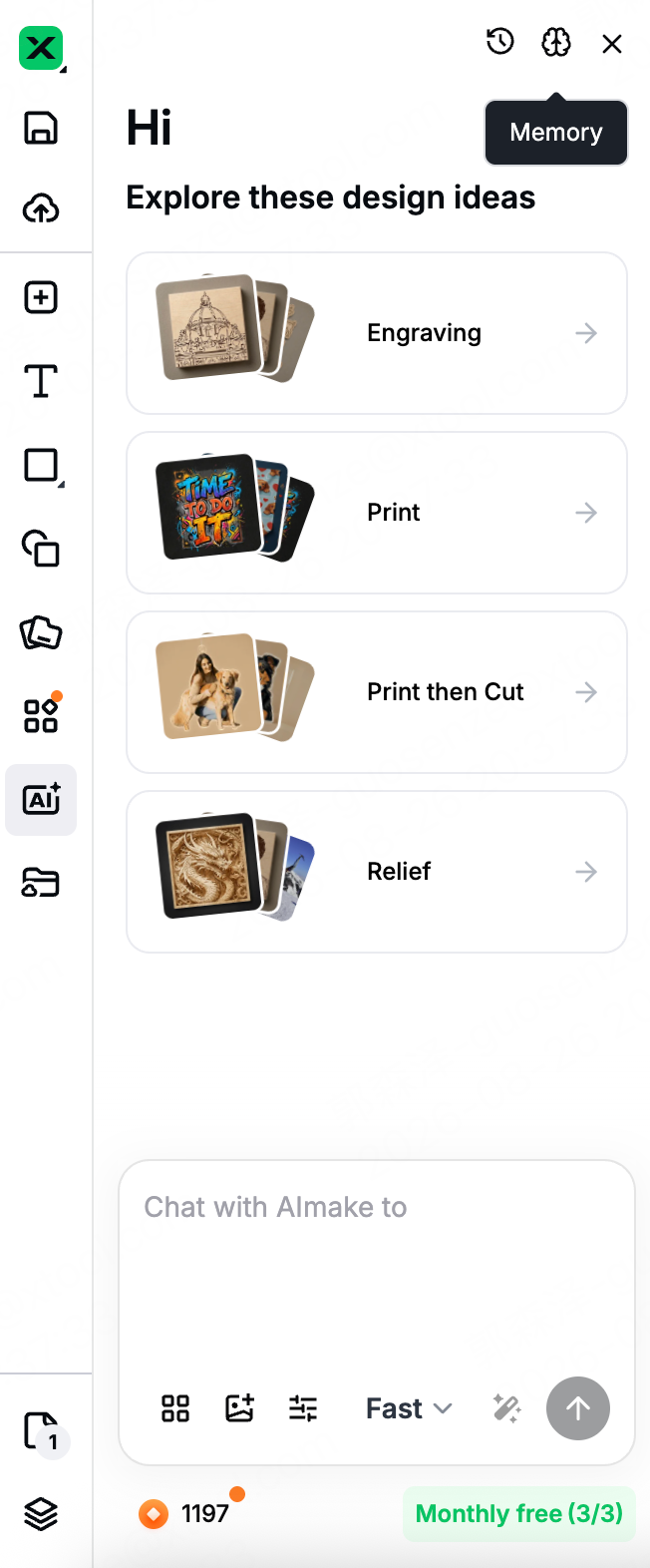
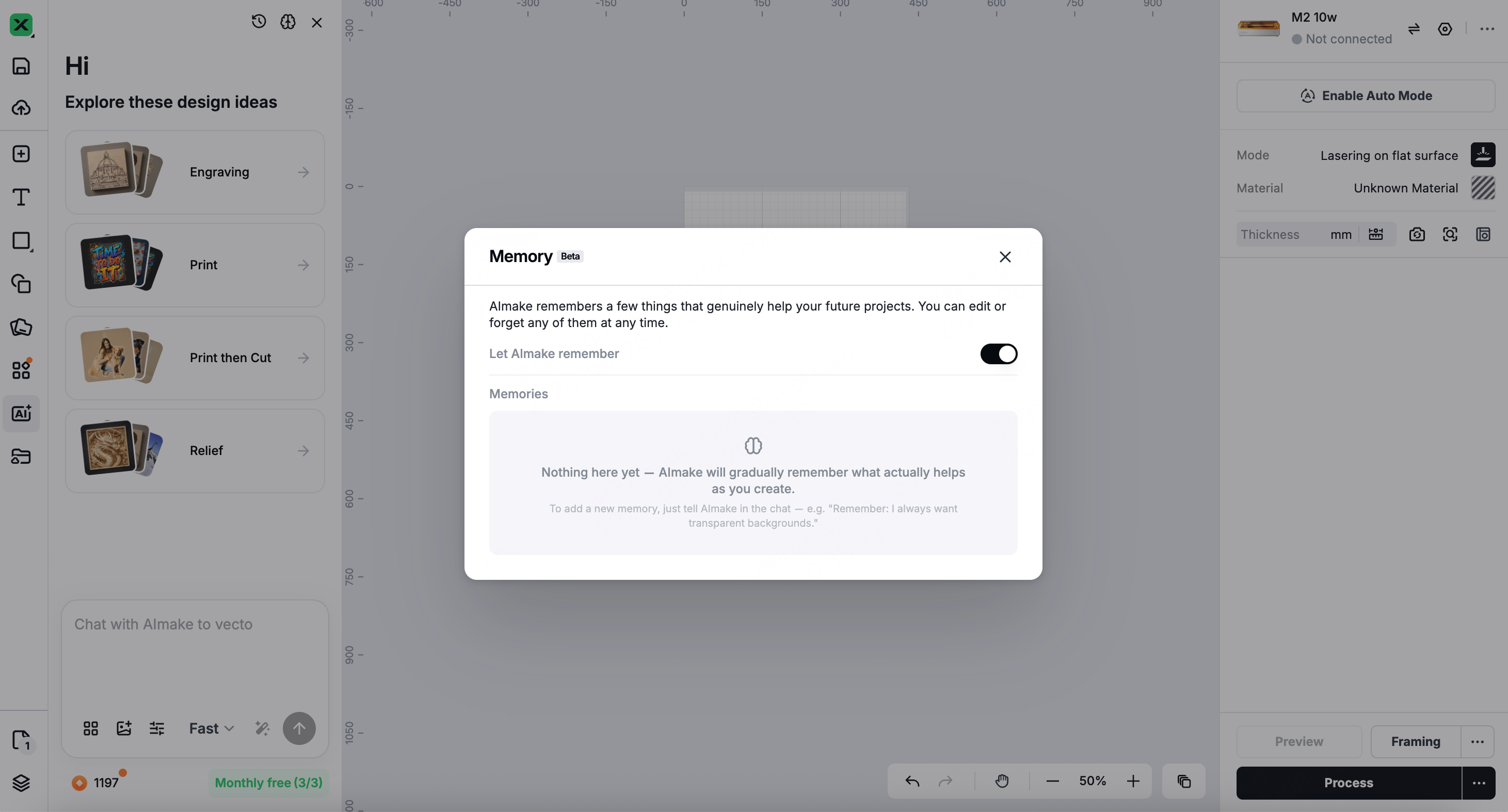
Click the brain icon at the top-right of the panel to open the Memory panel. Let AImake remember is on by default; turn it off and nothing new is recorded and existing memories stop applying.
Add one yourself — start a message with Remember: Remember: always want transparent backgrounds. Open the Memory panel and the new entry appears in the Memories list.
Automatic memories — AImake periodically reviews things that recur across your projects and decides whether they're worth remembering; nothing to do on your side. These also appear in the Memories list and can be edited or deleted.
You won't be notified when a new memory is created. Open the Memory panel from time to time and delete anything you don't want.
Edit or delete — open the Memory panel, find the entry in the Memories list, and click the edit icon to change it or the delete icon to remove it.
💡 Memory differs from conversation context. Context applies only within the current conversation and is gone once you start a new creation; Memory applies across projects and stays until you delete it.