
The xTool M2 (M2 Color Craft Laser) is a fully enclosed desktop craft machine that combines a CMYK inkjet color-printing module with a swappable diode/IR laser for engraving and cutting — all in one unit.
Launched in May 2026, its headline trick is a print-then-cut workflow: print a full-color design on wood, paper, or felt, then let the laser cut or engrave the same piece without moving it. This guide covers what the M2 is, what it costs, what it can make, and how to set it up and use it.
Key Takeaways
- The xTool M2 is a color-print-plus-laser craft machine with swappable diode, IR, and CMYK inkjet modules.
- It prints full-color art on porous materials, then cuts or engraves in the same pass.
- Dual cameras handle alignment between printing and cutting.
- The base 10W laser starts around $599 (Color Print & Cut around $749).

What is the xTool M2?
The xTool M2 is a compact, fully enclosed (Class 1) desktop craft machine that brings color printing and laser work together. Instead of one fixed tool head, the M2 uses swappable modules: a CMYK inkjet head for full-color printing, and blue diode or infrared laser modules for engraving and cutting.
You pop one module out and mount the next in seconds, and xTool Creative Space syncs the whole job so a printed design and its cut lines stay perfectly aligned.
xTool positions the M2 as its most approachable “everyday maker” craft machine. A pair of built-in cameras give you a live, WYSIWYG view of the bed so you can place designs visually, and ACS Lite automation handles positioning and material settings for you.
The result is a machine that prints, engraves, and cuts — a broader creative range than a laser-only engraver.
| Spec | xTool M2 |
|---|---|
| Released | May 2026 |
| Type | Color-print + laser craft machine (fully enclosed, Class 1) |
| Modules | CMYK inkjet print, 10W or 20W blue diode laser, 3W infrared laser |
| Work area | ~16.7 × 12.5 in (424 × 317 mm) |
| Cutting capacity | Up to 10 mm plywood or 8 mm acrylic in one pass (diode) |
| Cameras | Dual built-in cameras (visual placement, auto-positioning) |
| Signature features | Full-color CMYK printing, synced print-then-cut, ACS Lite automation |
| Supported materials | 300+ (xTool figure) |
What is the pricing of the xTool M2?
The M2 is sold in modular configurations, so what you pay depends on which laser and whether you add the color-print head. Pricing moves with xTool’s regular promotions, so treat these as a guide and confirm the live figure on the official xTool M2 page. Prices are in USD as of July 2026 and fluctuate with sales.
| Configuration | What you get | Price (approx.) |
|---|---|---|
| xTool M2 (10W laser) | Base machine with the 10W blue diode laser module and dual cameras | ~$599 (launch promo seen near $549) |
| xTool M2 Color Print & Cut | Adds the CMYK inkjet module for full-color print-then-cut | ~$749 |
| 20W diode / 3W IR / bundles | Higher-power laser, metal-marking IR module, or accessory bundles (rotary, air purifier, blanks) | Higher; varies by bundle |
xTool runs frequent seasonal sales (mid-year, Black Friday, new year), so the M2 is often available below list. Check the official page for current module and bundle deals.
What can the xTool M2 print, engrave, and cut?
Because the M2 swaps between an inkjet head and laser modules, it covers three jobs one machine at a time:
- CMYK inkjet — full-color printing: prints vivid full-color designs directly onto porous materials such as wood, paper, cardstock, felt, and fabric. This is what sets the M2 apart from a laser-only engraver — think printed-then-cut coasters, ornaments, earrings, and gift tags.
- Blue diode laser (10W/20W) — engrave & cut: engraves and cuts wood, acrylic, leather, paper, felt, and more; it cuts up to about 10 mm plywood or 8 mm acrylic in a single pass with the higher-power module.
- 3W IR laser — marks metal: the optional infrared module marks metals and coated surfaces that a diode laser struggles with.
The magic is the synced print-then-cut workflow: print a colorful design, then the dual cameras and software line up the cut so the finished shape matches the artwork exactly — no manual realignment. Browse real results in the M2 project gallery.
Where can you buy the xTool M2?
- xTool official store (xtool.com) — newest configurations, modules, warranty, and sale pricing.
- Target — the M2 Color Craft Laser (10W with CMYK inkjet print head) is listed for retail pickup and shipping.
- Authorized resellers — retailers such as Swing Design carry the M2 plus accessory bundles (rotary, air filter, material blanks).
Real projects people make with the xTool M2
Here are a few community projects made on the M2 — several lean on its color printing and print-then-cut workflow — from the xTool M2 project gallery:
1. Colorful Lotus Flower Dangle Earrings
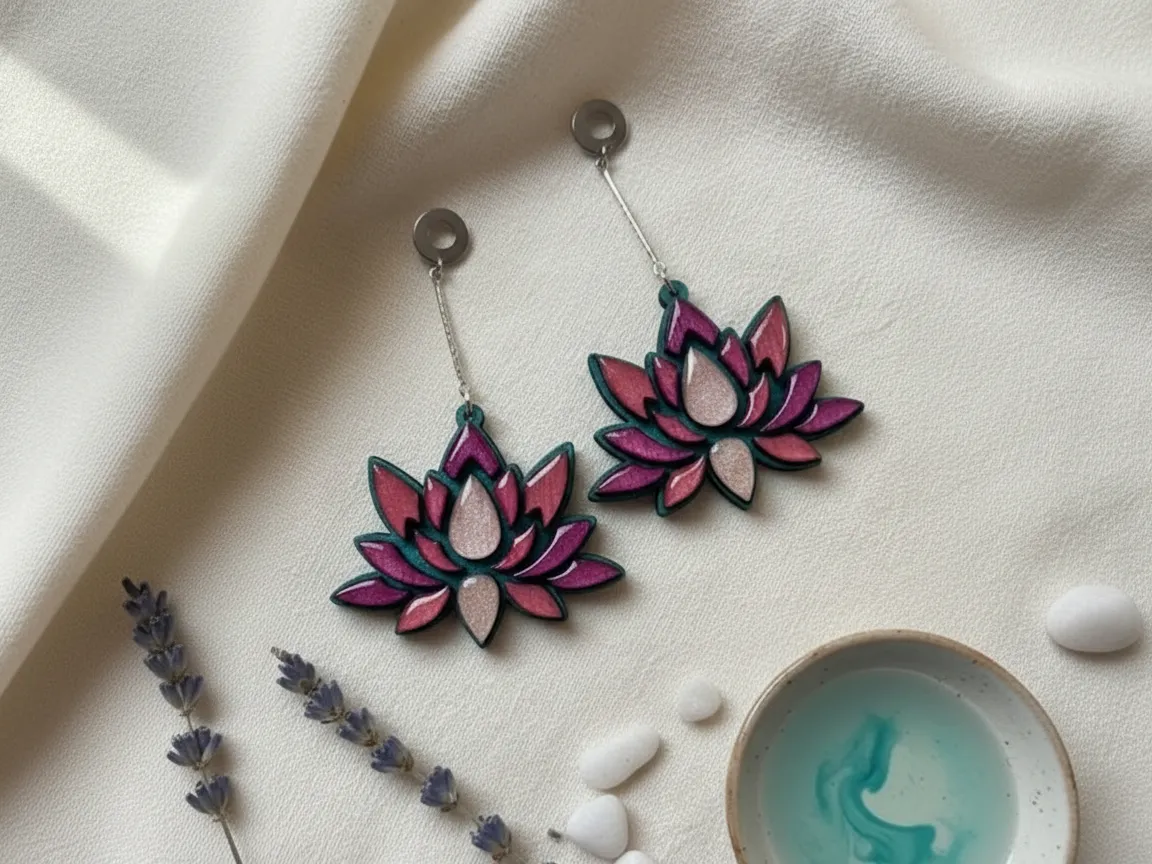
Delicate lotus-flower dangle earrings with vivid, gradient color across each petal. The M2 prints the full-color art first, then laser-cuts the outline so the shape follows the design exactly — a perfect showcase of the print-then-cut jewelry workflow.
Get this design →2. Colorful Cat Christmas Ornaments with Snowflakes
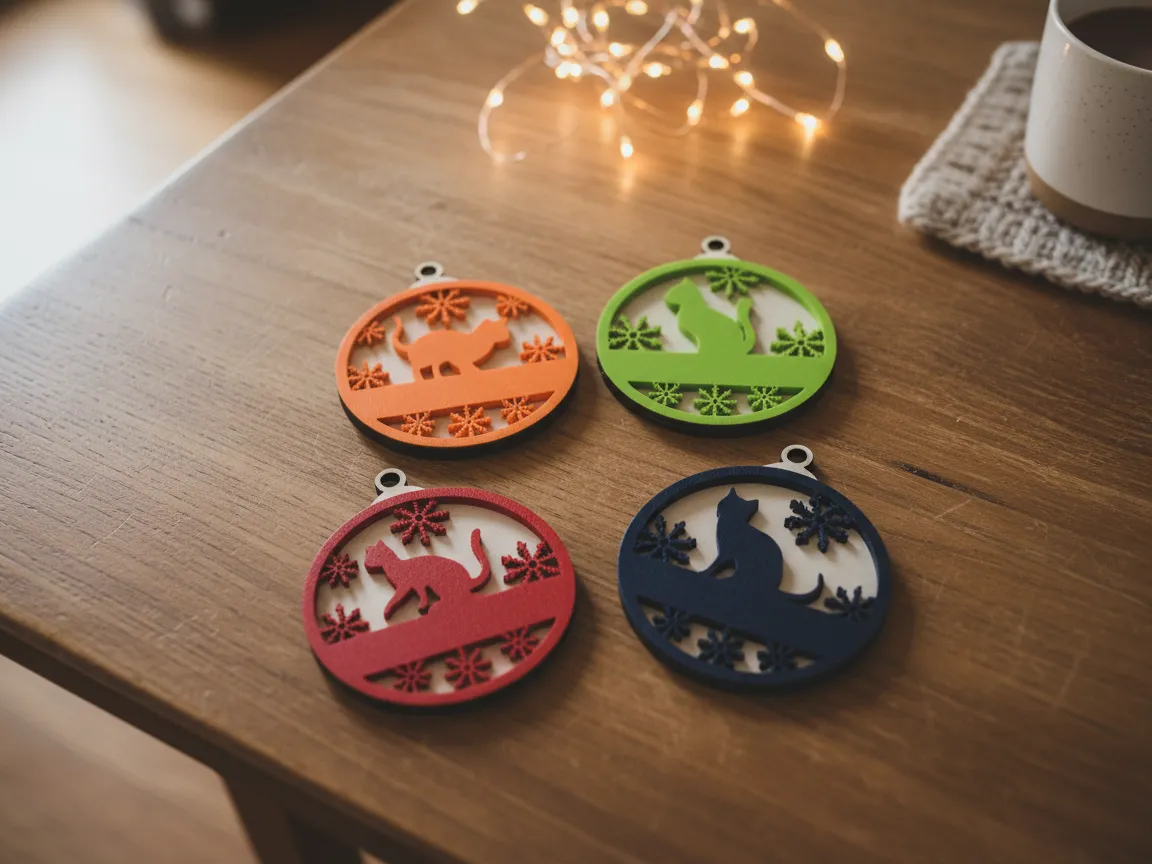
Festive cat ornaments printed in full color and cut to shape, with snowflake details. Seasonal decor like this is an easy small-batch seller, and the M2 handles the whole run — printing the artwork and cutting each ornament without a second machine.
Get this design →3. Wooden Cat Coasters with Sleeping Cat Design
A set of wooden coasters engraved with a cute sleeping-cat design and cut to a rounded outline. This one shows the M2 working as a straight laser engraver-cutter, producing clean, giftable home goods from a single sheet of basswood.
Get this design →4. Decorative Mandala Wall Hanging with Hope Text
A layered mandala wall hanging in soft spring colors with an inspirational "Hope" message. The color printing brings the palette to life, while the laser cuts the intricate mandala fretwork — a striking piece that mixes printed color with detailed cutting.
Get this design →5. Wooden Mason Jar Filled with Valentine Hearts
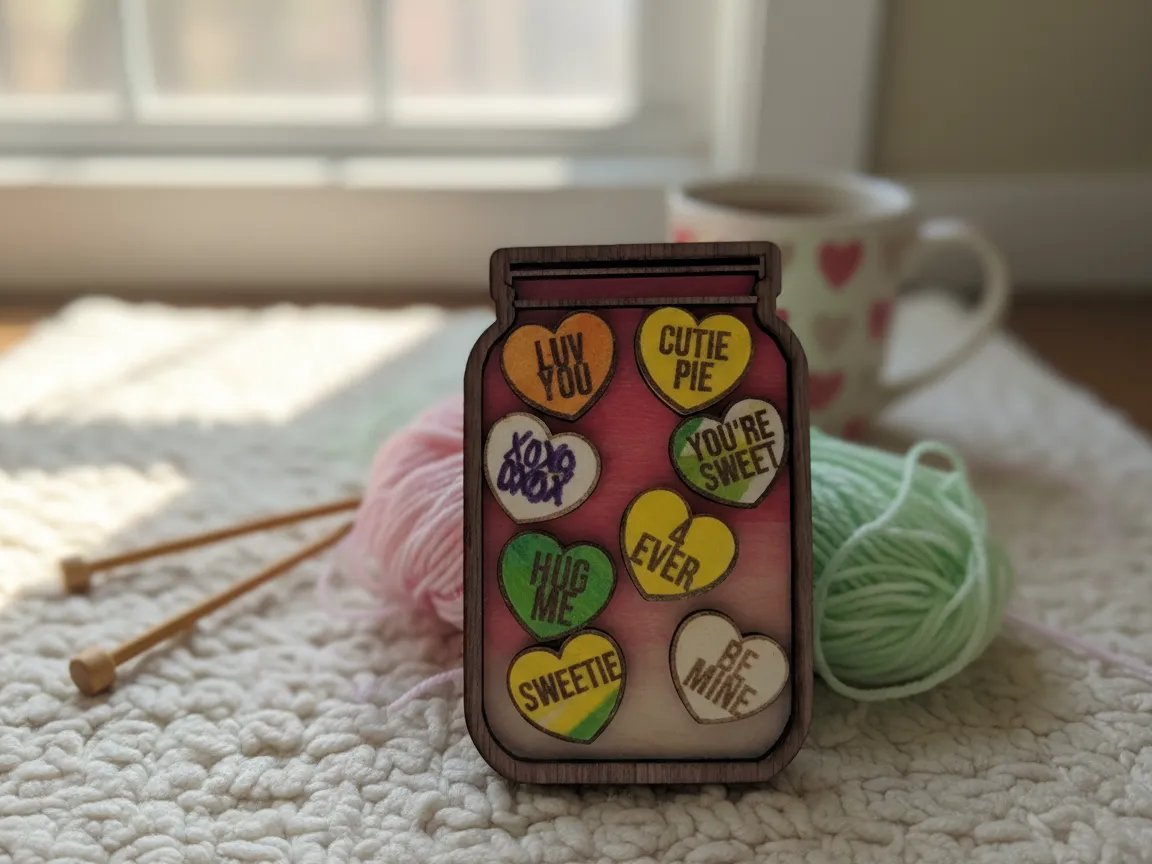
A charming laser-cut wooden mason jar “filled” with little Valentine hearts, assembled from cut layers. It highlights the M2’s clean small-detail cutting and layered-build capability, making a quick seasonal gift or shelf decoration.
Get this design →6. Colorful Lotus Flower Wooden Suncatcher
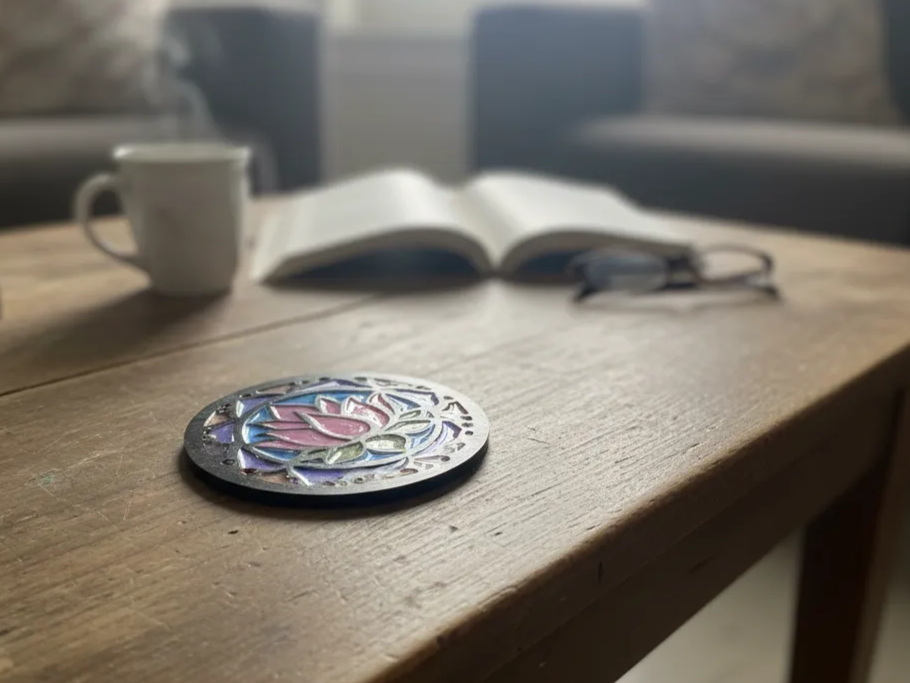
A wooden lotus-flower suncatcher with printed color petals that catch the light. Like the earrings, it uses the M2’s print-then-cut flow — color first, then a precise laser cut — to turn a flat design into a finished decorative hanging.
Get this design →How to set up the xTool M2
- Unbox and check the machine, the laser and/or inkjet modules, power adapter, USB-C cable, exhaust hose, and test materials.
- Place it on a flat, stable surface with clearance around the vent, near a window or the smoke purifier for exhaust.
- Mount a module: magnetically snap in the 10W/20W diode, 3W IR, or CMYK inkjet head depending on the job.
- Connect power, then link the M2 to your computer via USB-C or to your Wi-Fi network.
- Install xTool Creative Space (XCS), open it, let it detect the M2, and apply any firmware update. Install ink cartridges if using the print module.
- Let the dual cameras calibrate so on-screen placement matches the real bed, then set focus and attach the RA3 Lite rotary if your project needs it.
How to use the xTool M2
- Design or import artwork in XCS — text, SVG, image, or DXF — and arrange your pieces on the bed.
- Place visually with the cameras: the dual cameras show your material on screen, so you drag the design exactly where you want it.
- Choose the job: print full color with the CMYK module, or engrave/cut with the diode or IR laser. For color crafts, print first.
- Run the synced print-then-cut: swap to the laser module and let XCS line up the cut to your printed design automatically — no manual realignment.
- Select the material preset or set power/speed/passes, run a quick frame preview, then close the lid and run. The enclosure, fan, and purifier contain light and smoke while it works.
What materials does the xTool M2 support?
xTool lists 300+ supported materials across the M2’s modules. Note that the CMYK inkjet prints on porous surfaces only — it cannot print on metal, glass, or ceramic. A quick reference:
| Category | Examples | Module |
|---|---|---|
| Wood & paper | Basswood, plywood, MDF, cardstock, kraft paper | Inkjet (print) + diode (engrave/cut) |
| Felt & fabric | Felt, canvas, cotton, faux leather | Inkjet + diode |
| Acrylic | Cast and mirror acrylic (engrave + cut) | Diode |
| Leather | Genuine & faux leather | Diode (inkjet on some porous leathers) |
| Metal | Stainless steel, aluminum, coated metal (marking) | Infrared |
| Not printable | Metal, glass, ceramic (ink will not adhere) | — |
Always test on scrap first and follow xTool’s material settings; never laser PVC or unknown coated plastics.
xTool M2 alternatives
The M2 Color Craft pairs a diode laser with a color inkjet for print-and-cut. Here are five alternatives and where each fits.
xTool S1
Pure diode power
A more powerful enclosed diode that cuts thicker and faster than the M2, but without the M2’s built-in color printing. Choose it if lasering, not color, is your priority.
xTool O1 Omni
Full color printing
An all-in-one UV printer for full-color, photo-quality graphics on mugs, cases, and more. Far more capable at printing than the M2’s inkjet, though it doesn’t laser-cut.
xTool F1
Portable + metal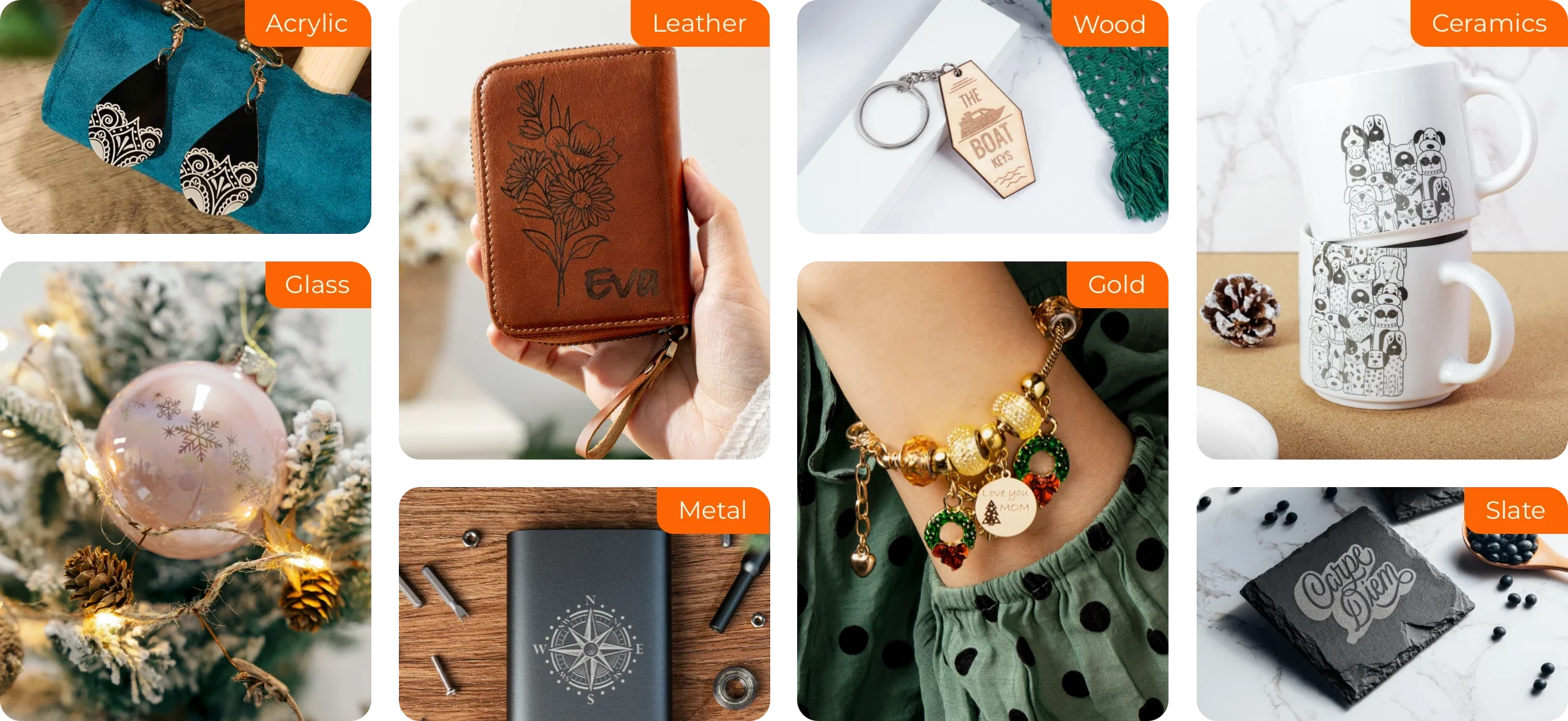
A compact portable engraver that also marks metal. A good pick if you want mobility and metal marking rather than the M2’s color print-and-cut.
Glowforge Aura
Simplest diode
A beginner-friendly enclosed diode laser. Simple to use, but laser-only with no color printing and lower power than the M2.
Ortur Laser Master 3
Budget open-frame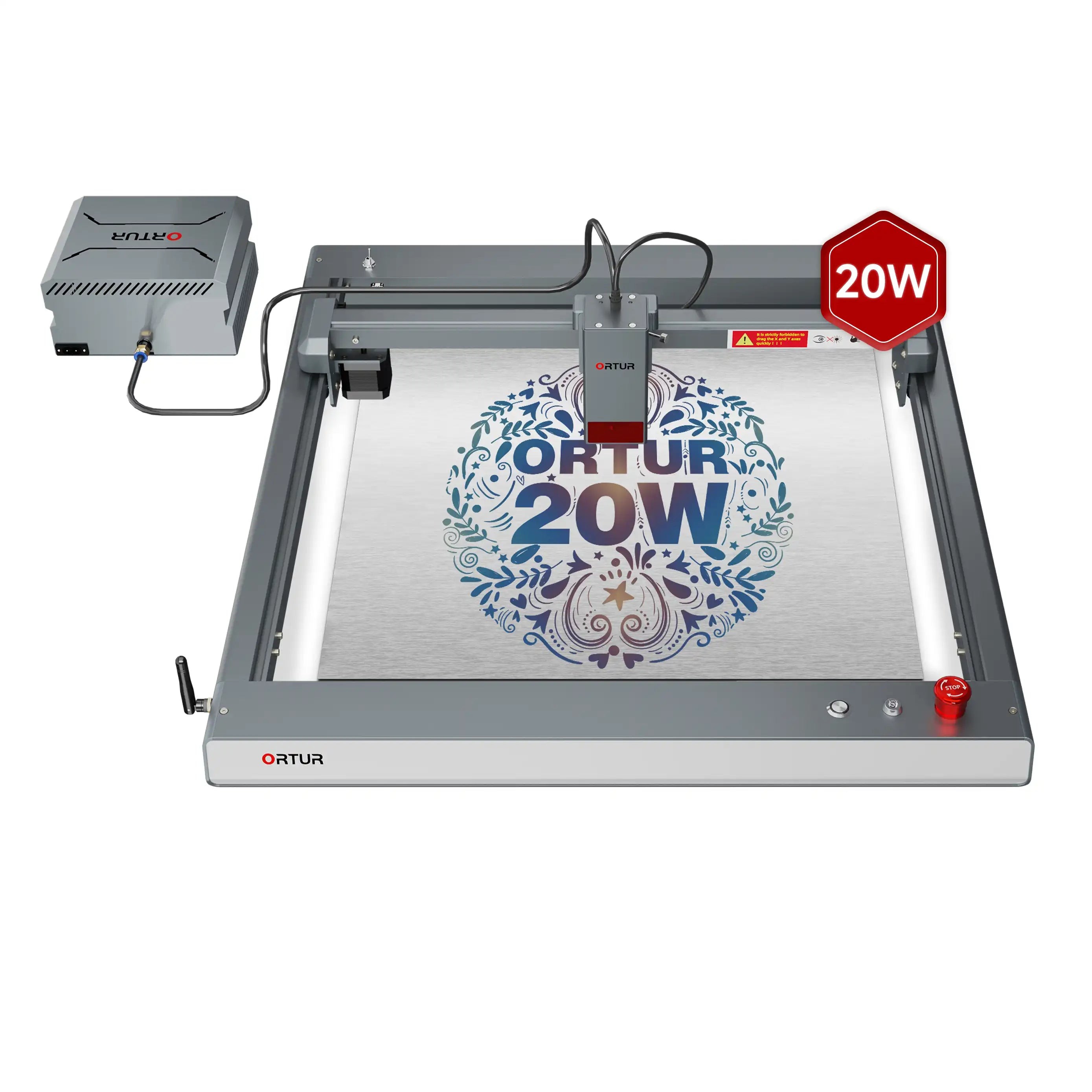
A cheap open-frame diode laser. It saves money but is open, laser-only, and lacks the M2’s color inkjet and enclosed design.
How to choose a color / print-and-cut craft machine
Decide whether you need color plus cutting, then match the machine:
| Priority | What to check | Points to |
|---|---|---|
| Color + cut in one | Built-in color printing with the laser | xTool M2 (Color Craft) |
| Print quality | Full UV / photo-quality output | xTool O1 Omni |
| Laser power | Diode wattage & bed | S1, M2 |
| Budget | All-in cost | Ortur (cheapest), M2 (mid) |
The xTool M2 is unusual in adding CMYK color to a diode laser, so you print and cut in one machine. For stronger lasering pick the S1, and for true photo-quality printing the O1 Omni.
For color designs that are then cut on a separate cutter, a print-then-cut setup like a Cricut plus an inkjet is the better-known alternative.
Frequently asked questions about the xTool M2
Does the xTool M2 print in color?
Yes — the M2’s CMYK inkjet module prints full-color designs directly on porous materials like wood, paper, felt, and fabric, then the laser can cut or engrave the same piece in a synced print-then-cut workflow.
Is the xTool M2 a laser cutter or a printer?
Both. It is a hybrid color-craft machine with swappable modules: a CMYK inkjet head for full-color printing and blue diode or infrared laser modules for engraving and cutting.
How much does the xTool M2 cost?
The base 10W laser configuration starts around $599 (with launch promos seen near $549), and the Color Print & Cut version that adds the CMYK inkjet module is around $749. Prices vary with promotions — check the official page.
What can the xTool M2 not print on?
The inkjet module prints on porous surfaces only. It cannot print on metal, glass, or ceramic because the ink will not adhere; those need the laser (or IR marking) instead.
Does the xTool M2 need a computer?
You design and control jobs through xTool Creative Space (XCS) on a computer, connected by USB-C or Wi-Fi. The dual cameras let you place designs visually on screen.
Final thoughts
The xTool M2 rethinks the desktop craft machine by folding full-color CMYK printing into a laser engraver-cutter, with dual cameras and a synced print-then-cut workflow that keeps color art and cut lines perfectly aligned.
For makers selling personalized ornaments, jewelry, coasters, and mixed-material gifts — especially anyone who wants color without a separate printer — it is one of the most versatile machines in its class and price range.
See real builds in the M2 project gallery, then check current pricing on the official xTool M2 page. For dedicated, larger-format UV printing, see the xTool O1 Omni.
