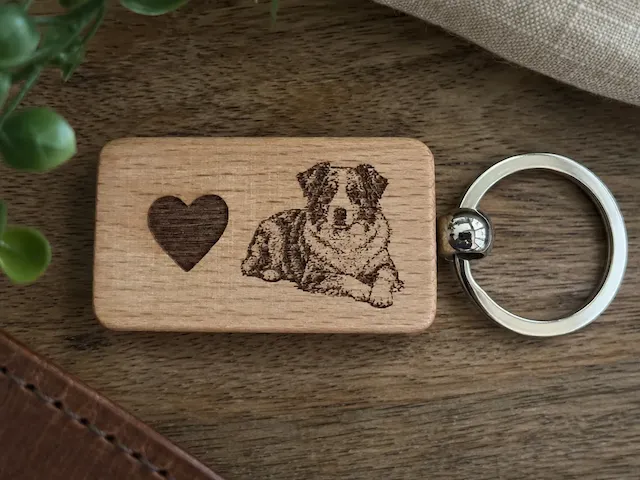
![[Laser cut and engrave] Australian Cattle Dog Wooden Pendant Ornament](https://image-res.atomm.com/resource/xtool/community/attachment/xtool-community/e59f6158-6113-4606-b849-008c359a2019.jpeg?x-oss-process=image/resize,m_fill,w_1280,h_960,limit_0/interlace,1/format,webp/auto-orient,1)
![[Laser cut and engrave] Australian Cattle Dog Wooden Pendant Ornament](data:image/png;base64,iVBORw0KGgoAAAANSUhEUgAAAAoAAAAKCAYAAACNMs+9AAAAAXNSR0IArs4c6QAAABdJREFUKFNjZCASMBKpjmFUId6QIjp4AAppAAuXjCs4AAAAAElFTkSuQmCC)
![[Laser cut and engrave] Australian Cattle Dog Wooden Pendant Ornament](https://image-res.atomm.com/resource/xtool/community/attachment/xtool-community/e59f6158-6113-4606-b849-008c359a2019.jpeg?x-oss-process=image/resize,m_fill,w_160,h_120,limit_0/interlace,1/format,webp/auto-orient,1)
![[Laser cut and engrave] Australian Cattle Dog Wooden Pendant Ornament](https://image-res.atomm.com/resource/xtool/community/attachment/xtool-community/59a8277a-6240-4ab2-9a7a-c1a575ead59b.jpeg?x-oss-process=image/resize,m_fill,w_160,h_120,limit_0/interlace,1/format,webp/auto-orient,1)
Blue Heeler Keychain
 Instruction


Information
      This project provides a simple and original instruction for engraving and cutting wooden keychains using the xTool M1 Ultra (10W diode laser).
The instructions are based on my own setup and testing, focusing on practical use, machine configuration, and common checks before running the job. The keychain size can be adjusted freely to match personal preference or project needs.
Please note that the default settings are optimized for basswood plywood. If you choose a different material, the laser settings will need to be adjusted accordingly, and results may vary if parameters are not recalibrated.
Before starting, make sure the file includes separate Engrave and Cut operations, as the software may occasionally consolidate them automatically.
Instruction
Step1: Machine Set up
⚠️ Important:
If you change the material, the default settings included in this file will also need to be adjusted.
Using a different wood, MDF, or acrylic may result in poor or unsatisfactory results if the parameters are not recalibrated.
XCS may sometimes automatically consolidate operations.
Before running the job, verify that Engrave and Cut are still separated, and manually reassign them if needed.
- Power ON the xTool M1 Ultra
- Install the honeycomb bed
- Place the wood sheet on the honeycomb
- Secure material using magnets, ensuring flatness
Step2
- Open xTool Creative Space (XCS)
- Import the bookmark file
- Position the design within the material area
- Perform Auto Focus
- Use Frame to confirm alignment
Step3
Acceptance Criteria
Engraving is clear and legible
Consistent engraving depth
No excessive burn marks
Clean cut-through edges
Bookmark dimensions per design
Step4: Finishing & Storage
FINISHING (IF APPLICABLE)
Light edge sanding (grit 220–320)
Clean engraving residue
Optional sealing or oil finish
STORAGE
Store bookmarks flat
Protect from moisture and bending
Avoid stacking without separators
Remixes
License



You may also like

Cat and Kitten Silhouette Keychain


Starbucks Logo Circular Wooden Ornament

Wooden Keychain Featuring a Soaring Eagle Illustration

Laser Engraved Wooden Bookmark with Dog and Book Design
Wooden Keychain with Australian Shepherd Dog and Heart Motif


Personalized keychain with dog portrait


Sailor Moon silhouette keychain

Teardrop Paw Print Earrings

Fox Silhouette Dangle Earrings

Sailor Moon and Tuxedo Mask Crescent Moon Ornament

Porte-clefs Corgi


United States Map Keychain with American Flag Pattern

Round wooden keychain with dog portrait


Rebel Alliance Symbol Wooden Dangle Earrings

Basset Hound Laser Cut Wooden Pendant Keychain with Engraved Design

Schnauzer version 2 Dog Portrait Round Wooden Keychain

Wooden dog portrait keychain charm or tree ornament

Ornate skeleton key keychain with heart cutouts