
Key Takeaways
- To convert an image to SVG you vectorize it — trace the pixels of a JPG or PNG into scalable vector paths.
- The fastest way is a browser vectorizer: upload your image, let it trace, and download the SVG — no design skills needed.
- Simple logos and line art convert cleanly; detailed photos are much harder to vectorize well.
- A clean SVG is exactly what a laser cutter or vinyl cutter needs — so this is a core step in the maker workflow.
“How do I convert an image to SVG?” is one of the most common questions makers and designers ask — usually because a logo, sketch, or graphic looks blurry when enlarged, or won't load into a laser or vinyl cutter. Whatever the source file (PNG, JPG, or WEBP), the fix is the same: turn those fixed pixels into a scalable vector.
Converting an image to SVG traces it into math-based paths that stay perfectly sharp at any size, become fully editable, and drop straight into cutting and engraving software. This guide is the general walkthrough — what actually converts well, what you need, and five free and paid ways to convert an image to SVG, starting with Atomm's browser vectorizer and including trusted alternatives.
Why Do We Need to Convert image to SVG?
Converting isn't about the file for its own sake — it's about what a vector lets you do that a image can't:
- Scale without blur — one vector file works at any size, from icon to billboard.
- Edit freely — recolor, resize, and reshape without quality loss.
- Cut and engrave — an SVG is the format machines read for custom laser engraving and vinyl cutting.
- Future-proof and universal — SVG opens in every browser and design tool.
What Do We Need to Convert image to SVG?
The essentials, all free to start:
- A source image — flat logos, icons, and line art convert far better than photographs.
- A vectorizer — an online tracer or desktop app; we compared the best image vectorizers separately.
- Optional: a cutting machine — the finished SVG loads directly into laser or vinyl software.
Method 1: How to Convert an Image to SVG with Atomm Image Vectorizer
Atomm's Image Vectorizer is a free, browser-based tracer that turns a image into a clean SVG with no signup and no watermark. It offers Standard tracing for fast, high-contrast results and Advanced tracing for fine detail.
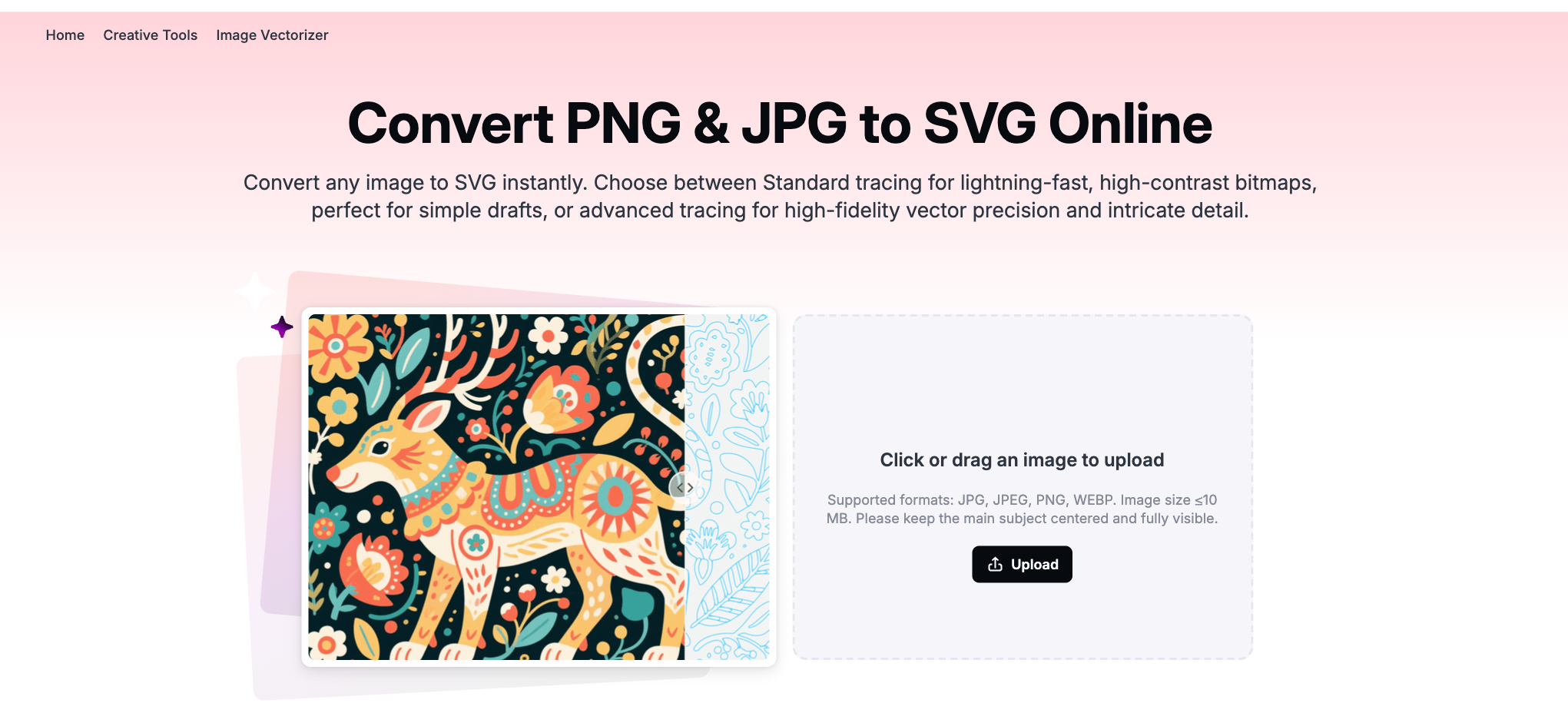
- Open Atomm Image Vectorizer and drag in your image.
- Choose Standard tracing for flat logos or Advanced for detailed art.
- Run the conversion and check the edges at a large zoom.
- Download the SVG — ready for design software, the web, or a cutting machine.
Method 2: How to Convert an Image to SVG with Vectorizer.AI
Vectorizer.AI is a dedicated AI tracer that outputs clean SVG, PDF, EPS, and DXF — a strong pick when you want the highest-fidelity trace of a image.

- Open Vectorizer.AI and upload your image.
- Let it auto-trace, then adjust the detail and color settings.
- Preview the vector result.
- Download as SVG (or DXF for cutting).
Method 3: How to Convert an Image to SVG with Vector Magic
Vector Magic is known for clean, full-color auto-tracing with a simple guided workflow, so it handles a image with a few colors well.

- Open Vector Magic and upload your image to the online tool.
- Choose automatic or step-by-step tracing.
- Review and fine-tune the vector preview.
- Download as SVG, EPS, or PDF.
Method 4: How to Convert an Image to SVG with SVGcode
SVGcode is a free, open-source browser app that vectorizes a image with adjustable color, speckle, and threshold controls — nothing to install.

- Open SVGcode and drop in your image.
- Adjust color mode, speckle suppression, and threshold.
- Preview until the outline is clean.
- Save the SVG.
Method 5: How to Convert an Image to SVG with Recraft
Recraft is an AI design tool with vectorization built in, so you can turn a image into a vector and keep refining it in the same workspace.

- Open Recraft and import your image.
- Use its vectorize / image-to-SVG option.
- Adjust the result and colors.
- Export the vector.
Tips for the cleanest result
- Start with the highest-quality image you have — more detail gives the tracer sharper edges to follow.
- Flat colors beat gradients — simple, solid-color art vectorizes most cleanly.
- Skip photographs — continuous-tone photos posterize; vectorizing is for logos, icons, and line art.
- Zoom in before you download — check the paths are smooth and closed, especially if you'll cut the file.
Need a format-specific guide? See PNG to SVG, JPG to SVG, or WEBP to SVG. To pull a design off a photo, see how to extract a design from an image.
Convert your image to SVG, freeUpload a image and Atomm's AI Image Vectorizer traces it into a clean, scalable SVG in seconds — no signup, no watermark.Try the Image VectorizerFrequently asked questions
How do I convert a PNG to SVG for free?
Use a free vectorizer such as Atomm's Image Vectorizer: upload the PNG, choose a tracing mode, convert, and download the SVG — all in the browser with no software. Free desktop options include Inkscape's Trace Bitmap. Simple, high-contrast images convert best.
Can you convert a JPG to SVG?
Yes. A vectorizer traces the JPG's pixels into vector paths and exports an SVG. Logos and line art convert cleanly; detailed photos are much harder because vectors can't reproduce photographic detail well. Increasing contrast and reducing colors first improves the result.
Does vectorizing work on photos?
Not well. Vectorizing is designed for flat graphics, logos, and line art, where clear edges become clean paths. Photographs have continuous tones and fine detail that don't translate to vector shapes, so the result usually looks posterized or messy. Use photos only when you want a stylized, simplified effect.
Why convert an image to SVG for laser cutting?
Laser cutters follow vector paths, so they need a vector file, not pixels. Converting your image to SVG gives the laser exact lines to cut, score, or engrave, and the SVG scales to any size without losing quality. It's a core step in preparing artwork for a laser or vinyl cutter.
What's the difference between Standard and Advanced tracing?
Standard tracing is fast and best for simple, high-contrast graphics like logos and icons. Advanced tracing takes longer but captures more detail with smoother edges and automatic noise removal, which helps on more complex images. Choose Standard for speed and Advanced for fidelity.
In short: converting an image to SVG means vectorizing it — turning pixels into scalable paths — and a free browser tool does it in seconds. Start with a clean, high-contrast image, pick the right tracing mode, and you'll have a sharp, laser-ready SVG ready to use anywhere.
