
Key Takeaways
- A magic eraser (object remover) uses AI inpainting to delete unwanted objects, people, text, or watermarks and rebuild the background behind them.
- For a fast, free online erase with no watermark, a browser tool like Atomm or Cleanup.pictures is the quickest route.
- Phone users often already have one built in - Google Magic Eraser (Google Photos) and Samsung AI Eraser are free on supported devices.
- For the cleanest results on complex scenes, Photoshop's Generative Remove leads; dedicated apps like TouchRetouch excel at wires and clutter.
What is a magic eraser?
A magic eraser (also called an object remover) is an AI tool that lets you brush over an unwanted object, person, blemish, text, or watermark and have it painted out — automatically rebuilding the background behind it so it looks like the thing was never there. Under the hood it uses AI inpainting: the model predicts what the hidden pixels should be from the surrounding image.
Once a Google Pixel exclusive, magic erasers are now everywhere — built into phones, standalone web apps, and full photo editors. People use them to delete tourists from vacation shots, wipe power lines from landscapes, and clean up clutter, logos, and watermarks in product photos. Quality and price vary a lot, though, so it pays to know the options.
We compared the best object removers of 2026 — here's which to use, and when. For the step-by-step, see our guide on how to remove objects from a photo.
1. Atomm
Best free online object remover
Atomm's magic eraser removes unwanted objects, people, or text from a photo right in your browser, with no watermark and no software to install. Upload a JPG, PNG, or WEBP (up to 10 MB), mark what you want gone, and the AI inpaints clean, natural-looking results in seconds - handy for tidying up product shots, travel photos, and screenshots.
Pros
- Free online, no watermark
- Removes objects, text, or people
- Natural AI inpainting in seconds
Cons
- Online only
- Best on simpler backgrounds
Atomm Magic Eraser: a fast, free object remover with no signup.
2. Google Magic Eraser
Best built into your phone
The one-tap eraser inside Google Photos, now free for everyone (no Google One needed). It auto-suggests distractions to remove and works cross-platform in an app most people already have - the easiest option for everyday phone cleanups.
Pros
- Free for everyone
- Auto-suggests distractions
- Built into Google Photos
Cons
- Basic control
- Photos app only
Google Magic Eraser: the easiest free eraser for everyday phone photos.
3. Cleanup.pictures
Best no-account browser tool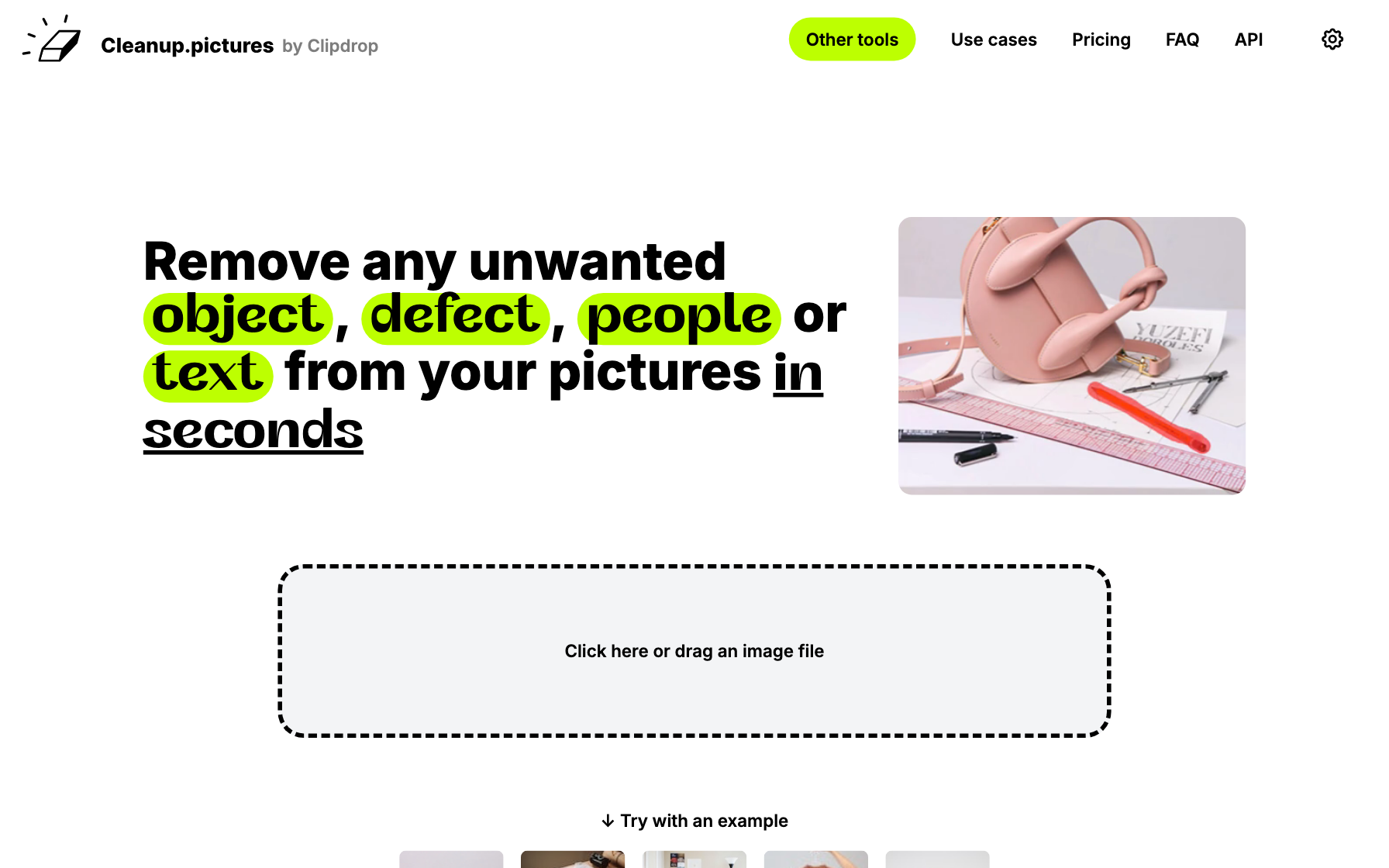
A dead-simple browser tool famous for fast, no-login object and text removal, with strong AI inpainting. The free tier caps export size, but for quick casual edits it's hard to beat for convenience.
Pros
- No login needed
- Fast in-browser inpainting
- Dead-simple to use
Cons
- Free export capped ~720px
- Pro needed for full res
Cleanup.pictures: the quickest no-account eraser for casual edits.
4. SnapEdit
Best object remover plus toolkit
An all-in-one AI photo editor with a heavily marketed one-click “remove anything,” bundled with an enhancer, background editing, and upscaling, plus generous daily free credits.
Pros
- One-click remove anything
- Bundled editing tools
- Generous free credits
Cons
- Free output watermarked
- Best features are paid
SnapEdit: a capable eraser plus a broader toolkit.
5. PhotoRoom
Best for product listings
An e-commerce-focused editor with strong background and object retouch tools, templates, batch workflows, and an API for scale - built for cleaning up product photos before they go live.
Pros
- Fast, accurate on products
- AI backgrounds & shadows
- Strong batch + API
Cons
- Free tier watermarks
- App-first workflow
PhotoRoom: the top pick for phone-shot product photos.
6. Samsung AI Eraser
Best for Galaxy phones
Samsung's built-in Galaxy AI eraser (renamed “AI Eraser” on newer models) lets you remove objects from the gallery with manual or automatic selection, included free in the Galaxy AI tier.
Pros
- Free on Galaxy devices
- Manual or auto selection
- Native to the gallery
Cons
- Galaxy phones only
- Not available elsewhere
Samsung AI Eraser: the built-in choice for Samsung Galaxy owners.
7. Adobe Photoshop
Best precision and quality
The professional standard, with an AI Remove Tool and Generative Fill for high-end inpainting and unmatched control inside a full editor. The Remove Tool is quick; Generative Fill uses monthly AI credits.
Pros
- Pixel-perfect manual control
- Handles the hardest edges
- Full pro editing suite
Cons
- Subscription only
- Steep learning curve
Adobe Photoshop: the pro standard when precision matters most.
8. Pixelcut
Best budget for sellers
A budget-friendly e-commerce editor bundling a magic eraser, background removal, and AI generation, with batch processing for catalogs at a very low entry price.
Pros
- Affordable Pro tier
- Quick batch removal
- AI backgrounds & upscaling
Cons
- Free tier is limited
- Prices vary by source
Pixelcut: the budget-friendly, on-the-go choice for sellers.
9. Fotor
Best free all-round editor
A popular general online editor with a free AI object and people remover, quick results, and a broad editing suite - some tools work with no signup.
Pros
- Removal inside a full editor
- Templates & retouching
- Free trial available
Cons
- Free tier limited
- Upsells throughout
Fotor: handy when you want removal plus general editing.
10. Inpaint (Teorex)
Best one-time purchase
A long-standing dedicated object and watermark remover available as a desktop app (one-time license) and web tool, with BatchInpaint for bulk jobs - good if you dislike subscriptions.
Pros
- One-time desktop license
- Purpose-built remover
- BatchInpaint for bulk
Cons
- Dated interface
- Web tool is pay-per-image
Inpaint (Teorex): the pick if you want removal without a subscription.
11. TouchRetouch
Best for wires and clutter
The go-to mobile app built entirely around removing distractions - excellent on wires, poles, and linear objects, with clean, reliable results in a focused workflow.
Pros
- Excellent on wires & poles
- Clean, reliable results
- Focused single-purpose app
Cons
- Mobile only
- Small learning curve
TouchRetouch: the best mobile app for lines and clutter.
12. PicWish
Best budget watermark removal
An e-commerce-leaning AI editor with a free object and watermark remover, a strong background remover, and a low-cost paid tier for HD and batch work.
Pros
- Free object & watermark remover
- Strong background remover
- Low-cost paid tier
Cons
- Free output not HD
- Watermarks on free
PicWish: a budget-friendly watermark and object remover.
How do they compare?
A quick side-by-side of all twelve object removers.
| Tool | Best for | Pricing | Platform |
|---|---|---|---|
| Atomm Magic Eraser | Free online object removal | Free to try | Web |
| Google Magic Eraser | Everyday phone cleanups | Free | iOS, Android |
| Cleanup.pictures | No-login quick edits | Free; Pro ~$5/mo | Web |
| SnapEdit | Removal + editing toolkit | Free; from ~$10/mo | Web, iOS, Android |
| PhotoRoom | Product-photo cleanup | Pro ~$7.50–$13/mo | Web, iOS, Android |
| Samsung AI Eraser | Galaxy phone owners | Free (Galaxy) | Samsung Galaxy |
| Adobe Photoshop | Pro-grade inpainting | Paid ~$19.99–$22.99/mo | Desktop + web |
| Pixelcut | Budget seller toolkit | Pro ~$8/mo | Web, iOS, Android |
| Fotor | Free all-round editing | Free; Pro tiers | Web + apps |
| Inpaint (Teorex) | No-subscription removal | One-time license | Desktop + web |
| TouchRetouch | Wires & clutter on mobile | ~$3–$4 one-time | iOS, Android |
| PicWish | Budget watermark removal | Pro from ~$4.99/mo | Web, iOS, Android |
Which magic eraser should you use?
Skip the comparison paralysis — here's the quick pick for your situation:
- You want free and fast in a browser, no signup → Atomm or Cleanup.pictures.
- You're on a Pixel or Android phone → Google Magic Eraser (built into Google Photos); on a Samsung, Samsung AI Eraser.
- You want the cleanest result on complex scenes → Adobe Photoshop (Generative Remove).
- You're erasing wires, poles, or clutter on mobile → TouchRetouch.
- You clean up product photos → PhotoRoom or Pixelcut.
- You need bulk or an API → PicWish; for precise desktop control, Inpaint.
Frequently asked questions about magic erasers
What is a magic eraser tool?
A magic eraser (or object remover) is an AI tool that deletes unwanted things from a photo - a photobomber, a trash can, a watermark, or text - and rebuilds the background behind them so the gap is invisible. You brush over or tap the object, and the AI “inpaints” the area using surrounding pixels and learned patterns. The name comes from Google's Magic Eraser, but the same feature now appears in many apps and websites under names like object remover, cleanup, or AI eraser.
What is the best free object remover?
For free online removal with no watermark, Atomm and Cleanup.pictures are excellent browser options, while Fotor offers a free web remover too. On phones, the best free tools are already built in: Google Magic Eraser (free in Google Photos for everyone) and Samsung AI Eraser (free on Galaxy devices). These handle most everyday jobs - stray objects, people in the background, small distractions - at no cost, though free web tiers may cap the export resolution.
Can you remove a watermark with a magic eraser?
Technically yes - object removers can erase watermarks and text, and tools like PicWish, Inpaint, and Photoshop do it well. Important caveat: you should only remove watermarks from images you own or have permission to edit. Removing a watermark from someone else's copyrighted photo to reuse it is copyright infringement. Use these tools on your own photos, your own product shots, or content you're licensed to modify.
How do object removers rebuild the background?
They use AI inpainting. When you mark an object for removal, the model analyzes the surrounding area - textures, colors, patterns, and lines - and generates new pixels to fill the gap so it blends with the rest of the scene. On simple, uniform backgrounds (a wall, sky, or grass) the result is usually flawless. On busy or highly detailed scenes the AI has to invent more, so results can vary, and touching up with a second pass or a more advanced tool like Photoshop sometimes helps.
