
Key Takeaways
- SVG to PNG goes the other way — it rasterizes a scalable vector SVG into a fixed-size pixel image (PNG).
- You do this when a platform doesn't accept SVG — social media, email, many marketplaces, and some apps only take PNG or JPG.
- Exporting is easy: open the SVG in a browser or editor and export as PNG at the size and resolution you need.
- Unlike vectorizing, this direction is lossless in quality but locks the image to one size — so export large.
SVG is the ideal format for scalable logos and icons — but it's also the format that gets rejected almost everywhere you actually want to use one. Upload an SVG to most social platforms, online marketplaces, email tools, or older apps and you'll hit an error, because they only accept raster images. When that happens, you need a PNG.
Converting an SVG to PNG “rasterizes” the vector — it renders those math-based paths into a fixed grid of pixels at a size you choose, with transparency preserved. The result uploads and displays anywhere and looks identical on every screen. Below we cover why and when you need a PNG, what the conversion requires, and five free ways to convert an SVG to PNG, from one-click online converters to a full editor.
Why Do We Need to Convert SVG to PNG?
An SVG is great for design, but a PNG is what the rest of the internet actually accepts. You convert when you need to:
- Upload anywhere — most social platforms, marketplaces, and email tools reject SVG but take PNG.
- Share and preview — documents, chats, and thumbnails need a flat raster image.
- Lock the look — a PNG bakes in the exact appearance, so there are no font or rendering surprises on other devices.
- Keep transparency — PNG supports a transparent background, so a logo stays cleanly cut out.
What Do We Need to Convert SVG to PNG?
It takes three things, all free:
- A source SVG — the vector file you want to rasterize.
- A converter — an online SVG-to-PNG tool, or a desktop editor like Photopea or Inkscape.
- Your target size — because an SVG has no fixed resolution, decide the pixel width and height you need (bigger renders sharper).
Method 1: How to Convert SVG to PNG with CloudConvert
CloudConvert is a reliable online converter that preserves transparency and lets you set the exact output size — a solid default for a quick, clean PNG.

- Open CloudConvert's SVG-to-PNG tool and select your SVG (or drop it in).
- Optional: open the settings to set the width, height, and background.
- Click Convert.
- Download your PNG.
Method 2: How to Convert SVG to PNG with Convertio
Convertio is a fast, no-frills converter with a generous free tier and support for dozens of formats besides PNG.

- Open Convertio and click Choose Files to add your SVG.
- Confirm the output is set to PNG.
- Click Convert.
- Download the finished PNG.
Method 3: How to Convert SVG to PNG with FreeConvert
FreeConvert adds an Advanced Settings panel where you can control resolution and background — handy when you need a specific pixel size.

- Open FreeConvert's SVG-to-PNG tool and upload your SVG.
- Open Advanced Settings to set the resolution or background if needed.
- Click Convert.
- Download the PNG.
Method 4: How to Convert SVG to PNG with SVGtoPNG.com
SVGtoPNG.com runs entirely in your browser — your files never leave your device — and handles batches of up to 20 SVGs at once.
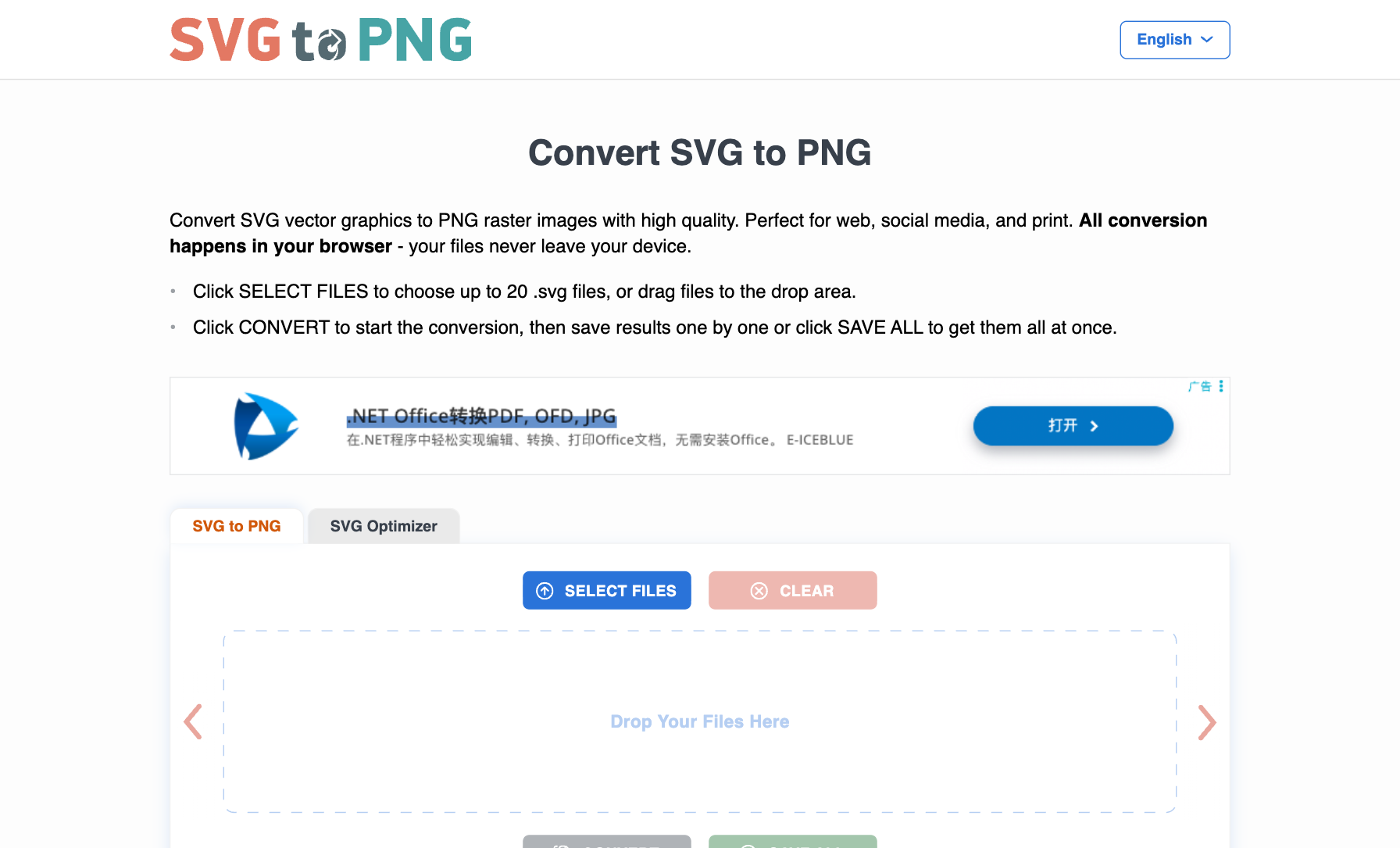
- Open SVGtoPNG.com and click Select Files (add up to 20 SVGs).
- Click Convert to process them locally.
- Review the results.
- Click Save All to download the PNGs.
Method 5: How to Convert SVG to PNG with Photopea
Photopea is a free, browser-based Photoshop alternative — the best choice when you want to set an exact export size or tweak the image before rasterizing.

- Open Photopea and use File → Open to load your SVG.
- When prompted, set the rasterization width and height you want.
- Edit if needed, then choose File → Export as → PNG.
- Set the final size and download.
Tips for a clean SVG-to-PNG export
- Set the size before converting. An SVG has no fixed resolution, so pick the pixel dimensions you actually need — larger renders sharper.
- Keep the background transparent if your SVG has none and you want a cut-out PNG.
- Export at 2× for large uses and scale down for the crispest result.
- Need the reverse? Turning a raster image back into a vector is a different job — see how to convert PNG to SVG, or use Atomm's Image Vectorizer.
Frequently asked questions
How do I convert an SVG to PNG?
Open the SVG in a web browser or a vector editor like Inkscape and export it as a PNG, choosing your output size first. Free online converters do it in one click too. Since you're turning paths into pixels, pick larger dimensions for a sharper PNG.
Why would I convert SVG to PNG?
Mainly for compatibility. SVG is great for scaling and editing, but many platforms — social media, email, marketplaces, and some apps — only accept raster formats like PNG. Converting to PNG gives you an image that displays reliably everywhere.
Does SVG to PNG lose quality?
The conversion itself is lossless, but the PNG is locked to the size you export. If you export it too small and later enlarge it, it will blur like any raster image. To avoid that, export at the largest size you might need, since you can scale a PNG down without loss but not up.
Can I keep a transparent background when converting SVG to PNG?
Yes. PNG supports transparency, so if your SVG has no background, make sure the export setting preserves transparency rather than adding a white fill. Most browsers, editors, and converters offer a transparent-background option when exporting to PNG.
What's the difference between SVG to PNG and PNG to SVG?
SVG to PNG rasterizes a vector into fixed pixels — simple and lossless, but no longer scalable. PNG to SVG vectorizes pixels into scalable paths — harder, and best for logos and flat graphics. One locks the size; the other restores scalability.
In short: converting an SVG to PNG rasterizes your scalable vector into a universally compatible image — ideal for social, email, and apps that reject SVG. Just remember to export large, because a PNG can't scale back up. And if you ever need scalability again, you can always vectorize the PNG back to SVG.
