
Key Takeaways
- An AI magic eraser removes unwanted objects, people, or clutter from a photo and rebuilds the background behind them automatically.
- You just brush over what you want gone — precision isn't required — and the AI inpaints the area to match its surroundings.
- It's free and works in the browser: no cloning, no layers, and no watermark on tools like Atomm.
- Best on fairly even backgrounds (grass, sky, walls, floors); very busy or detailed areas may need a quick touch-up.
A great photo is often one distraction away from perfect — a photobomber, a trash can, a power line, a stray reflection. An AI object remover fixes exactly that: you brush over the unwanted thing and the tool paints in what should be behind it. Here's how to remove objects and people from a photo for free, and how to get the cleanest possible result.
Why remove objects from a photo?
A single distraction can pull the eye away from an otherwise great shot. Removing it — rather than reshooting — saves time and rescues photos you can't take again. People do it to:
- Clean up product shots — erase clutter, cables, or reflections before listing an item.
- Remove photobombers — take a stranger or tourist out of a travel photo.
- Tidy real-estate photos — delete bins, cars, or clutter from a listing.
- Retouch portraits — remove blemishes, stray hairs, or background distractions.
- Fix screenshots — hide names, cursors, or private details before sharing.

How do I remove an object from a photo?
To remove an object from a photo, open an AI magic eraser like Atomm Magic Eraser, upload your image, and brush over the object, person, or clutter you want gone. The AI erases it and reconstructs the background automatically. Download the cleaned-up photo — the whole thing takes seconds and needs no editing skills.
What you'll need
No desktop software required — just:
- The photo with something you want to remove (JPG, PNG, or WEBP).
- A browser on any device.
- A free AI object remover such as Atomm Magic Eraser, which needs no account and leaves no watermark.
How to remove an object with Atomm Magic Eraser
Atomm Magic Eraser is a free, browser-based object remover with no account and no watermark. You brush over anything — a person, a sign, a blemish — and the AI inpaints the background behind it, so the edit is invisible on even surfaces like grass, sky, or walls.

- Open Atomm Magic Eraser and drag in your JPG, PNG, or WEBP.
- Brush a rough mask over the object — cover the whole thing plus a little margin.
- Run the erase; the AI reconstructs the background to match its surroundings.
- Zoom in, touch up any faint edge, and download — no watermark.
How to remove an object with Cleanup.pictures
Cleanup.pictures is a fast, no-login browser eraser from the ClipDrop team. The free tier works at a reduced resolution, which is perfectly fine for quick social edits.
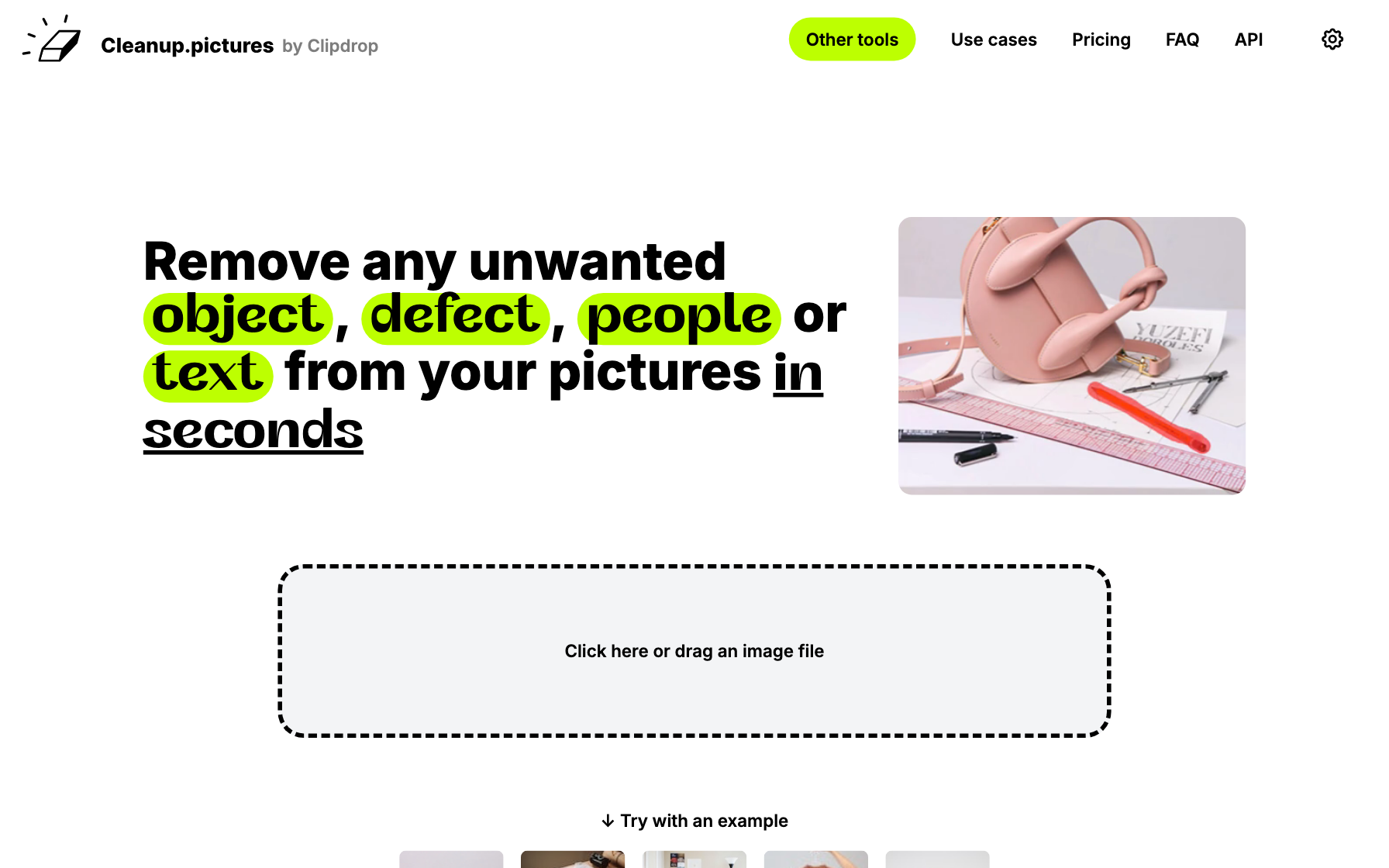
- Go to Cleanup.pictures and drop in your image.
- Set the brush size and paint over the object you want gone.
- The AI removes it and fills the background in a second or two.
- Download the result — upgrade for full-resolution exports.
How to remove an object with SnapEdit
SnapEdit is an AI photo editor with a strong one-click remover. Its auto-detection highlights removable people and objects for you, so you often don't even have to brush.

- Open SnapEdit's object remover and upload your photo.
- Use auto-select, or brush over the object manually.
- Let the AI erase it and rebuild the background.
- Download the cleaned image; a free account covers occasional edits.
How to remove an object with Pixelcut
Pixelcut is built for sellers and creators. Its magic eraser sits next to background tools and product-photo templates, and it works on both web and mobile.

- Open Pixelcut's Magic Eraser on web or in the app and add your image.
- Brush over the distraction you want removed.
- The AI clears it and reconstructs the background.
- Save the cleaned image, or keep styling it into a product shot.
How to remove an object with Fotor
Fotor bundles an object remover into a full online editor, so you can erase a distraction and then crop, retouch, or add effects without switching tools.

- Open Fotor's object remover and upload your photo.
- Brush over the item you want to delete.
- Apply to erase it and inpaint the background.
- Download, or continue editing in Fotor.
Tips for the best results
- Cover the whole object plus a little margin. Leaving a sliver behind is the top reason a removal looks unfinished.
- Work in passes. Remove one distraction, check it, then move to the next.
- Even backgrounds are easiest. Skies, walls, water, and grass rebuild almost perfectly; busy patterns are the hardest case.
- Zoom in to finish. A quick second brush over any faint ghosting takes the result from good to flawless.
- On a phone, the built-in erasers are excellent too — and removing text or a watermark uses the same idea (see how to remove text from an image).
What is the best way to remove an object?
All five rebuild the background automatically, so the best choice comes down to your device and what you do next. Here's who each tool is for — and for the full ranked list, see our best magic eraser roundup.
Choose Atomm Magic Eraser
The fastest free pick: brush and go, with no signup, no watermark, and clean background rebuilds on even surfaces like sky, grass, and walls.
Choose Cleanup.pictures
Best for quick, one-off edits in the browser; the free tier's reduced resolution is perfectly fine for social posts.
Choose SnapEdit
Best when you want the tool to find objects for you, thanks to auto-detection and one-click removal.
Choose Pixelcut
Best for sellers — erase clutter and keep styling the shot into a product image on web or mobile.
Choose Fotor
Best if you want to erase and then keep editing, cropping, retouching, and adding effects in the same place.
| Tool | Best for | Platform | Price |
|---|---|---|---|
| Atomm Magic Eraser | Fast, watermark-free erasing | Web | Free |
| Cleanup.pictures | Quick throwaway edits | Web | Free / paid HD |
| SnapEdit | Auto-detect, one-click | Web | Free / paid |
| Pixelcut | Product & seller photos | Web, iOS, Android | Freemium |
| Fotor | Erase then keep editing | Web, apps | Freemium |
What people use this for
An object remover comes in handy far more often than you'd expect — cleaning up marketplace listings, salvaging travel photos, tidying screenshots, prepping real-estate shots, and polishing portraits are all a few brush strokes away.
Erase anything from your photoRemove objects, people, text, or clutter in seconds with Atomm's free Magic Eraser — no signup, no watermark.Try the Magic EraserFrequently asked questions
How do I remove an unwanted object from a photo for free?
Use a free AI magic eraser such as Atomm Magic Eraser. Upload your photo, brush over the object you want gone, and let the AI erase it and rebuild the background. It works in the browser with no account and no watermark.
How do AI object removers fill in the background?
They use a technique called inpainting: the AI analyzes the pixels around the area you erased and generates believable content to fill the gap, matching textures like sky, grass, or a wall. That's why the removed object doesn't leave a blank hole.
Can I remove a person from a photo?
Yes. Brush over the person — including their shadow or reflection if visible — and the AI removes them and reconstructs the background. Results are cleanest when the area behind the person is fairly even, like a beach, field, or plain wall.
Why is there a faint outline where I removed something?
Usually the mask didn't fully cover the object's edge, or the background behind it was very detailed. Brush over the leftover area again, covering a little extra margin, and the AI will clean up the remaining trace.
Do free object removers add a watermark?
Some do, but not all. Browser tools like Atomm Magic Eraser and Cleanup.pictures let you download without a watermark, and phone tools like Google Magic Eraser are free too. Check the export step before you start if a clean, unmarked file matters.
