
![[Laser cut and engrave] Our Journey Customizable Map](https://image-res.atomm.com/resource/xtool/community/attachment/xtool-community/e2fa5547-0ac9-4c05-8eeb-ca4fb1f0fb23.jpg?x-oss-process=image/resize,m_fill,w_1280,h_960,limit_0/interlace,1/format,webp/auto-orient,1)
![[Laser cut and engrave] Our Journey Customizable Map](data:image/png;base64,iVBORw0KGgoAAAANSUhEUgAAAAoAAAAKCAYAAACNMs+9AAAAAXNSR0IArs4c6QAAABdJREFUKFNjZCASMBKpjmFUId6QIjp4AAppAAuXjCs4AAAAAElFTkSuQmCC)
![[Laser cut and engrave] Our Journey Customizable Map](https://image-res.atomm.com/resource/xtool/community/attachment/xtool-community/e2fa5547-0ac9-4c05-8eeb-ca4fb1f0fb23.jpg?x-oss-process=image/resize,m_fill,w_160,h_120,limit_0/interlace,1/format,webp/auto-orient,1)
![[Laser cut and engrave] Our Journey Customizable Map](https://image-res.atomm.com/resource/xtool/community/attachment/xtool-community/32c34fa9-4c1a-4349-8677-87187b29f573.jpg?x-oss-process=image/resize,m_fill,w_160,h_120,limit_0/interlace,1/format,webp/auto-orient,1)
![[Laser cut and engrave] Our Journey Customizable Map](https://image-res.atomm.com/resource/xtool/community/attachment/xtool-community/21f8b70f-9e19-4323-9f23-32b740738be5.jpg?x-oss-process=image/resize,m_fill,w_160,h_120,limit_0/interlace,1/format,webp/auto-orient,1)
![[Laser cut and engrave] Our Journey Customizable Map](https://image-res.atomm.com/resource/xtool/community/attachment/xtool-community/25519a53-ba5d-47fe-b573-7924f91ce484.jpg?x-oss-process=image/resize,m_fill,w_160,h_120,limit_0/interlace,1/format,webp/auto-orient,1)
Unsere anpassbare Reisekarte
 Anleitung


Information
Diese personalisierte Karte erzählt die Geschichte unserer gemeinsamen Reise und hebt die wichtigsten Lebensmomente hervor, die mein Mann und ich seit unserem ersten Treffen geteilt haben. Jedes Herz markiert ein bedeutendes Ereignis, nummeriert in der Reihenfolge, in der es stattfand, mit dem Stadtnamen daneben. Ein passender Kartenschlüssel erklärt jeden Meilenstein und schafft so eine schöne visuelle Zeitleiste unserer Beziehung. Dieses Stück kann individuell gestaltet werden, um Ihre eigene Liebesgeschichte und die Orte, die sie geprägt haben, zu zeigen.
Anleitung
Schritt1: Datei anpassen


Du kannst die Orts- und Ereignisdetails in der Datei anpassen. Sobald du die Datei geöffnet hast, verschiebe die grünen Herzen an deinen gewünschten Ort auf der Karte. Wähle ein Stadtlabel aus und klicke dann doppelt. Du kannst jetzt den Stadtnamen eingeben, den du hinzufügen möchtest. Mach dies mit jeder Stadt und bewege dich zum entsprechenden Herz. Du solltest die Kartentaste anpassen. Wähle das Kästchen aus und entgruppiere. Du kannst jetzt jede Zeile auswählen und den Text ändern. Es gibt zusätzliche Herzen und einen größeren Main-Key, falls du welche hinzufügen musst. Du kannst sie nach Bedarf anpassen. Wenn du die Größe der Kartentaste anpasst, stelle sicher, dass du die entsprechende Punktlinie anpasst oder löschst.
Schritt2: Prozessmaterial

Das Projekt verwendet 3-mm-Lindensperrholz. Schwarz ist geschnitten, Grün ist Schnitt, Lila und Blau ist graviert. Die blaue Schicht muss eine ziemlich leichte Gravur sein, und es sollte sicherstellen, dass sie zuerst graviert wird. Bearbeite dein Material.
Schritt3: Zusammenbauen


Leicht schleifen, falls nötig. Verwenden Sie eine dunkle Beize auf das Grundstück. Bei diesem Projekt wurde eine dunkle Walnussbeize verwendet. Kleben Sie den Rahmen fest. Verwenden Sie die Linien, um die Karte, den Kartenschlüssel und "unsere Reise" zu kleben. Jetzt kleben Sie jedes Herz an der richtigen Stelle anhand der Linien als Leitfaden. Beenden Sie mit einem Klarlack oder Polyurethan Ihrer Wahl.
Remixe



Das könnte Ihnen auch gefallen

USA wo wir schon waren


Halbtopographische Kartengravur der Vereinigten Staaten

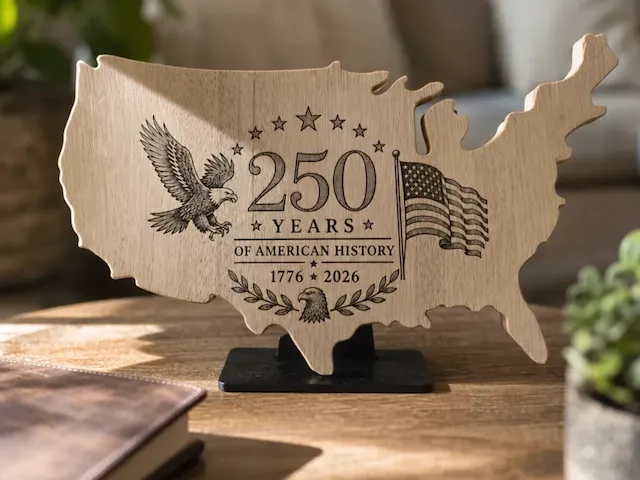
Tafelschild zum 250-jährigen Jubiläum der US-Karte


Karte der Nationalparks mit Laserschnitt aus Holz


USA-Karte zum Unabhängigkeitstag


Washington DC City Karte Wandkunst


"Oh, was für Orte du besuchst!" – Kanada-Karte

"Oh, die Orte, an die du gehen wirst!" – Europa-Kartengravur

Holzgravierte Karte von Australien mit den Namen der Bundesstaaten


Laser Cut Mehrschichtige Weltkarte 2 Wandkunst – 7 Schichten Weltkartendesign | 3D-Wanddekoration | XCS SVG DXF DWG KI-Dateien
.jpg?x-oss-process=image/resize,m_fill,w_80,h_80,limit_0/interlace,1/format,webp/auto-orient,1)

"American Icon" – Lasergravierter Bison auf massivem Ahorn

'/%3e%3c/g%3e%3cdefs%3e%3clinearGradient%20id='paint0_linear_1737_57170'%20x1='16.5097'%20y1='8.87061'%20x2='16.5097'%20y2='23.3945'%20gradientUnits='userSpaceOnUse'%3e%3cstop%20stop-color='%232E9AFF'/%3e%3cstop%20offset='1'%20stop-color='%233378FF'/%3e%3c/linearGradient%3e%3c/defs%3e%3c/svg%3e)
Ein Artefakt, das Orte zeigt, an denen sich Menschen verliebt haben.


Lasergeschnittenes Holz-Liebeszitat-Plakette mit Herzdekorationen


Entdecken Sie Australien – Sehenswürdigkeiten und Sehenswürdigkeiten Holzkarte | Laserschnitt


Bärenförmiger Holzausschnitt mit Berglandschaft und Kompasskarte


Weltkarte Weiße Oberschicht


Liste aller 50 Bundesstaaten mit Spitznamen, Daten und Illustrationen – lasergraviert


Lasergeschnittene mehrschichtige Weltkarten-Wandkunst – 7-schichtiges Weltkartendesign | 3D-Wanddekoration | XCS SVG DXF DWG KI-Dateien