![[Laser cut and engrave] Laser Cut Wooden Adjustable Ruler with Geometric Design](https://storage-us.atomm.com/resource/xart/result/739710/f1f97036-9f2f-4ae5-96f2-2f497e46ecca.png?x-oss-process=image/resize,w_1200,h_900,limit_0/interlace,1/format,webp/auto-orient,1)
Pre Air Filter Mount for xTool F2
 Instruction


Information
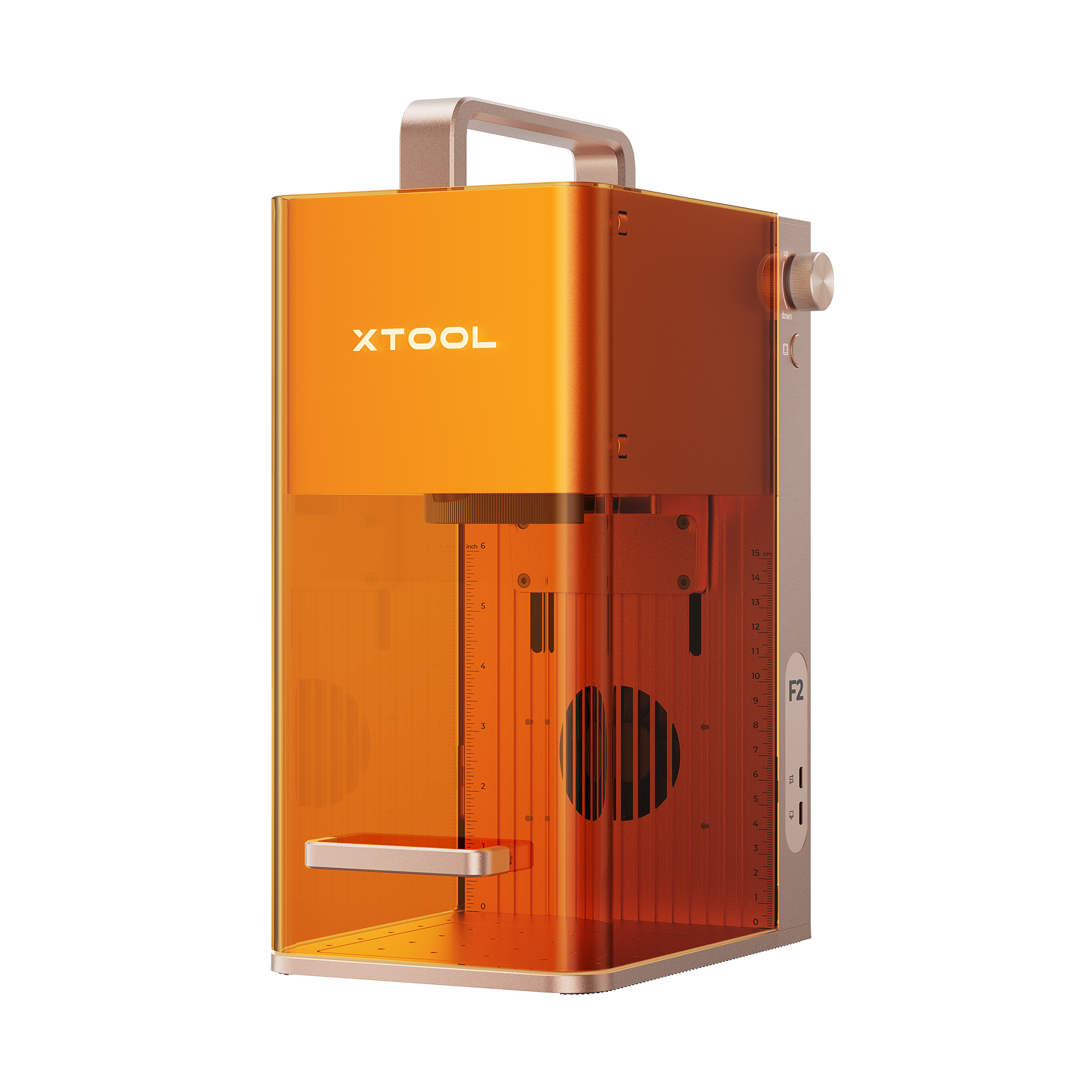
      Stylish magnetic mount to hold a pre filter material over exhaust fan intake. Prevents considerable amount of particulates from entering the fan and laser body. Can be cut on the F1 / F2 with materials you already have about the house.

Ideal for messy engravings, such as rubber stamps and embossed wood to prevent particles getting into your laser body.
Instruction
Step1

Download the files and open them in XTool studio.
I have included instructions in the file to accompany each item. Cut as many spaces as you need to match the thickness of your magnets and filter material. Swap out the logo / grill over the vent hole for your own design.
Step2


Once cut out, stack and glue the spacers either side, leaving a gap in the middle to hold the filter. You may need to test fit the magnets prior to glueing it together as I found the Xtool cuts a bevel on pieces further from the centre of your working area, so when you go to glue them flush with each other you may need to move the spaces inwards slightly so all 4 of the magnets make good contact to hold the filter in place. Notice the small spikes on the inner side to grip the filter.
Notice that the magnet holes are slightly closer to the bottom of the mount. When mounted properly, this should allow you to push the cutting accessory tray all the way back to maximise space in your laser.
Tip: If your filter is thick and the mount pops off, you can flatten your filter it in a book with some weights over night and will help compress it.
Step3


Once glued together, pop a filter in and attached it to the four black dots at the back.
Remember, lasers get hot… and we do not want a fire in our machine. If a project needs to cut close to the filter, just remove it for that project, do not risk it. The pre filter is only intended for those messy engravings that create lots of particles. I created this for use when making rubber stamps and deep wood embossings.
Always monitor your laser while it is in use and ensure good external extraction / air flow too as this modification may impact airflow of the stock F2 fan. When in use, I have my exhaust hose hooked up to my kitchen hob extractor which has no trouble pulling enough air through the charcoal pre filter.