
![[Laser cut and engrave] Rond de serviette, marque - place en bois avec une décoration de Noël](https://storage-us.atomm.com/resource/xtool/community/attachment/xtool-community/a98354e3-b00b-4524-8d66-aedf3b36916f.jpg?x-oss-process=image/resize,w_1200,h_900,limit_0/interlace,1/format,webp/auto-orient,1)
![[Laser cut and engrave] Rond de serviette, marque - place en bois avec une décoration de Noël](data:image/png;base64,iVBORw0KGgoAAAANSUhEUgAAAAoAAAAKCAYAAACNMs+9AAAAAXNSR0IArs4c6QAAABdJREFUKFNjZCASMBKpjmFUId6QIjp4AAppAAuXjCs4AAAAAElFTkSuQmCC)
![[Laser cut and engrave] Rond de serviette, marque - place en bois avec une décoration de Noël](https://storage-us.atomm.com/resource/xtool/community/attachment/xtool-community/a98354e3-b00b-4524-8d66-aedf3b36916f.jpg?x-oss-process=image/resize,w_200,h_150,limit_0/interlace,1/format,webp/auto-orient,1)
![[Laser cut and engrave] Rond de serviette, marque - place en bois avec une décoration de Noël](https://storage-us.atomm.com/resource/xtool/community/attachment/xtool-community/f2617047-2250-473b-953e-2bd3ff0198b4.jpg?x-oss-process=image/resize,w_200,h_150,limit_0/interlace,1/format,webp/auto-orient,1)
![[Laser cut and engrave] Rond de serviette, marque - place en bois avec une décoration de Noël](https://storage-us.atomm.com/resource/xtool/community/attachment/xtool-community/61813b47-a297-49ba-b850-8601fa6e46b8.jpg?x-oss-process=image/resize,w_200,h_150,limit_0/interlace,1/format,webp/auto-orient,1)
Rond de serviette, marque - place en bois avec une décoration de Noël
 Instruction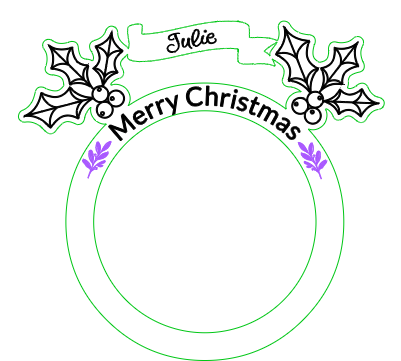


Information
      I've been fighting for 3 days with a cute napkin ring, which I can't finish, so which means it's complicated, so I decided to make a simpler version, so you can prepare; all the same your table plans, while waiting for me to finish the other round table.

I wanted to make you something to decorate your tables, so that it would be even more beautiful than it already is.
Instruction
Step1: Create a round


Create a circle at the size you want.
Step2: Outline the circle


Select the circle and go to outline, put the distance that suits you to have an outline, not too small or too big, it will look ugly otherwise.
I put a value of 2
Step3: Add the decorations


I chose the decorations on another site, so you take what you like too, do with what you see on xtool or on another site, as long as it's royalty-free or you have the rights.
When you take an image on another site, save it to your files, then import it and put it on your canvas, then click edit and trace.
This makes it trace the outline of your drawing.
Once the line is made, you can delete your image.
Place your holly trees where you want them, to place the second one, copy/paste.
Step4: Add the writings to the center of the circle


To put the text, click on text in the left bar, the word HELLO appears, edit the text, to put what you want.
I put merry christmas, choose your font, then place it in the center of the circle.
Step5: Addition of small decoration to cover the circle a little


Go to elements / plants, place them where you like, I chose to put them around the text. Duplicate your image and place it on the other side.
Step6: Uniting the contours


Select a holly tree and make an outline of 1.
Do the same on the other side, then select all the outlines (circle + holly), then click on unit.
To take the right elements, don't hesitate to put in non-visible, the elements you don't need.
Step7: Adding the label


I took the label from another site, so do as above.
Import the image onto your canvas, select it, click edit and then trace, which will trace the outlines, delete your image.
Put your vector wherever you want.
Be careful, the edges have to touch other edges, otherwise it's going to be cut separately.
Merge the label and the outline of the circle, to make a complete shape.
Step8: Add the first name

Follow the steps in step 4
Step9: Choose the right color of your layer according to what you want to do
I have 3 colors: 1) the cut
2) the deep
engraving 3) the simple engraving
Choose what you want to do and where you want it.
Step10: Set up your device

Set up your device and launch it
Step11: Collect your napkin ring
Collect your napkin ring, clean it, treat it and all you have to do is place it on your table, for a beautiful effect.
