
























![[Laser cut and engrave] Upgrade Your Bandsaw: Laser-Cut Inserts with Xtool S1](data:image/png;base64,iVBORw0KGgoAAAANSUhEUgAAAAoAAAAKCAYAAACNMs+9AAAAAXNSR0IArs4c6QAAABdJREFUKFNjZCASMBKpjmFUId6QIjp4AAppAAuXjCs4AAAAAElFTkSuQmCC)
![[Laser cut and engrave] Upgrade Your Bandsaw: Laser-Cut Inserts with Xtool S1](https://i.ytimg.com/vi/uG5VDjGhzug/hqdefault.jpg)
![[Laser cut and engrave] Upgrade Your Bandsaw: Laser-Cut Inserts with Xtool S1](/_nuxt/video_icon.B5w3Xr8w.png)
![[Laser cut and engrave] Upgrade Your Bandsaw: Laser-Cut Inserts with Xtool S1](https://storage-us.atomm.com/resource/xtool/community/attachment/xtool-community/d2c1d11e-dfa7-40ad-9646-26991522d6c6.png?x-oss-process=image/resize,w_200,h_150,limit_0/interlace,1/format,webp/auto-orient,1)
Upgrade Your Bandsaw: Laser-Cut Inserts with Xtool S1
 Instruction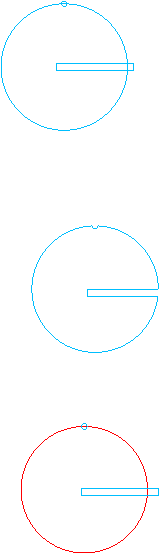


Information
      Want cleaner cuts and better support from your bandsaw? In this video, I’ll show you how to create a custom blade insert using the Xtool S1 laser cutter. I walk through how to adjust the free template so it fits your bandsaw perfectly—no guesswork, no fuss.

🔹 Step-by-step tutorial
🔹 Template customization tips
🔹 Compatible with most bandsaws
🔹 Free downloadable template included

Whether you're a weekend woodworker or a laser-cutting enthusiast, this quick upgrade will make your bandsaw work smoother and safer. Let’s dial in that precision!
Instruction
Step1
The first step is to measure the opening on your bandsaw table. This measurement can vary by manufacturer. I am creating this template for the Porter Cable 14-inch bandsaw. - I think this saw is discontinued.
Step2

Next, create a circle that matches the diameter of the opening of your bandsaw.
Step3

Add in a rectangle for the opening through which the blade will pass through. One end of this rectangle must extend out of the circle. Try to estimate the loation of the balde. You may need to adjust this later. - I started out with mine in the center of the circle.
Step4

Next use the subtract tool to remove the rectangle from the circle. Be sure to select the rectangle then the circle by holding “shift” on your keyboard. This will select both shapes. With both shapes selected, use the subtract tool to deduct the overlapping area.
Step5
Optionally you may want to cut out a notch at the top of the circle. Your bandsaw may or may not have this in the design.
Step6
Lastly, cut out the shape and test the fit. You may need to adjust the placement of the cut out to get the best fit.