Report
![[Laser cut and engrave] Small Business Payment Sign](https://image-res.atomm.com/resource/xtool/community/attachment/xtool-community/d3089ddd-6478-46ba-8be1-54e46c8cc07d?x-oss-process=image/resize,m_fill,w_1280,h_960,limit_0/interlace,1/format,webp/auto-orient,1)
![[Laser cut and engrave] Small Business Payment Sign](data:image/png;base64,iVBORw0KGgoAAAANSUhEUgAAAAoAAAAKCAYAAACNMs+9AAAAAXNSR0IArs4c6QAAABdJREFUKFNjZCASMBKpjmFUId6QIjp4AAppAAuXjCs4AAAAAElFTkSuQmCC)
![[Laser cut and engrave] Small Business Payment Sign](https://image-res.atomm.com/resource/xtool/community/attachment/xtool-community/d3089ddd-6478-46ba-8be1-54e46c8cc07d?x-oss-process=image/resize,m_fill,w_160,h_120,limit_0/interlace,1/format,webp/auto-orient,1)
![[Laser cut and engrave] Small Business Payment Sign](https://image-res.atomm.com/resource/xtool/community/attachment/xtool-community/ebeeac8e-e8c5-44fc-9eb9-f48a576762d1/C12531D1-AA87-4CDC-8A95-A58FAF55D9C2_1_201_a.heic?x-oss-process=image/resize,m_fill,w_160,h_120,limit_0/interlace,1/format,webp/auto-orient,1)
![[Laser cut and engrave] Small Business Payment Sign](https://image-res.atomm.com/resource/xtool/community/attachment/xtool-community/15406abe-931b-4ad3-8c75-cc7ff3e29a01/0EA0F0DF-6D19-4B3F-A10C-E6DDF049237B_1_201_a.heic?x-oss-process=image/resize,m_fill,w_160,h_120,limit_0/interlace,1/format,webp/auto-orient,1)
Small Business Payment Sign
 Instruction
ScanToPay
.xcs
Application scenario
Laser (30min)
Machine & module

xTool M1
10WCompatible xTool Machine
P3
F2
F2 Ultra UV
F2 Ultra(Single)
F2 Ultra
F1 Ultra
F1
F1 Lite
S1
P2S
P2
M1 Ultra
D1 Pro 2.0
D1 Pro
D1
Laserbox
M2
Material used

1/8"(3mm) Basswood Plywood

3mm Basswood Plywood

517
4104
Information
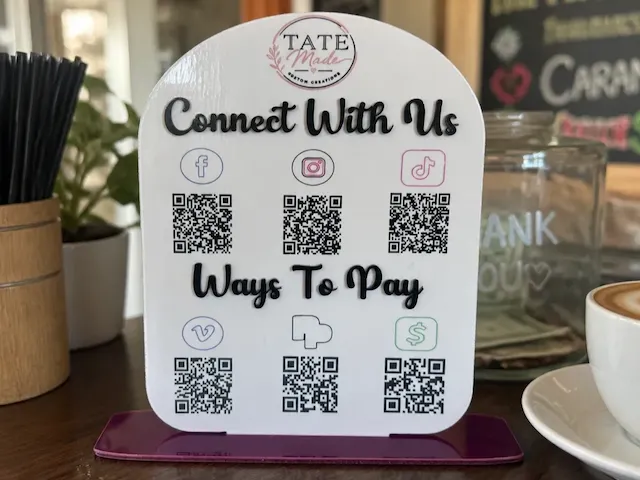
Do you attend a lot of fairs or famers markets and need an easy way to show your customers how to pay you? Here's a simple sign that can be displayed at your stand. You can insert your venmo, pay pal, cashapp or any other services that uses a payment code.
Instruction
1
Step1: Design

Preview

Preview
- Start by adding two shapes the half circle and the rounded rectangle
- Flip the half circle 180 degrees
- bring the half circle to slightly overlap the rectangle
- Select both objects and unite them on the right side panel
- Select the object and set it to “cut”
- Add your business name at the bottom and size it to your liking
- Select the object, right click and paste outside of the object
- Set the pasted object to “cut”
- Select the object, right click and paste outside of the object
- Add text at the top of your project that says “scan” this will be scored
- make a copy and paste off to the side outside of your project
- set that one to “cut”
- Add another text under can smaller that says "to pay""
- set to engrave
- make a copy and paste off to the side outside of your project
- import your pay code from your venmo (payl pal or cashapp)
- set to engrave
- DO NOT MAKE THIS A DEEP ENGRAVING. THE PHONE WILL NOT READ YOUR CODE.
- set to engrave
- Add a smaller rectangle the bottom of your object over lap it and weld"
- You dont want it too thick, this is the piece that will go into your base.
NOTE: After you cut your project use your digital calipers to measure you length and width of the smaller rectangle that sticks out.
Use those measurements to create another rectangle that place inside the base. Align this dead center of the base.
2
Step2: Laser

Preview
- Auto measure your material
- Send everything but the base to the laser
- After you cut your project use your digital calipers to measure you length and width of the smaller rectangle that sticks out.
- Use those measurements to create another rectangle that place inside the base. Align this dead center of the base.
3
Step3: Paint & Assembly

Preview

Preview

Preview
- Paint your letters
- Glue your letters inside the scored lines
- Glue your two bases together
Comments
Remixes




You may also like

Branding Social Media QR Code Display Stand (customizable)

38
175


Tabletop Payment Sign

6
39

Rattan Social Media Sign

178
964

Payment sign

48
159

Wooden Instagram QR Code Social Media Display Sign

1
47

QR CODE SUPPORT

0
1

Counter display with QR codes and social media
52
316

$1.99
$1.99
Credits199
WiFi Signs LAser Cut Bundle. Decorative Signs. Wooden Design. Office Decor

1

Payment POS Kiosk

0
7

Hablador - Sign
4
91

Goose's Barber Shop Wooden Payment QR Code Sign

2
21

QR codes

0
13

Payment Options QR Code and NFC Sign for Business

0
6

Tip The Graduate Sitter

2
12

QR code engrave

0
1

Enterprise Panel
2
21

MINI Square Reader Holder

29
101

Wedding sign with QR code for photo upload and memories #2026weddingcontest

23
82