











































舉報
![[Laser cut and engrave] EZ Color Engraved Art with xTool Studio](https://storage-us.atomm.com/resource/xtool/community/attachment/xtool-community/cfdd39da-03db-4759-9a69-b03cca25bef9.jpg?x-oss-process=image/resize,w_1200,h_900,limit_0/interlace,1/format,webp/auto-orient,1)
![[Laser cut and engrave] EZ Color Engraved Art with xTool Studio](data:image/png;base64,iVBORw0KGgoAAAANSUhEUgAAAAoAAAAKCAYAAACNMs+9AAAAAXNSR0IArs4c6QAAABdJREFUKFNjZCASMBKpjmFUId6QIjp4AAppAAuXjCs4AAAAAElFTkSuQmCC)
![[Laser cut and engrave] EZ Color Engraved Art with xTool Studio](https://storage-us.atomm.com/resource/xtool/community/attachment/xtool-community/cfdd39da-03db-4759-9a69-b03cca25bef9.jpg?x-oss-process=image/resize,w_200,h_150,limit_0/interlace,1/format,webp/auto-orient,1)
![[Laser cut and engrave] EZ Color Engraved Art with xTool Studio](https://storage-us.atomm.com/resource/xtool/community/attachment/xtool-community/763b00ca-f510-4d26-ac34-6baf12dc95d4.png?x-oss-process=image/resize,w_200,h_150,limit_0/interlace,1/format,webp/auto-orient,1)
![[Laser cut and engrave] EZ Color Engraved Art with xTool Studio](https://storage-us.atomm.com/resource/xtool/community/attachment/xtool-community/fad48eed-b789-4e09-bb73-82cf85bd3ae2.jpeg?x-oss-process=image/resize,w_200,h_150,limit_0/interlace,1/format,webp/auto-orient,1)
EZ 彩色雕刻藝術與 xTool Studio 合作
 教程
教程
Iguana-ColorExample
.xcs
應用場景
激光加工
機器與模組

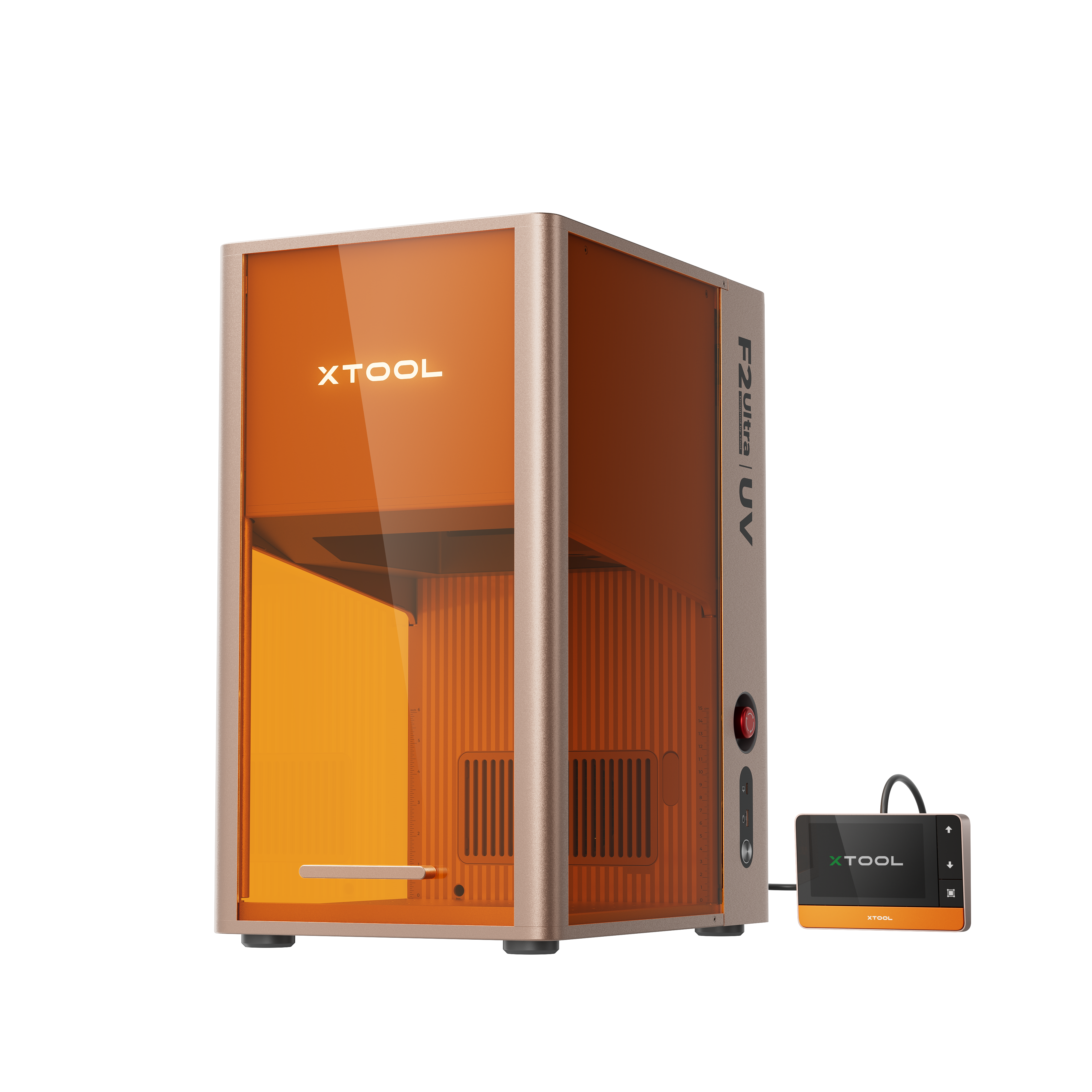
xTool F2 Ultra UV
5W兼容的 · 10
使用的材料

304不銹鋼
11
372
教程
1
步驟1: 建立一個色彩測試格。

預覽
測試格子就是你的色彩調色盤。在 Atomm 上搜尋「F2 UV Color Grid」就能找到範例。
對於 F2 Ultra UV 在 304 不鏽鋼上,應該能有不錯色彩變化的設定有:功率 70%、速度 425 mm/s、兩遍、交叉陰影、頻率介於 40-80 kHz 以及 300-800 LPC。
2
步驟2: 匯入你的圖片。

預覽
在 xTool Studio 建立一個新的專案分頁。匯入你想要上色雕刻的圖片。
將材料設定設為未知材料。你會建立自己的自訂設定。
3
步驟3: 選擇你的圖片並點擊描摹。

預覽
Trace 工具用於從點陣圖影像建立向量路徑。xTool 的雷射設定在向量圖與點陣圖上不同,我們會將影像向量化以準備雕刻。
4
步驟4: 按顏色分層。

預覽
在描摹影像框中,選擇自動描摹與顏色分層。
將滑桿移向左會增加向量圖層的複雜度。嘗試不同的模糊閾值、去噪和平滑度設定,直到滿意為止。
5
步驟5: 將描圖與影像分離。

預覽
點擊你建立的描圖,然後把它從原始圖片拖遠。你現在可以刪除原始圖片,因為我們不會雕刻它。
6
步驟6: 選擇雕刻模式。

預覽
點選色彩描摹,選擇雕刻來填滿向量路徑。
7
步驟7: 為每個顏色圖層套用設定。

預覽
選擇一個色彩圖層(xTool Studio 左下角),然後套用該圖層的設定。設定將決定該部分影像的顏色。
對每個色彩圖層重複
此步驟。你可以參考你之前準備的測試格子,或是在顏色上加入一些隨機性,讓它更具驚喜感。
8
步驟8: 失焦。

預覽
色彩雕刻的秘訣是透過將雷射升高至焦平面以上來失焦。
你可以依照你在測試格子上做的偏焦量來對焦,或者如果你選擇了隨機色彩設定,試著在厚度設定中加3-4毫米。例如,如果自動對焦設定厚度為 2 毫米,則在厚度框中改成 6 毫米。
你是在增加厚度設定,讓雷射升得更高,聚焦在材料上方。
9
步驟9: 流程>開始>等等>哇!

預覽

預覽
當你為每個顏色層設定好,並且雷射也散焦後,就可以開始雕刻了。
恭喜你!你只靠創意、xTool Studio 和科學,設計並完成了一幅金屬彩色雕刻。
別忘了在下方留言區展示你色彩繽紛的作品。
評論
二創
此案例中使用的 xTool 设备

相關集合


相關標籤
許可證

本作品包含人工智能生成的內容。