
Key Takeaways
- Image-to-image AI takes one picture as input and generates new versions of it — a “picture from a picture” — instead of starting from a blank text prompt.
- A variations tool keeps your photo's composition and subject, then reworks the look: lighting, color palette, and style.
- Some tools need no text prompt at all — you upload an image and get instant alternatives to choose from.
- It's ideal for exploring options fast: social posts, product angles, and design directions — not for changing what's actually in the shot.
“How do I generate a picture from a picture?” is one of the most common AI-image questions — and the answer is image-to-image (img2img). Instead of describing an image in words, you feed the AI a photo you already have and it generates fresh versions of it. This guide explains how image-to-image works, how to create variations of a photo step by step, and when to use it versus a text prompt.
What is an image variation?
An image variation is a new version of an existing image, generated by AI. Instead of starting from a blank canvas and a text prompt, you hand the AI a picture and it produces alternatives that keep the subject or composition recognizable while changing details — lighting, color, angle, style, or background. It's the simplest form of image-to-image generation: one image in, several fresh takes out.
Why use image-to-image generation?
Starting from an image is often faster and more controllable than describing what you want in words. It lets you:
- Get more options from one shot — explore looks without another photoshoot.
- Restyle without redrawing — turn a photo into art, or a sketch into a render.
- Keep a consistent subject — hold the composition while you change the mood.
- Iterate on a concept — nudge a design toward what you had in mind.
- Rescue a so-so photo — better lighting, cleaner background, sharper style.
How do I generate a picture from a picture?
To generate a picture from a picture, use an image-to-image AI tool: upload your photo and let the AI create new versions based on it. With a variations tool like Atomm AI Image Variations, you don't even need a text prompt — upload one image, generate multiple alternatives with different lighting, colors, and styles, and download the ones you like.
What you'll need
You don't need any design skills — just:
- One source image — a JPG, PNG, or WEBP, with the main subject centered and fully visible.
- A browser on any device.
- An image-to-image tool such as Atomm AI Image Variations, which generates variations with no prompt required.
How to generate variations with Atomm AI Image Variations
Atomm AI Image Variations is a free, browser-based tool that creates fresh takes on one image with no prompt required — upload a photo and get multiple alternatives in different lighting, colors, and styles.

- Open Atomm AI Image Variations and upload your JPG, PNG, or WEBP.
- Click generate — no prompt needed.
- Review the set of variations it produces.
- Download the ones you like, or generate another batch.
How to generate variations with Adobe Firefly
Adobe Firefly offers image-to-image with a reference image and commercially safe output — a good fit for brand and client work, right in the browser.
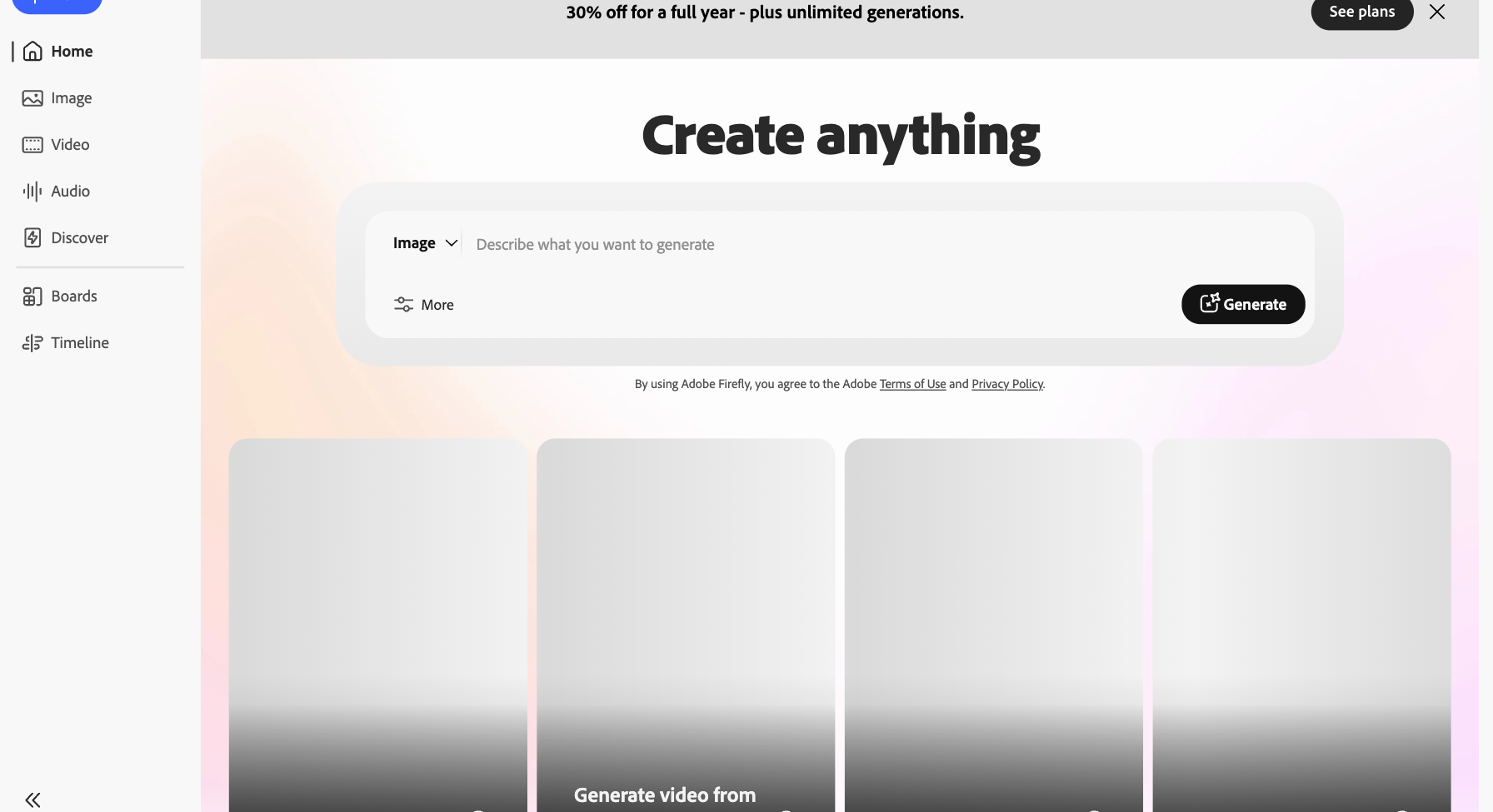
- Open Adobe Firefly and choose the Image or generative option.
- Upload your image as a reference and add a short prompt describing the change.
- Click Generate and compare the variations.
- Download your favorite — results are safe for commercial use.
How to generate variations with Stable Diffusion
Stable Diffusion is free and open-source, with an image-to-image mode that lets you control exactly how far a variation strays from the original.

- Open the Stable Diffusion image generator and switch on the reference image option.
- Upload your source image and add a prompt.
- Set how strongly it follows the original — low keeps it close, high changes more.
- Generate, then download the versions you want.
How to generate variations with Fotor
Fotor runs its image-to-image generator inside a full online editor, so you can create a variation and then crop, retouch, or restyle without switching tools.

- Open Fotor's AI Image Generator and add your image as a reference.
- Describe the variation you want in the prompt box.
- Click Generate and browse the results.
- Download, or keep editing the winner in Fotor.
How to generate variations with Pixlr
Pixlr is a quick, browser-based generator that accepts a reference image and prompt — a lightweight option when you just want a few fast alternatives.

- Open Pixlr's AI Image Generator and add your reference image.
- Type a prompt for the look you want.
- Pick a model and aspect ratio, then generate.
- Download the variations you like.
What is the best way to generate image variations?
All five turn one image into new versions — they differ in how much you steer the result and whether you need a prompt. Here's who each is for; for the full ranked list, see our best image-to-image generators roundup.
Choose Atomm AI Image Variations
Best for quick variations with zero effort — upload and generate, no prompt, free.
Choose Adobe Firefly
Best for commercially safe results and brand work, using a reference image plus a prompt.
Choose Stable Diffusion
Best for maximum, free control over how far the variation strays from the original.
Choose Fotor
Best if you want image-to-image inside a full editor so you can keep refining.
Choose Pixlr
Best for a quick, lightweight browser generator with reference images.
| Tool | Best for | Prompt needed? | Price |
|---|---|---|---|
| Atomm AI Image Variations | Quick variations, zero effort | No | Free |
| Adobe Firefly | Commercially safe, brand work | Yes | Freemium |
| Stable Diffusion | Full control, open-source | Yes | Free |
| Fotor | Image-to-image in an editor | Optional | Freemium |
| Pixlr | Quick browser generator | Yes | Freemium |
Tips for better variations
- Start with a clear source image — a centered, well-lit subject gives the AI more to work with.
- Generate in batches and keep only the best; it's a numbers game.
- On prompt-based tools, change one thing at a time so you can tell what worked.
- Want to change just the background instead of the whole image? See how to change the background of a photo.
What people use this for
Image-to-image variations power product-photo options, social content, concept art and mood exploration, style transfers, and quick “what if” experiments — all from a single starting image.
Generate image variations, freeUpload one photo and let Atomm's AI create fresh variations in seconds — no prompt, no signup, right in your browser.Try AI Image VariationsFrequently asked questions
How do I generate a picture from a picture?
Use an image-to-image (img2img) AI tool: upload your source photo and let the AI generate new versions based on it, rather than typing a text description. With a variations tool like Atomm AI Image Variations, you upload one image and get multiple alternatives instantly, with no prompt needed.
What is image-to-image AI?
Image-to-image AI takes an existing image as its main input and produces a new image from it — restyling, creating variations, or transforming it — instead of generating from a blank text prompt. It keeps aspects of the original, such as composition or subject, while changing the look.
Do I need a text prompt to create image variations?
Not always. Some tools, including Atomm AI Image Variations, analyze your uploaded image automatically and generate variations with no prompt at all. Other image-to-image tools let you add a prompt or style settings for more control, but a prompt isn't required to get started.
Will image-to-image change what's in my photo?
A variations tool mainly changes the style — lighting, color, and artistic feel — while keeping the composition and subject. To actually change what's in the image, such as swapping an object or background, you'd use a generative edit or background tool instead.
Is generating image variations free?
Yes, there are free ways to do it. Atomm AI Image Variations lets you generate variations in the browser, and several other tools offer free tiers or credits. Paid plans add higher resolution, more control, and faster or unlimited generation.
