신고
![[Laser cut and engrave] Laser Cut Magnetic Bookmark Jig with Leather Samples](https://storage-us.atomm.com/resource/xtool/community/attachment/xtool-community/da742017-f719-4af2-bb9a-69c09d9fd7bb.jpg?x-oss-process=image/resize,w_1200,h_900,limit_0/interlace,1/format,webp/auto-orient,1)
![[Laser cut and engrave] Laser Cut Magnetic Bookmark Jig with Leather Samples](data:image/png;base64,iVBORw0KGgoAAAANSUhEUgAAAAoAAAAKCAYAAACNMs+9AAAAAXNSR0IArs4c6QAAABdJREFUKFNjZCASMBKpjmFUId6QIjp4AAppAAuXjCs4AAAAAElFTkSuQmCC)
![[Laser cut and engrave] Laser Cut Magnetic Bookmark Jig with Leather Samples](https://storage-us.atomm.com/resource/xtool/community/attachment/xtool-community/da742017-f719-4af2-bb9a-69c09d9fd7bb.jpg?x-oss-process=image/resize,w_200,h_150,limit_0/interlace,1/format,webp/auto-orient,1)
![[Laser cut and engrave] Laser Cut Magnetic Bookmark Jig with Leather Samples](https://storage-us.atomm.com/resource/xtool/community/attachment/xtool-community/94a92eae-4179-4785-89c9-e40c8ef3faa7.jpg?x-oss-process=image/resize,w_200,h_150,limit_0/interlace,1/format,webp/auto-orient,1)
마그네틱 북마크 지그
 지침
지침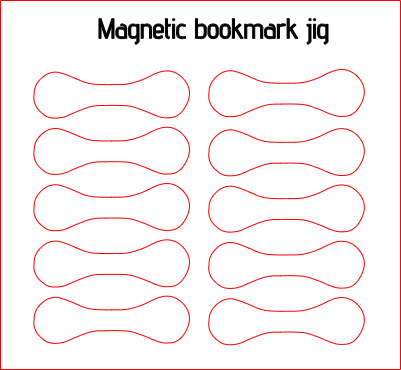
MagneticBookmarkJig
.xcs
2개 더 보기
응용 시나리오
레이저 가공
기계 및 모듈

xTool S1
20W호환되는 · 13
사용된 재료

3mm 자작나무 합판
36
607
지침
1
단계1: 마그네틱 북마크 지그 - 어떻게 탄생했는가

미리보기
자석 북마크에 쓸 지그를 찾고 있었는데 못 구해서 직접 만들기로 했어요. 디자인 정렬과 레이저 베드 정렬을 돕기 위해 책갈피보다 약간 크게 만들었습니다.
2
단계2: 내가 디자인한 방식
가장 먼저 한 일은 북마크 사진을 찍어 xTool Studio에 가져온 것이었습니다.
그 후 이미지를 편집해 배경을 제거하고, 이미지를 한 개의 북마크로 잘라낸 뒤 이미지를 따라 그리기로 했습니다. 이미지를 따라 그린 후, 원본을 작업 공간에서 제거했습니다.
3
단계3: 크기 및 설계 완성

미리보기
캘리퍼스로 북마크를 재고 디자인 크기를 맞추고 몇 밀리미터를 더했습니다. 크기를 정한 후에는 원하는 지그 크기에 맞는 격자 배열을 추가했습니다. 저는 여러 가지 지그를 사용하고 있는데, 필요할 때 샤피를 찾을 수가 없어서 지그 이름을 새기기로 했습니다.
슬롯 컷 설정은 0.15 커프를 추가하고 나머지 설정은 재료 설정에서 그대로 유지했습니다. 외부 컷은 커프 없이 재질 설정을 사용합니다.
조각 설정에서는 cm당 라인을 220으로 바꿨습니다. 이 표준은 대부분의 조각 작업에 사용합니다.
댓글