
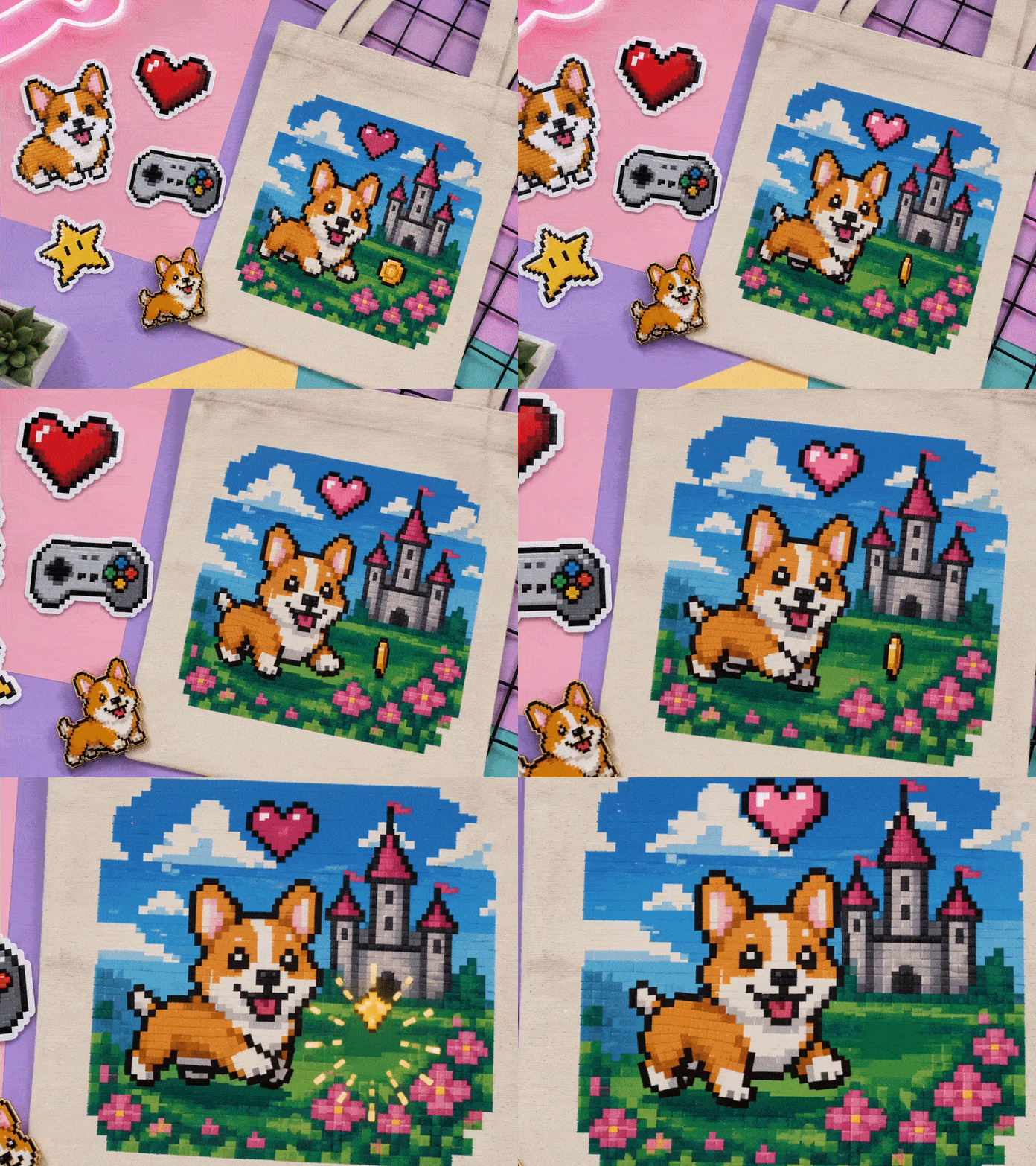

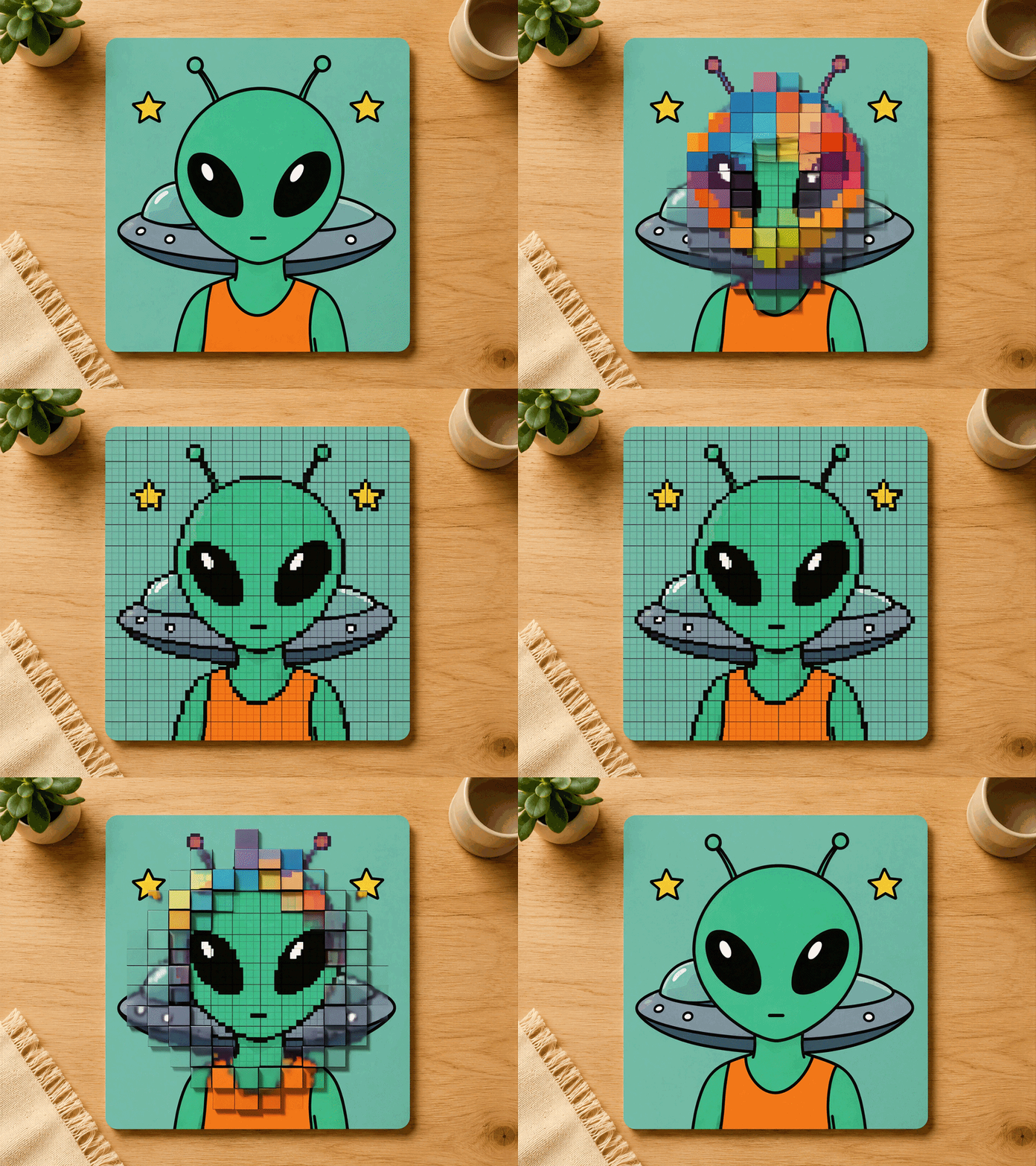


Generatore di Pixel Art
Trasforma una foto in pixel art davvero stampabile: imposta la larghezza in millimetri, scegli i DPI ed esporta un PNG esattamente di quella misura.

Descrizione
Trasforma una foto, un disegno o un logo in pixel art — poi stampalo a grandezza naturale.
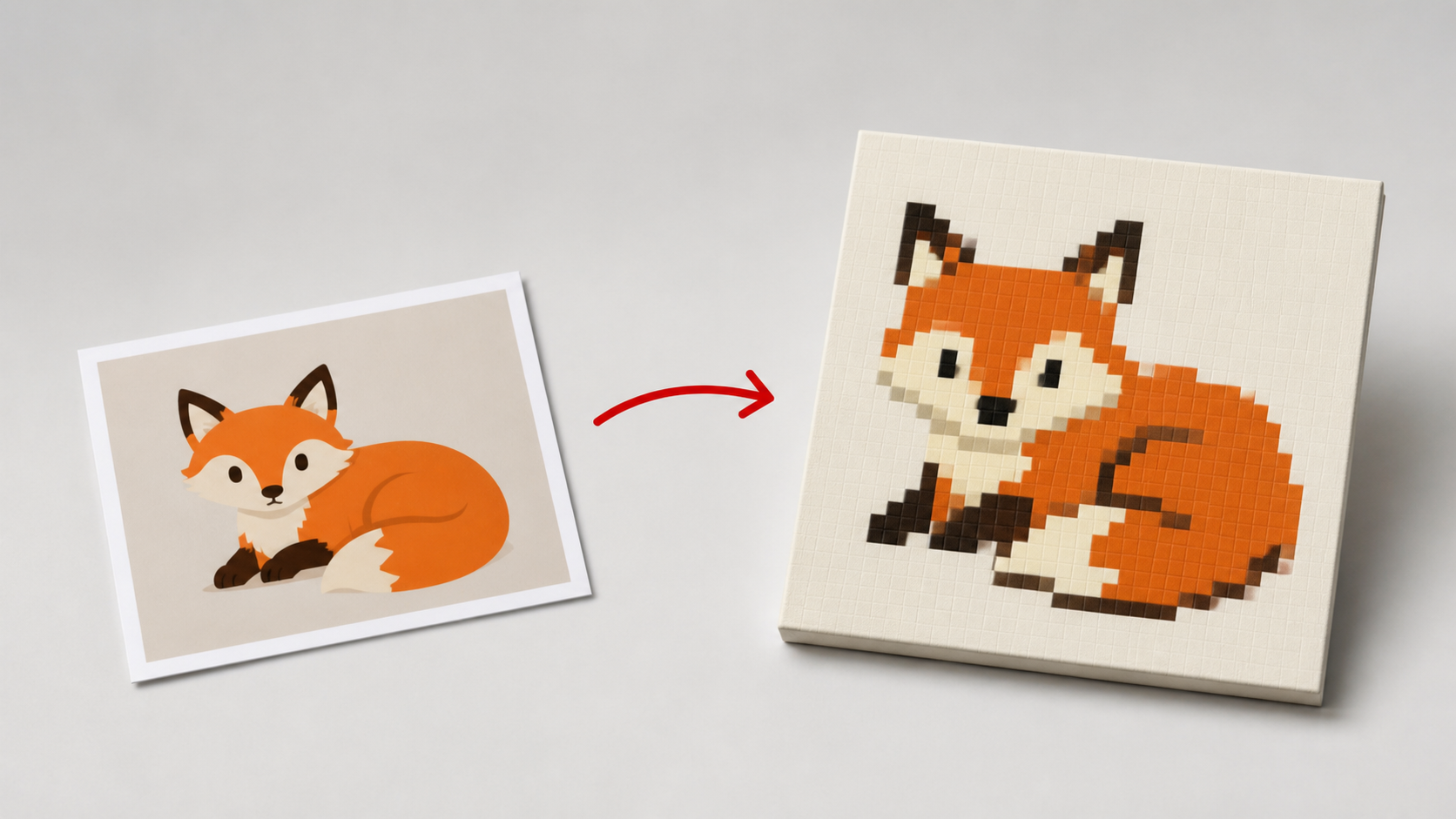
La maggior parte dei convertitori di pixel art e dei creatori di pixel art si ferma a un PNG di dimensioni sconosciute. Questo inizia dalle dimensioni. Imposti la larghezza di stampa in millimetri (20–1000 mm) e il DPI (300, 450 o 600), e l'esportazione è un PNG la cui risoluzione e densità di stampa incorporata corrispondono esattamente a quella larghezza. Ciò che imposti è ciò che esce dalla stampante.
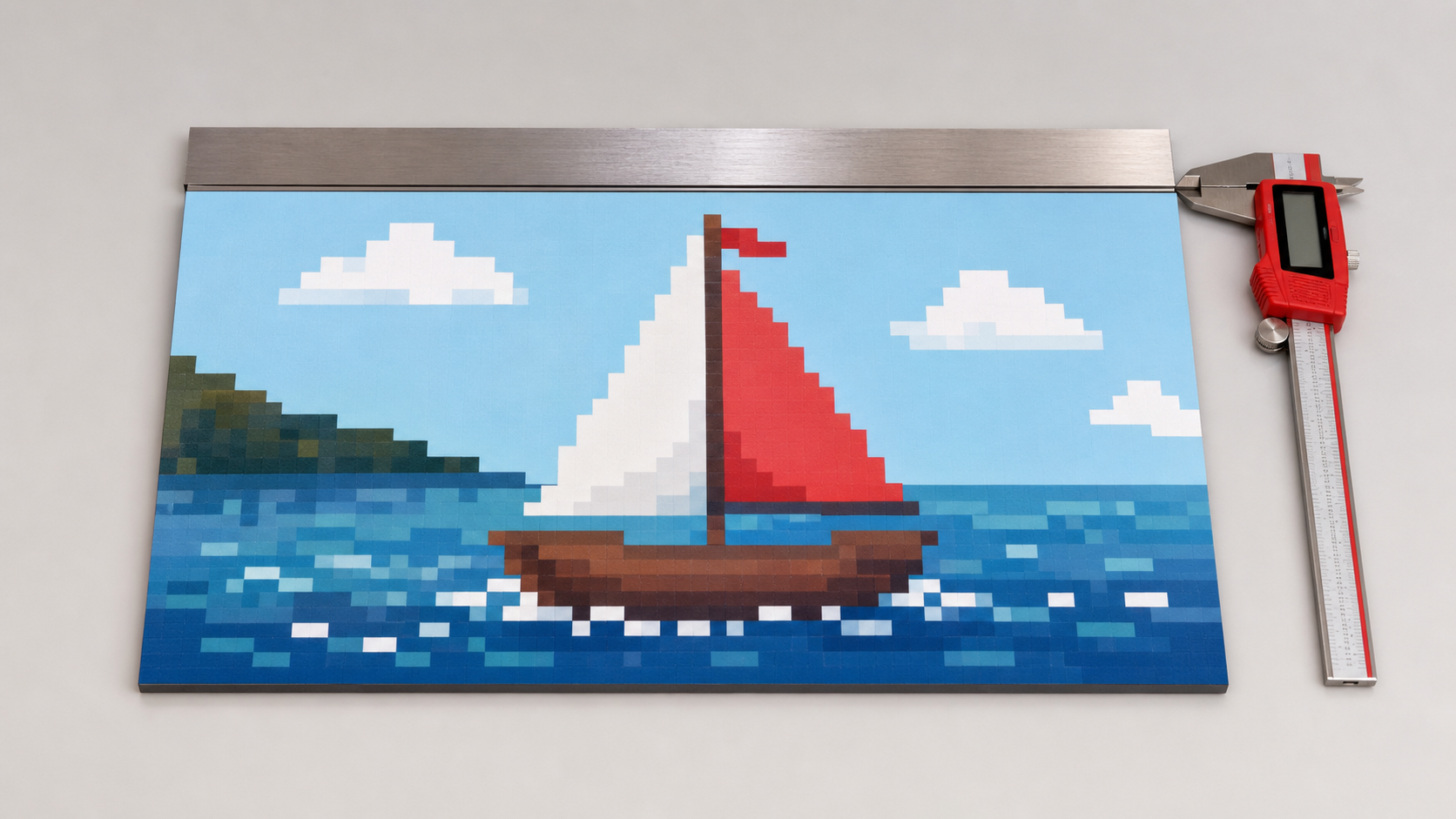
Come la tua foto diventa pixel art
Inserisci un'immagine e legge prima l'opera d'arte — colore piatto, illustrazione o foto — e imposta il conteggio delle celle, la palette e il dithering di conseguenza. Regola da lì:
- Celle in larghezza: 16–256, con la dimensione della cella risultante mostrata in mm mentre trascini
- Colore: 2–32, mappato su una palette che puoi vedere
- Contorno nero e griglia visibile, entrambi opzionali
- Dither con forza regolabile per gradienti
- Sfocatura, gamma, luminosità, contrasto e saturazione sull'immagine sorgente
- Ritaglia automaticamente i bordi trasparenti
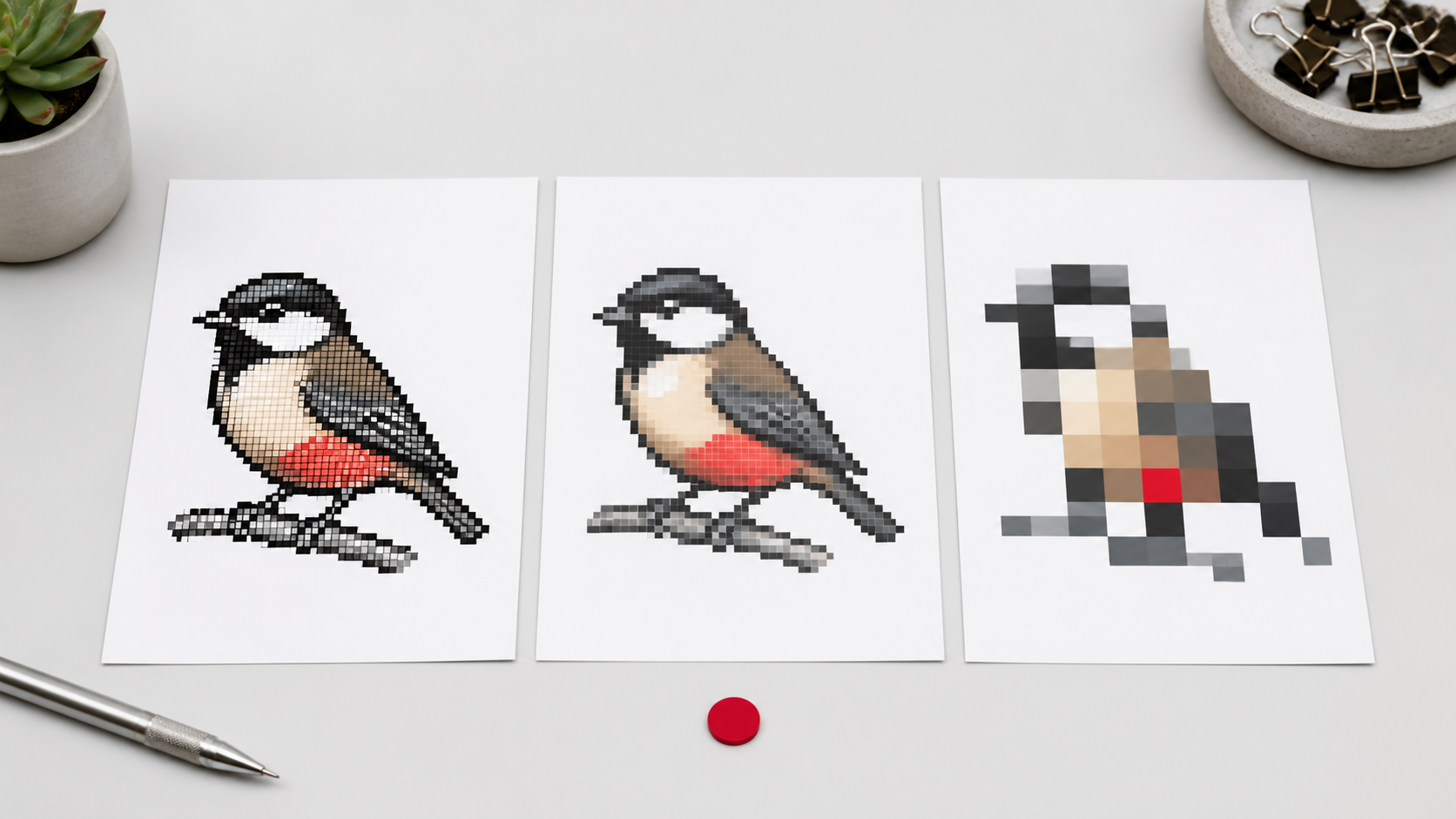
Anteprima, esportazione e percorso di taglio
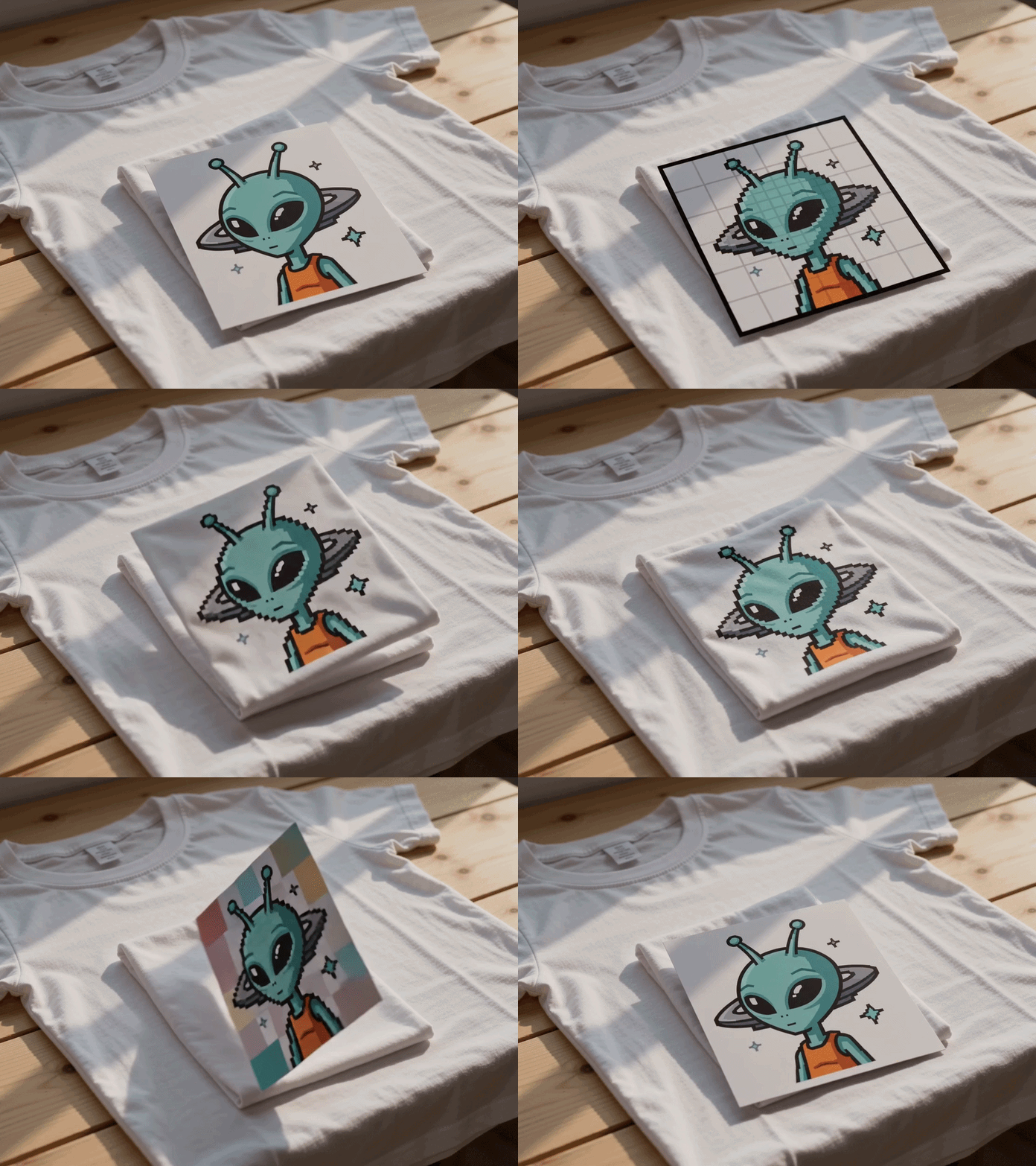
Fai un'anteprima nel Design, fianco a fianco con l'originale, in 3D, o sul prodotto — la vista 3D mostra come appare effettivamente il semplice acrilico stampato su un lato da dietro, e il Mockup inserisce l'opera d'arte alla vera grandezza su una foto di una maglietta, borsa o tavola di legno.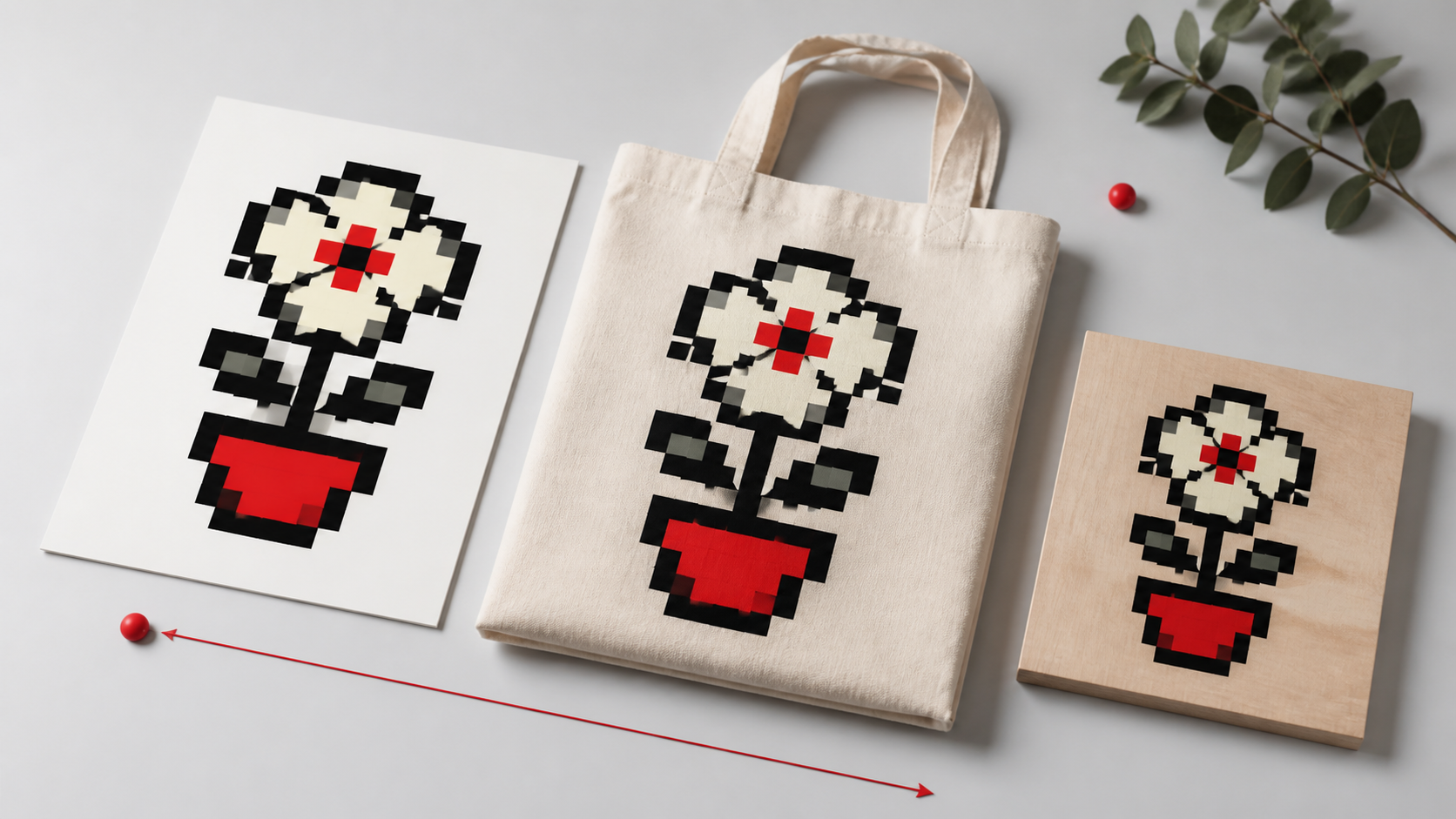
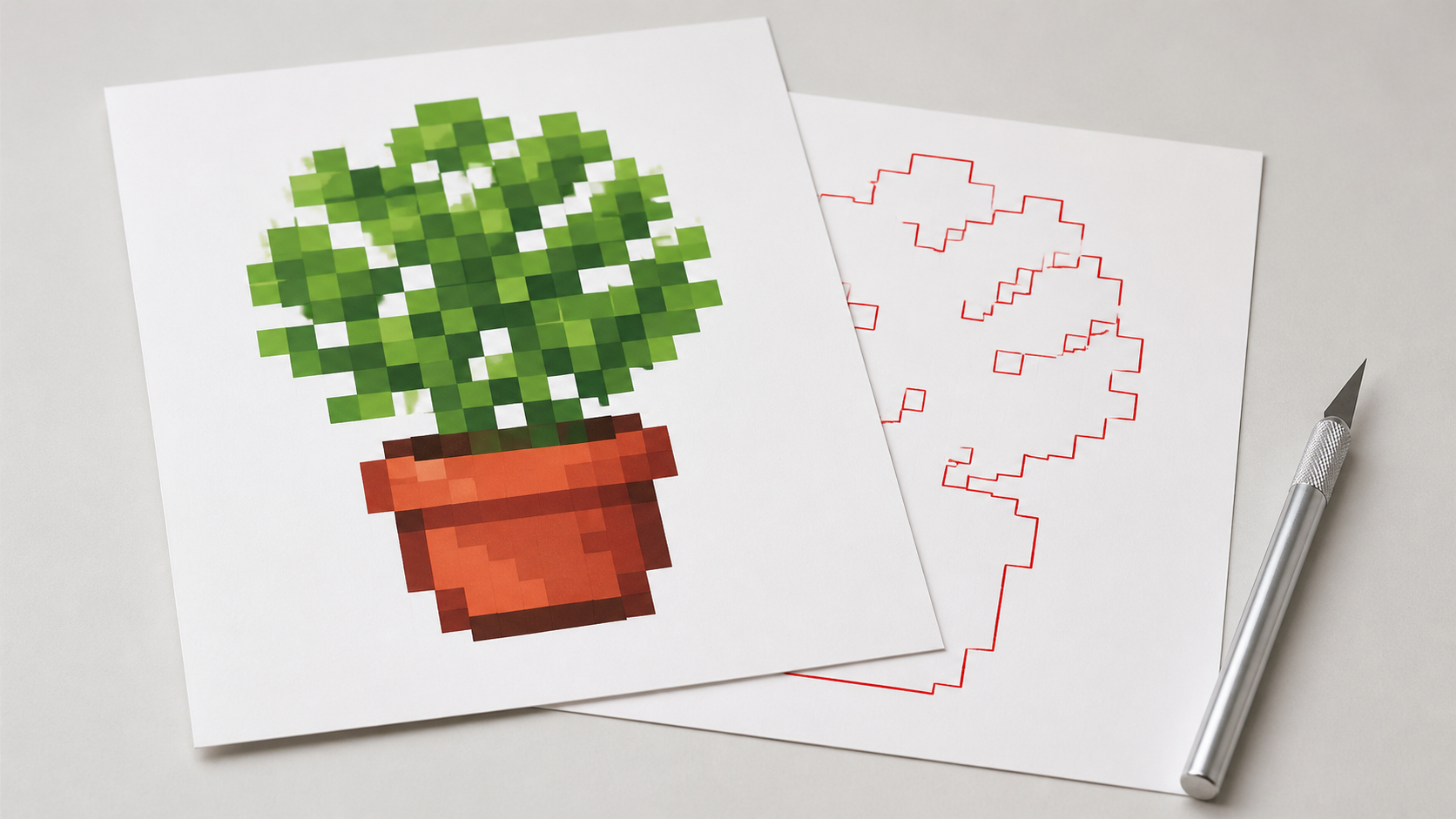
L'esportazione ti fornisce due file: la pixel art come PNG esattamente nella dimensione impostata e la stessa opera d'arte come SVG — rettangoli vettoriali piuttosto che un tracciato — con la linea di taglio disegnata sopra in rosso. La linea di taglio traccia il bordo esterno dei pixel, compresi i fori, quindi la forma che vedi è la forma che viene tagliata, e il rosso è ciò che il software di taglio legge come un taglio. (Nessuna compensazione del taglio; impostala nel software della tua macchina.) Un retro specchiato per la stampa su due lati è a un clic di distanza.
Poiché la griglia di pixel art ha una dimensione della cella nota in millimetri, funziona anche come riferimento per modelli per perler beads, ricamo e altri lavori a griglia.
Cosa funziona meglio
I migliori risultati provengono da illustrazioni piatte, loghi e arte a linee con chiari blocchi di colore. Le fotografie dettagliate — specialmente volti e sfondi affollati — perdono definizione una volta ridotte a qualche dozzina di celle; ritaglia in modo stretto e riduci il conteggio delle celle quando parti da una foto.
Tutto funziona nel tuo browser. L'immagine non viene mai caricata.