
![[Laser cut and engrave] 50 State Key Chains or Earrings](https://image-res.atomm.com/resource/xtool/community/attachment/xtool-community/425d8e87-0b01-4477-ba24-4158438dafa9?x-oss-process=image/resize,m_fill,w_1280,h_960,limit_0/interlace,1/format,webp/auto-orient,1)
![[Laser cut and engrave] 50 State Key Chains or Earrings](data:image/png;base64,iVBORw0KGgoAAAANSUhEUgAAAAoAAAAKCAYAAACNMs+9AAAAAXNSR0IArs4c6QAAABdJREFUKFNjZCASMBKpjmFUId6QIjp4AAppAAuXjCs4AAAAAElFTkSuQmCC)
![[Laser cut and engrave] 50 State Key Chains or Earrings](https://image-res.atomm.com/resource/xtool/community/attachment/xtool-community/425d8e87-0b01-4477-ba24-4158438dafa9?x-oss-process=image/resize,m_fill,w_160,h_120,limit_0/interlace,1/format,webp/auto-orient,1)
![[Laser cut and engrave] 50 State Key Chains or Earrings](https://image-res.atomm.com/resource/xtool/community/attachment/xtool-community/8c455fd3-1c22-4e5c-beb4-6c853df906a0/PXL_20240503_162402794.jpg?x-oss-process=image/resize,m_fill,w_160,h_120,limit_0/interlace,1/format,webp/auto-orient,1)
![[Laser cut and engrave] 50 State Key Chains or Earrings](https://image-res.atomm.com/resource/xtool/community/attachment/xtool-community/f215f608-619b-4d9c-bdf5-b9d0cfc0a43c/PXL_20240503_162517005.jpg?x-oss-process=image/resize,m_fill,w_160,h_120,limit_0/interlace,1/format,webp/auto-orient,1)
![[Laser cut and engrave] 50 State Key Chains or Earrings](https://image-res.atomm.com/resource/xtool/community/attachment/xtool-community/21a8c9d9-ef13-4110-b5eb-23053f1facee/PXL_20240503_162419698.jpg?x-oss-process=image/resize,m_fill,w_160,h_120,limit_0/interlace,1/format,webp/auto-orient,1)
![[Laser cut and engrave] 50 State Key Chains or Earrings](https://image-res.atomm.com/resource/xtool/community/attachment/xtool-community/381da019-6c1b-4cf1-9105-34e370606078/PXL_20240503_162426140.jpg?x-oss-process=image/resize,m_fill,w_160,h_120,limit_0/interlace,1/format,webp/auto-orient,1)
![[Laser cut and engrave] 50 State Key Chains or Earrings](https://image-res.atomm.com/resource/xtool/community/attachment/xtool-community/1e04decb-0f3d-4493-b968-f6ad359327d4/PXL_20240503_162508793.jpg?x-oss-process=image/resize,m_fill,w_160,h_120,limit_0/interlace,1/format,webp/auto-orient,1)
![[Laser cut and engrave] 50 State Key Chains or Earrings](https://image-res.atomm.com/resource/xtool/community/attachment/xtool-community/ce242601-c0f3-4dad-8872-ce3f16afb381/PXL_20240503_162453742.jpg?x-oss-process=image/resize,m_fill,w_160,h_120,limit_0/interlace,1/format,webp/auto-orient,1)
![[Laser cut and engrave] 50 State Key Chains or Earrings](https://image-res.atomm.com/resource/xtool/community/attachment/xtool-community/7eddd479-72e3-46c3-bf9d-2a7e797ef574/PXL_20240503_162413855.jpg?x-oss-process=image/resize,m_fill,w_160,h_120,limit_0/interlace,1/format,webp/auto-orient,1)
50个州钥匙扣或耳环
 教程
教程
states keychains
.xcs
应用场景
激光 (35min)
机器与模块

xTool P2
材料兼容的 xTool 机器
P3
F2
F2 Ultra UV
F2 Ultra(Single)
F2 Ultra
F1 Ultra
F1
F1 Lite
S1
P2S
M1 Ultra
M1
D1 Pro 2.0
D1 Pro
D1
Laserbox
M2
使用的材料

透明丙烯酸

567
4418
教程
1
步骤1: 选择你的州

预览
选定你的状态并拖到工作区,如果你打开文件时没看到它们,缩小它们就在那里。
你的紫色图层是用来放文本的,其实你其实不需要它。
蓝色图层是你的雕刻图层
,黑色图层是用于切割的。
所有状态都是一组的,所以只需拖放即可。
2
步骤2: 放大你的工作空间

预览

预览
放大
你的工作区,开始添加状态。添加设计、文字随意添加,让这个州成为你自己的。它们最多都是3英寸,但可以根据你的喜好大小调整。
如果你有一台可以写字的电脑,让孩子写下他们的名字,作为送给爸爸妈妈的甜蜜礼物。Adobe Frescco 非常适合在屏幕上绘画和制作矢量图,而且是免费的!
3
步骤3: 别忘了后面

预览
别忘了你不仅仅是被钥匙扣的一侧,还可以在后面加点东西,增加一点额外的感觉
4
步骤4: 我们来刷漆吧

预览

预览

预览

预览
一定要洗干净这些部件,把灰尘都清理干净。
我用手工店的丙烯颜料填满,涂一层,用卡片刮掉多余的,晾干后用纸巾擦拭
。我会留在遮蔽层上,先喷漆,然后再取下面具,甚至UV树脂。
在心形上添加细节时,我用的是Posca Paint Marker,Extra fine笔尖,0.7mm
。5
步骤5: 别忘了Extras(临时演员)

预览
我在底部加了几样东西,可以加到你的钥匙扣上或作为灵感
6
步骤6: 添加你的硬件

预览

预览
别忘了加上钥匙扣配件,你甚至可以把它们缩小做成耳环或项链
评论
二创



您可能也喜欢

钥匙环镶嵌

17
76

个性化木制钥匙扣,配有皮带和金属环

0
11

$1.50
$1.50
Credits150
一套6个“你好夏天”主题热带海滩钥匙扣

2

'/%3e%3c/g%3e%3cdefs%3e%3clinearGradient%20id='paint0_linear_1737_57170'%20x1='16.5097'%20y1='8.87061'%20x2='16.5097'%20y2='23.3945'%20gradientUnits='userSpaceOnUse'%3e%3cstop%20stop-color='%232E9AFF'/%3e%3cstop%20offset='1'%20stop-color='%233378FF'/%3e%3c/linearGradient%3e%3c/defs%3e%3c/svg%3e)
带有加州地图和家用字样的木制钥匙扣

0
2

飞机主题旅行钥匙扣、手提箱、地图和标志

5
37

主页威斯康星州形状钥匙扣
0
3

湖畔别墅爱情钥匙扣

21
66
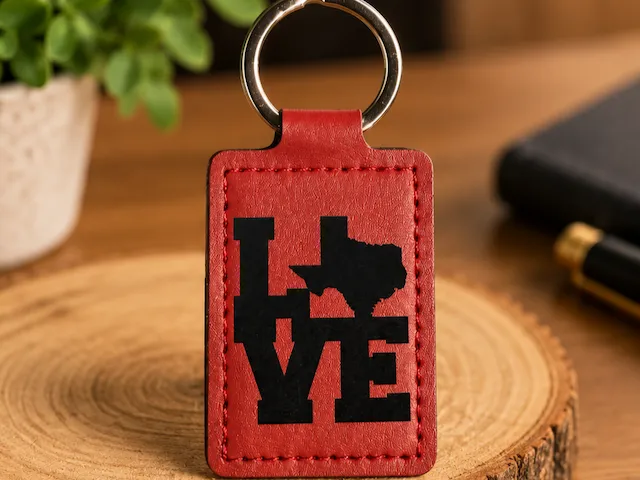
红色皮革钥匙扣,带有德州爱情图案

1
2

个性化分层姓名钥匙扣

7
99

$1.99
$1.99
Credits199
夏季钥匙扣激光切割套装、Woden夏季钥匙扣、度假钥匙扣SVG、夏季配饰、海滩SVG、热带设计SVG

1

钥匙扣制作:为教师定制带有学科徽章的个性化姓名钥匙扣

43
200

$2.50
$2.50
Credits250
马里兰州车牌木制钥匙扣
.jpg?x-oss-process=image/resize,m_fill,w_80,h_80,limit_0/interlace,1/format,webp/auto-orient,1)
5

$1.99
$1.99
Credits199
第一套房钥匙扣激光切割套装,我们的第一套房,新家钥匙扣,情侣钥匙扣,搬家礼物,他和她的钥匙扣
0

个性化姓名钥匙扣
3
9

皮革钥匙扣!(2组)

3
37
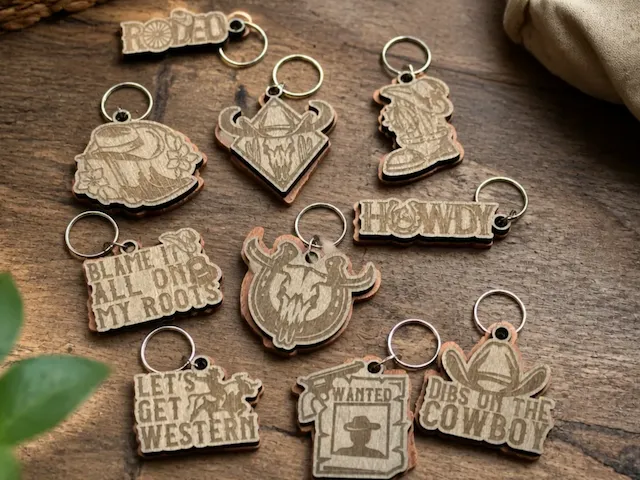
西部主题牛仔与牛仔风格的木制钥匙扣,双层

1
1

家就是我们停放第五轮木制钥匙扣的地方

1
2

$2.10
$2.10
Credits210
度假钥匙扣捆绑激光切割。木制夏季钥匙扣。雕刻木制钥匙圈。夏日名言与谚语 svg。10 设计

2