신고
![[Laser cut and engrave] Blessed Mama Bear Necklace](https://image-res.xtool.com/resource/xtool/community/attachment/xtool-community/d9631624-0ead-4e35-92ad-02f8db3ea6f6?x-oss-process=image/resize,w_1200,h_900,limit_0/interlace,1/format,webp/auto-orient,1)
![[Laser cut and engrave] Blessed Mama Bear Necklace](data:image/png;base64,iVBORw0KGgoAAAANSUhEUgAAAAoAAAAKCAYAAACNMs+9AAAAAXNSR0IArs4c6QAAABdJREFUKFNjZCASMBKpjmFUId6QIjp4AAppAAuXjCs4AAAAAElFTkSuQmCC)
![[Laser cut and engrave] Blessed Mama Bear Necklace](https://image-res.xtool.com/resource/xtool/community/attachment/xtool-community/d9631624-0ead-4e35-92ad-02f8db3ea6f6?x-oss-process=image/resize,w_200,h_150,limit_0/interlace,1/format,webp/auto-orient,1)
![[Laser cut and engrave] Blessed Mama Bear Necklace](https://image-res.xtool.com/resource/xtool/community/attachment/xtool-community/be315d7e-f972-49b2-a233-79fdd1b9ca0e/Photoroom_20240422_225606.jpg?x-oss-process=image/resize,w_200,h_150,limit_0/interlace,1/format,webp/auto-orient,1)
![[Laser cut and engrave] Blessed Mama Bear Necklace](https://image-res.xtool.com/resource/xtool/community/attachment/xtool-community/1f23d746-2115-43b7-a68f-8f922df4acf6/Photoroom_20240422_224828.jpg?x-oss-process=image/resize,w_200,h_150,limit_0/interlace,1/format,webp/auto-orient,1)
![[Laser cut and engrave] Blessed Mama Bear Necklace](https://image-res.xtool.com/resource/xtool/community/attachment/xtool-community/38df133d-7036-40f2-98e7-eeb2a5be89d3/IMG_9993.HEIC?x-oss-process=image/resize,w_200,h_150,limit_0/interlace,1/format,webp/auto-orient,1)
![[Laser cut and engrave] Blessed Mama Bear Necklace](https://image-res.xtool.com/resource/xtool/community/attachment/xtool-community/80408139-3d78-448a-9cda-30d06bff3063/IMG_9991.HEIC?x-oss-process=image/resize,w_200,h_150,limit_0/interlace,1/format,webp/auto-orient,1)
![[Laser cut and engrave] Blessed Mama Bear Necklace](https://image-res.xtool.com/resource/xtool/community/attachment/xtool-community/e695af93-d1a9-4c52-9e35-41d73b35fefd/Photoroom_20240422_225024.jpg?x-oss-process=image/resize,w_200,h_150,limit_0/interlace,1/format,webp/auto-orient,1)
![[Laser cut and engrave] Blessed Mama Bear Necklace](https://image-res.xtool.com/resource/xtool/community/attachment/xtool-community/0c528de9-accc-4e98-a1a9-11ace102ccf0/IMG_9993.HEIC?x-oss-process=image/resize,w_200,h_150,limit_0/interlace,1/format,webp/auto-orient,1)
![[Laser cut and engrave] Blessed Mama Bear Necklace](https://image-res.xtool.com/resource/xtool/community/attachment/xtool-community/a87e4d50-7ab8-4a52-8d39-5ce29a5978c6/IMG_9996.HEIC?x-oss-process=image/resize,w_200,h_150,limit_0/interlace,1/format,webp/auto-orient,1)
축복받은 엄마 곰 목걸이
 지침
지침
Mama Bear necklace
.xcs
응용 시나리오
레이저 (45min)
기계 및 모듈

xTool F1
호환되는 · 11
사용된 재료

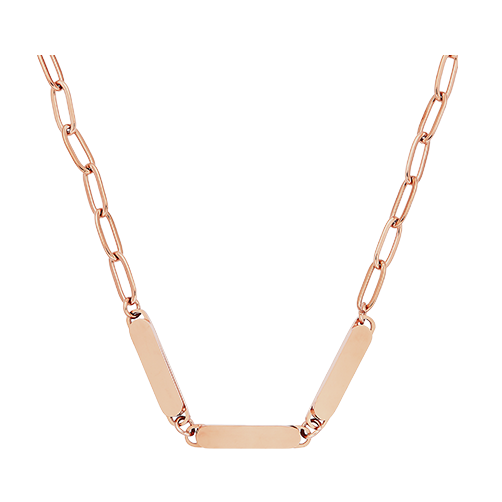
로즈 골드 스테인레스 스틸 페이퍼클립 목걸이

스테인리스 스틸 목걸이
116
1373
지침
1
단계1: 파일 설계

미리보기

미리보기
저는
Adobe Illustrator로 파일을 디자인했습니다. Creative Fabrica에서 상업적으로 디자인을 수정할 수 있는 곰 개요를 업로드했어요. 곰 안쪽 선을 제거하고 채우기 도구로 검은색으로 만들었어요. 텍스트 박스를 만들고 'Mama'라고 입력한 뒤, 목걸이에 잘 어울릴 것 같은 글꼴을 골랐어요. 곰 안에 내가 원하는 곳에 단어를 넣었다. 저는 Pathfinder 도구를 사용해 곰 모양에서 글자를 잘라냈습니다. 또 다른 텍스트 박스를 추가하고 '축복받았다'는 단어를 추가했습니다. 워프 툴을 사용해 곡선을 만들었어요. 이걸 SVG로 저장했어요.
- 곰 윤곽선을 삽입하거나 만들어보세요. 이미 만들어진 파일을 삽입할 경우, 저작권 규정을 준수하고 디지털 사용을 허용하지 않는 것은 사용하지 마세요. Creative Fabrica는 구독 사용자에게 디지털 파일로 상업적으로 사용할 수 있도록 허용합니다.
- Mama를 입력하고 폰트를 선택하세요. 텍스트 박스를 선택하고 윤곽선 만들기를 선택한 후 pathfinder 도구를 사용해 결합하세요.
- 곰 인형에 'Mama'라는 단어를 넣고,
- pathfinder 도구를 사용해 곰 인형에서 단어를 잘라내세요.
- 다른 텍스트 박스를 추가하고 "Blessed" 또는 원하는 다른 단어를 입력하세요.
- 워프 도구를 사용해 단어가 곡선을 그리도록 호를 그리세요.
- 곰 위에 단어를 올리고 필요하면 크기를 조절하세요.
- SVG로 저장하세요.
2
단계2: 레이저 설치

미리보기

미리보기

미리보기

미리보기
XCS를 열고 Adobe Illustrator에서 만든 파일을 SVG로 추가했습니다. 목걸이 모양을 나타내는 원을 추가했어요. 이것이 올바른 정렬에 도움이 됩니다. 프레이밍 도구를 사용해 목걸이가 놓인 원을 배치했습니다. 스테인리스 스틸에 프레이밍 라이트가 잘 보이지 않아서 Rect 프레이밍 설정을 사용해 프레이밍 스퀘어를 목걸이 주위에 배치합니다.
- XCSS를 열고 디자인 파일을 추가하세요.
- 목걸이 크기만큼 큰 원을 추가하세요.
- 이미지를 원 안에 배치하세요.
- F1 공간 중앙에 목걸이를 놓으세요.
- 이미지를 액자에 넣고 원을 넣으세요. 이미지를 움직여 네모형 가장자리가 목걸이 가장자리와 일치하도록 하세요.
- 레이저를 집중하세요.
- 설정 입력.
- 원 설정에서 무시를 선택하세요.
- 새긴 조각을 돌려. 조각
- 이 충분히 어두우지 않으면 움직이지 않고 다시 실행하세요.
3
단계3: 조립

미리보기

미리보기
- 목걸이를 레이저 베드에서 분리하세요.
- 소독용 알코올로 청소하세요.
- 클라스프를 끼우고 구멍을 집어 고정하세요. 필요하다면 작은 펜치를 사용하세요.
- 사슬에 걸어.
- 착용하고 즐기세요!
댓글