
Erasing a person from a photo is not the same job as cutting one out. Here the person has to disappear and the background has to close over the gap, which means the tool has to invent what was hidden behind them.
This guide covers when it is worth doing, what you need, four ways to do it free, and how to tell in advance whether a particular photo will work.
Erase someone from a photo freeBrush over anyone you want gone and the background is rebuilt behind them — no watermarks.Try it freeKey Takeaways
- Erasing a person means filling in what was behind them, not just deleting pixels.
- It works best on simple, repeating backgrounds — sky, grass, a plain wall, water.
- Shadows and reflections are what give a bad edit away. Remove them in the same pass.
Why Erase People From a Photo?
Usually because the picture is right and the timing was not. The composition works but somebody walked through it.

Strangers in a holiday shot
The most common case by far. A landmark photo with a crowd in front of it becomes usable once the crowd goes.
Product and listing photos
A reflection of the photographer, or a bystander at the edge of frame, reads as unprofessional in a shop listing.
Privacy
Removing people who did not consent to being photographed is often the reason, especially before posting publicly.
Clean backgrounds for design
A photo destined for a poster or a print often needs the background quiet, and a distant figure is a distraction the eye keeps returning to.
What You Need
Nothing paid, and nothing installed for the common case — but the photo itself has to cooperate.
The original file, not a screenshot
Filling in a background is guesswork, and the tool guesses better from the full-resolution original than from a compressed copy.
A background the tool can continue
Sky, grass, water, a plain wall, and paving all rebuild convincingly because they repeat. Architecture, text, and patterned tile do not.
Space around the person
If the figure overlaps the main subject, whatever is filled in has to be invented from almost nothing, and it shows.
A browser
That is genuinely all for Method 1.
Four Ways to Erase a Person
Four routes, from fastest to most controlled.
Method 1: How to Erase People From a Photo With the Atomm Magic Eraser
The Atomm Magic Eraser is a free browser tool that removes objects and people by brushing over them, then rebuilds the background underneath. It accepts JPG, PNG, and WEBP up to 10 MB, with no account and no watermark.
Being brush-driven is the point. Automatic subject-removal tools decide what goes for you, which fails as soon as there are five people in frame and you want to keep four of them. For the mechanism behind these tools, see what a magic eraser actually does.

Step 1: Upload the original photo
Use the full-resolution file rather than a screenshot. Filling in a background is guesswork, and the tool guesses better from more pixels.
Step 2: Brush over the person
Cover them completely and include a margin of surrounding background. A tight outline gives the fill nothing to blend into and leaves a faint seam on the old edge.
Step 3: Check the result at full size
Fills that look convincing in a thumbnail often show repeating texture when you zoom in. Judge it at 100 per cent before accepting it.
Step 4: Brush again for the shadow
Anything left behind — the shadow, a reflection, a hand on a railing — needs the same treatment. Repeated small passes beat one large selection.
Method 2: How to Erase People From a Photo on Your Phone

Google Photos calls it Magic Eraser and iOS has Clean Up in Photos. Both suggest removable objects automatically and let you brush others.
Fast, free, and already on the device. The limits are resolution and control — the edit is applied to the phone-sized copy, and there is little you can do when the fill looks wrong.
Method 3: How to Erase People From a Photo in Photoshop
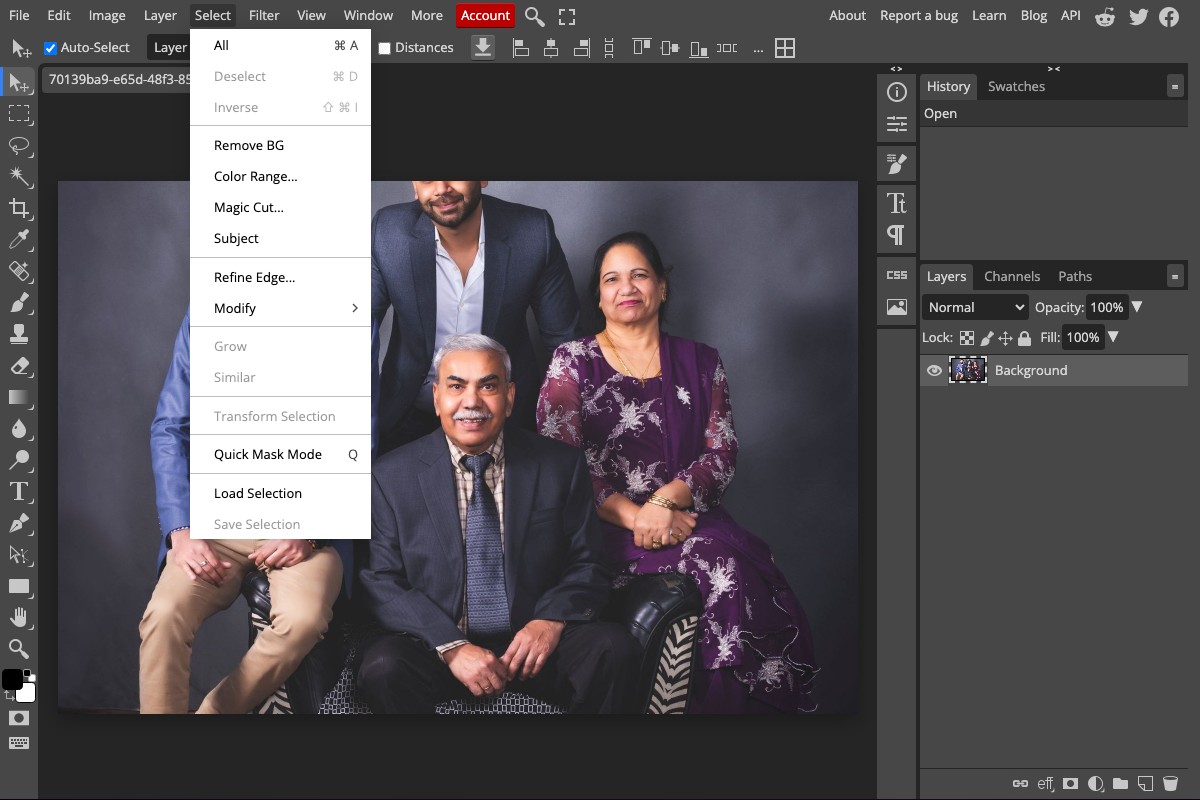
Photoshop's Generative Fill and Content-Aware Fill are the strongest option available, and GIMP's Resynthesize plugin does a respectable version free.
This is the route for photos the automatic tools ruin: a person standing against a brick wall, or overlapping the main subject. You can clone real texture from elsewhere in the image instead of accepting invented pixels.
It is also the only route that lets you rebuild in stages — remove the figure, then the shadow, then correct the tone where the fill does not quite match.
Method 4: How to Erase People From a Photo With a Web Eraser

Cleanup.pictures and similar single-purpose tools do object removal and nothing else, and some handle large areas better than a general-purpose editor's automatic fill.
Check the export limit before you commit: several cap free downloads at 720 px, which is fine for social and useless for print. Our comparison of the best magic erasers covers where each one stops.
What Is the Best Way to Erase a Person?
It depends far more on the photo than on the tool. Four common situations:
| Method | Speed | Control | Resolution | Best for |
|---|---|---|---|---|
| Atomm | Seconds | Brush | Full | Most removals, free and unwatermarked |
| Phone | Instant | Limited | Phone-sized | Quick fixes before posting |
| Desktop editor | Minutes | Complete | Full | Complex backgrounds, overlapping people |
| Web eraser | Seconds | Brush | Often capped | Large areas on simple backgrounds |
For a holiday photo with strangers in the distance, any of these works — the background is usually sky, sea, or paving, all of which rebuild cleanly. Start with the fastest option.
When the person overlaps your subject, skip the automatic tools. Only an editor lets you clone real texture into the gap, and even then expect to spend time on it.
Sellers preparing listings should work from the original file at full resolution and check the export size. A capped download undoes the effort at the last step.
If the background is architecture, text, or a repeating pattern, consider cropping or reshooting instead. Straight lines that fail to line up are more noticeable than the person was.
Do Not Forget Shadows and Reflections
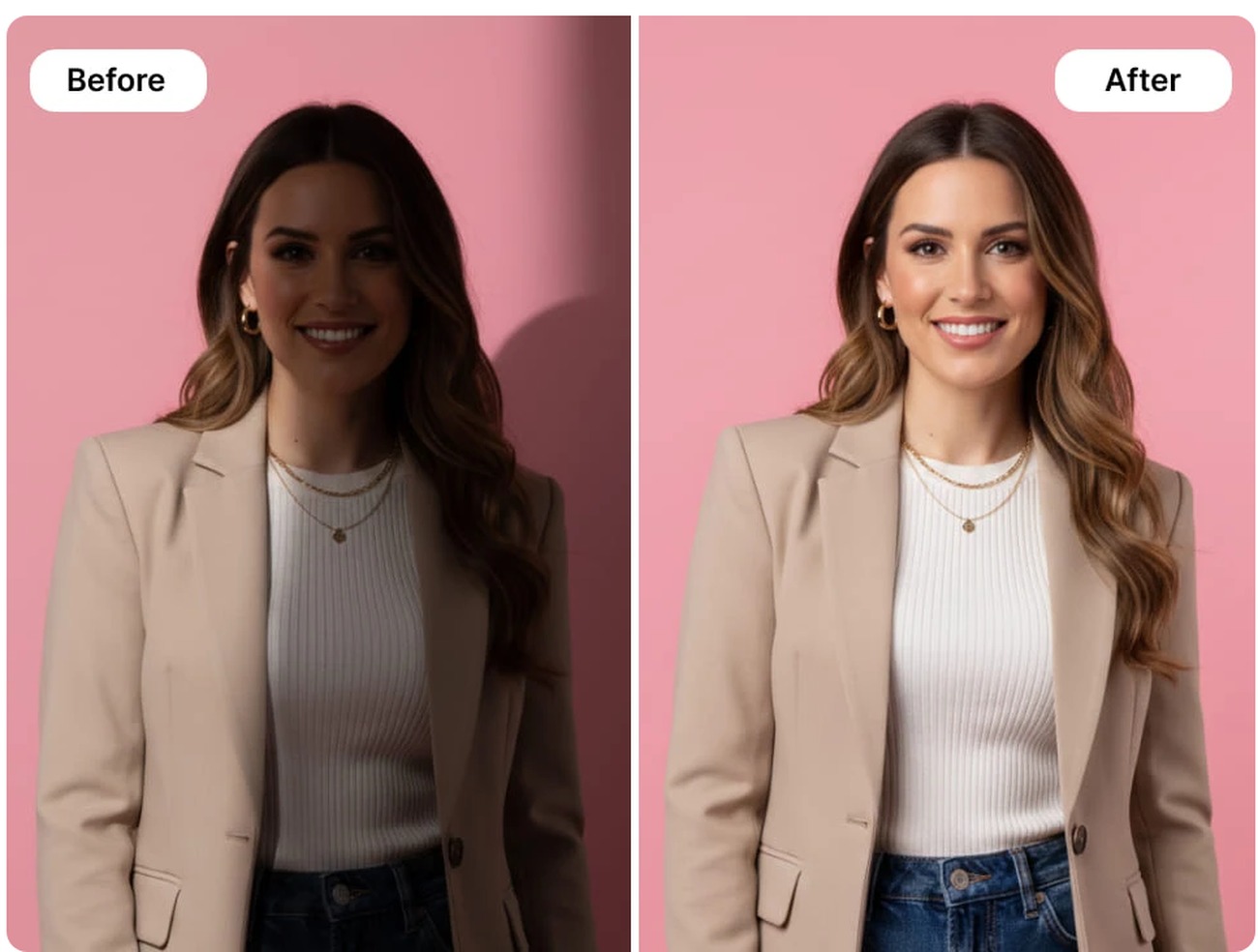
A removed person who still casts a shadow is the single most common giveaway. The eye reads the shadow as belonging to something, and its absence is what makes the edit obvious.
The same applies to reflections in glass, water, and polished floors, and to contact points — a hand on a railing, feet in sand, a bag resting on a bench.
Brush all of it in the same pass. Removing the figure first and the shadow second often leaves a tonal mismatch where the two fills meet.
Tips and Common Mistakes
Tip 1: Brush wider than the person
Include a margin of surrounding background. A tight outline gives the fill nothing to blend into and leaves a faint seam exactly on the old edge.
Tip 2: Work in several small passes
One large selection asks the tool to invent a large area at once, which is where smearing comes from. Removing in stages gives it real context to copy each time.
Tip 3: Inspect at 100 per cent
Fills that look perfect in a thumbnail often show repeating texture at full size. Zoom in before you accept it.
Tip 4: Know when to stop
If a background has straight lines, lettering, or a regular pattern crossing the removed area, no amount of retrying will fix it. Crop instead.
Judge the photo before you start
Ask what has to be invented. If the answer is more sky, more grass, or more wall, it will work. If the answer is the missing half of a window frame or three letters of a sign, it will not — and no tool changes that.
Conclusion
Erasing a person is a filling job, not a deleting one. Everything about the result depends on whether the tool can plausibly continue what was behind them.
Simple, repeating backgrounds succeed with the fastest free tool. Complex ones need an editor, and some need a crop rather than an edit.
Whichever route you take, remove the shadow and any reflection in the same pass — that is what separates an invisible edit from an obvious one. For related jobs, see removing text from an image or cutting a subject out instead.
Frequently Asked Questions about Erasing People
How do I erase a person from a photo for free?
Brush over them in an online magic eraser and let it rebuild the background. It takes seconds, needs no account, and works well when the background is simple enough to continue.
Why does the erased area look smeared?
The tool had to invent too much at once. Remove in several smaller passes instead of one large selection, so each pass has real surrounding texture to copy from.
Can I remove someone standing in front of my subject?
Only with difficulty. Whatever they were covering has to be invented from nothing, so results are poor. A desktop editor where you clone texture manually is the realistic option.
Do I need to remove the shadow too?
Yes, and the reflection. A shadow with nothing casting it is the clearest sign of an edit. Brush the figure and its shadow in the same pass to avoid a tonal mismatch.
Is it legal to remove people from photos?
For personal and most commercial use, yes. It becomes a problem only where the image is presented as an unaltered record, such as news photography or evidence.
Which backgrounds work best?
Anything that repeats: sky, grass, water, sand, plain walls, paving. Architecture, signage, and regular patterns are the hard cases because the fill has to line up exactly.
Erase anyone from your photo
Brush over the person, let the background rebuild, and download at full resolution.
