Segnala
![[Laser cut and engrave] 3D Printed Personalized Name Keychain Eric on Backpack](https://storage-us.atomm.com/resource/xtool/community/attachment/xtool-community/91145eb1-4bf0-44eb-b79e-a6214174e2b4.jpg?x-oss-process=image/resize,w_1200,h_900,limit_0/interlace,1/format,webp/auto-orient,1)
![[Laser cut and engrave] 3D Printed Personalized Name Keychain Eric on Backpack](data:image/png;base64,iVBORw0KGgoAAAANSUhEUgAAAAoAAAAKCAYAAACNMs+9AAAAAXNSR0IArs4c6QAAABdJREFUKFNjZCASMBKpjmFUId6QIjp4AAppAAuXjCs4AAAAAElFTkSuQmCC)
![[Laser cut and engrave] 3D Printed Personalized Name Keychain Eric on Backpack](https://storage-us.atomm.com/resource/xtool/community/attachment/xtool-community/91145eb1-4bf0-44eb-b79e-a6214174e2b4.jpg?x-oss-process=image/resize,w_200,h_150,limit_0/interlace,1/format,webp/auto-orient,1)
![[Laser cut and engrave] 3D Printed Personalized Name Keychain Eric on Backpack](https://storage-us.atomm.com/resource/xtool/community/attachment/xtool-community/a4f3e4dd-1c0d-4032-9878-7c4eea4221dd.jpg?x-oss-process=image/resize,w_200,h_150,limit_0/interlace,1/format,webp/auto-orient,1)
Portachiavi in acrilico
 Istruzione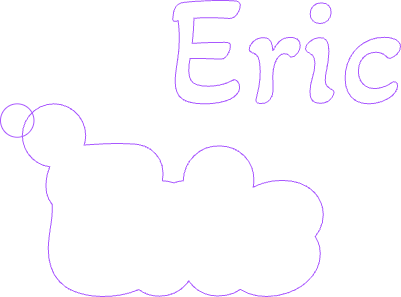
E01 - Acrylic Keychain Orange
.xcs
Mostra 1 in più
Scenario di applicazione
Elaborazione laser
Macchina e modulo

xTool M1 Ultra
20WCompatibili · 7
Materiale utilizzato

Acrilico Blu-Verde da 1/8" (3mm)

Acrilico arancione da 3mm
3
95
Istruzione
1
Passo1

Anteprima
Scegli il testo che vuoi inserire (ad esempio il tuo nome) e il font
2
Passo2

Anteprima
Crea un Frame esterno
3
Passo3

Anteprima
1. Posizionare il cerchio nell'angolo in alto a sinistra del telaio esterno
2. Unire il cerchio al telaio
4
Passo4

Anteprima
Poi aggiungi un altro cerchio nell'angolo in alto a sinistra per creare un foro per il portachiavi
5
Passo5

Anteprima
Usa la supercolla per incollare i pezzi insieme. Il nome sarà il basso, aggiungi un anello nel cerchio tagliato e attaccalo a un collare.
Commenti