
![[Laser cut and engrave] Bottle tag](https://image-res.atomm.com/resource/xtool/community/attachment/xtool-community/10f71991-28da-4a9e-bc45-a7e6c3d32005?x-oss-process=image/resize,m_fill,w_1280,h_960,limit_0/interlace,1/format,webp/auto-orient,1)
![[Laser cut and engrave] Bottle tag](data:image/png;base64,iVBORw0KGgoAAAANSUhEUgAAAAoAAAAKCAYAAACNMs+9AAAAAXNSR0IArs4c6QAAABdJREFUKFNjZCASMBKpjmFUId6QIjp4AAppAAuXjCs4AAAAAElFTkSuQmCC)
![[Laser cut and engrave] Bottle tag](https://image-res.atomm.com/resource/xtool/community/attachment/xtool-community/10f71991-28da-4a9e-bc45-a7e6c3d32005?x-oss-process=image/resize,m_fill,w_160,h_120,limit_0/interlace,1/format,webp/auto-orient,1)
![[Laser cut and engrave] Bottle tag](https://image-res.atomm.com/resource/xtool/community/attachment/xtool-community/97c1c65a-323e-4d8c-96fa-d4525192b240/20240719_125227.jpg?x-oss-process=image/resize,m_fill,w_160,h_120,limit_0/interlace,1/format,webp/auto-orient,1)
![[Laser cut and engrave] Bottle tag](https://image-res.atomm.com/resource/xtool/community/attachment/xtool-community/425c83db-dc3f-4b02-a25f-a3567ac42215/20240719_125332.jpg?x-oss-process=image/resize,m_fill,w_160,h_120,limit_0/interlace,1/format,webp/auto-orient,1)
![[Laser cut and engrave] Bottle tag](https://image-res.atomm.com/resource/xtool/community/attachment/xtool-community/665b375d-f736-44ee-b3f3-7e02845a68e8/20240719_125342.jpg?x-oss-process=image/resize,m_fill,w_160,h_120,limit_0/interlace,1/format,webp/auto-orient,1)
Etykieta na butelkę
 Instrukcja


Informacja
Etykieta na butelkę dla rodziców urodzinowych lub pierwszorocznych
Instrukcja
Krok1: Granica
Dodaj
różne ramki i wybierz, które chcesz
. Tutaj musimy usunąć cienką linię na krawędzi, inaczej laser ją również wycina
. Tutaj klikamy "release compound vector", potem ramka rozdziela się na 3 warstwy,
po czym je usuwamy i to wszystko
Krok2: Tekst
Znajdź tekst, który chcesz
. Stworzyłem osobną warstwę tekstową dla st i th, żeby móc je zmniejszyć – z indeksem górnym
Krok3: Symbol szkła
Następnie dodajemy symbol szklanej butelki
, nie potrzebujemy butelki i usuwamy ją za pomocą node edit.
Następnie tworzymy kontur o -0,5 mm, tak aby był wewnątrz
węzła edit. Usuwamy dolny obszar.
Następnie ponownie wybieramy szkło za pomocą node edit i dodajemy 2 punkty kotwiczenia.
Przeciągamy je w górę i w dół, aby uzyskać efekt fali w szybie .
Obrócimy szkło o 20°. Kopiuj. I lustrzane
, potem tworzymy 2 linie dla efektu błyskotu :)
Krok4: Symbol serca
Dodaj 3 serca:
środkowe jest duże, a dwa boczne mniejsze i obrócone o 20°
. Każde małe serce ma kontur 0,5 mm i odejmujemy ten kontur od dużego serca
Remiksy



Możesz również polubić

Spersonalizowana drewniana metka na butelkę wina z okazji urodzin


Drewniane etykiety na butelki wina z cytatami o zabawnym piciu, pakiet wycinany laserowo. Antywalentynkowe etykiety na butelki wina


'/%3e%3c/g%3e%3cdefs%3e%3clinearGradient%20id='paint0_linear_1737_57170'%20x1='16.5097'%20y1='8.87061'%20x2='16.5097'%20y2='23.3945'%20gradientUnits='userSpaceOnUse'%3e%3cstop%20stop-color='%232E9AFF'/%3e%3cstop%20offset='1'%20stop-color='%233378FF'/%3e%3c/linearGradient%3e%3c/defs%3e%3c/svg%3e)
Drewniany wisiorek z grawerunkiem na prezenty i urodziny


Drewniane pudełko na butelki na baby shower


3D Wine Bottle Holder na karty podarunkowe – pakiety wycinane laserowo. Drewniana etykieta na wino. Boho svg. Wieszająca metka z winem. Butelka wisiąca. 10 Wzorów


Szczęśliwego Nowego Roku Butelka na Wino – Wieszak na butelki w kształcie podkowy | Projekt SVG gotowy do lasera


Drinking Reindeer Tag i skórzana tabletka – dwa rozmiary i dwa style


Laserowo wycinany drewniany breloczek w kształcie serca z kwiatowym wzorem na 18. rocznicę urodzin


Portfel numer 18


Etykiety na butelkach wina

Etykieta na butelkę wina na zamówienie


Beer & Wine Boxes – zestaw 4


Zawieszka na butelkę z podziękowaniem za obecność

Etykieta na butelkę

Karty z miejscami


Spersonalizowany uchwyt na butelkę ślubną i kieliszki z datą i nazwą

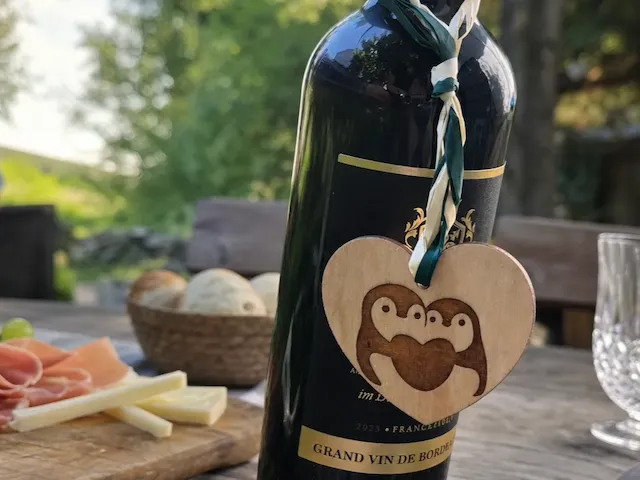
Wisiorek w kształcie serca z motywem pingwina


Blastro wycięta i grawerowana etykieta prezentowa
