![[Laser cut and engrave] Cuadernos para profes](https://image-res.atomm.com/resource/xtool/community/attachment/xtool-community/08e2a3a5-5090-4ea4-8183-70b0568a04a6?x-oss-process=image/resize,m_fill,w_1280,h_960,limit_0/interlace,1/format,webp/auto-orient,1)
![[Laser cut and engrave] Cuadernos para profes](data:image/png;base64,iVBORw0KGgoAAAANSUhEUgAAAAoAAAAKCAYAAACNMs+9AAAAAXNSR0IArs4c6QAAABdJREFUKFNjZCASMBKpjmFUId6QIjp4AAppAAuXjCs4AAAAAElFTkSuQmCC)
![[Laser cut and engrave] Cuadernos para profes](https://image-res.atomm.com/resource/xtool/community/attachment/xtool-community/08e2a3a5-5090-4ea4-8183-70b0568a04a6?x-oss-process=image/resize,m_fill,w_160,h_120,limit_0/interlace,1/format,webp/auto-orient,1)
![[Laser cut and engrave] Cuadernos para profes](https://image-res.atomm.com/resource/xtool/community/attachment/xtool-community/83df877e-1c70-46ce-acea-7ca3e328c1e5/IMG_6150.heic?x-oss-process=image/resize,m_fill,w_160,h_120,limit_0/interlace,1/format,webp/auto-orient,1)
![[Laser cut and engrave] Cuadernos para profes](https://image-res.atomm.com/resource/xtool/community/attachment/xtool-community/55f0b463-db8d-4f8f-bc95-b784e3468ed7/IMG_6155%202.heic?x-oss-process=image/resize,m_fill,w_160,h_120,limit_0/interlace,1/format,webp/auto-orient,1)
![[Laser cut and engrave] Cuadernos para profes](https://image-res.atomm.com/resource/xtool/community/attachment/xtool-community/308c5f3a-ab80-4a1e-9cab-23660dd02f67/IMG_6167.HEIC?x-oss-process=image/resize,m_fill,w_160,h_120,limit_0/interlace,1/format,webp/auto-orient,1)
Sešity pro učitele
 Instrukce


Informace
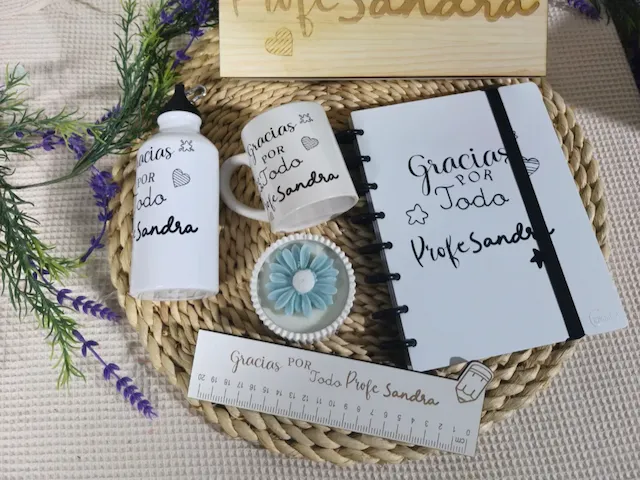
Personalizované sešity, tentokrát pro učitele, protože na konci roku je mnoho lidí, kteří chtějí svým učitelům poděkovat tím, že jim darují personalizovaný sešit.
Instrukce
Krok1: Design


K návrhu každé obálky jsem přidal kresby a texty smíchající různé typografie. Vytvořil jsem obdélník velikosti zápisníku,
abych do něj vložil vzor a vycentroval ho, aby byl ve správné velikosti.
Protože můj stroj je D1 Pro a nemá kameru, musím v každé z nich použít absolutní souřadnice, abych zajistil, že kresba bude vždy vycentrovaná.
Jak vidíte, přidal jsem jména studentů, kteří dar vydají. K tomu jsem vložil obrázek, který mi poslali, s názvy, udělal ho průhledným, dal ho k obkreslení snímku a následnému gravírování.
Krok2: Označte a zaznamenejte.


Zapneme Xtool a položíme kus kartonu, na který označíme obdélník, který označuje rozměry zápisníku.
Na tuto značku umístíme zápisník, přičemž nyní musíme upravit výšku laseru na výšku zápisníku).
Zkontrolujeme, že návrhy jsou správné a zvolené parametry.
Klikneme na něj, abychom zpracovali a počkáme, až Xtool zaznamená návrhy.
Doporučuje se umístit tenký karton mezi kraft a první list, aby nebyl označen kresbou.
Krok3: Dokončené zápisníky
Jakmile stroj dokončí gravírování, budeme mít připravené sešity.
Remixy
Licence

Související projekt


Mohlo by se vám také líbit

Obálka sešitu učitele tělesné výchovy


Laserem vyřezávaná dřevěná hvězda na ocenění učitelů s červenou mašlí


Podtácky pro učitele

Spirálový skicák s personalizovaným dřevěným obalem

Podpora poznámky


Personalizované roční zápisníky

Přizpůsobitelný vrchní díl na květináče "Děkuji učiteli"


Dárkový zápisník k přijímání

Dřevěný klíčenka s nápisem Nejlepší učitel všech dob


Laboratorní compañer@s sešity

Den učitelů 3. týdne: Gravírovaná korková tabule k tomu speciálnímu učitelskému #teachersday

Magnet na lednici


Rámec pro absolvování

Personalizované dřevěné zápisníky pro Mistress a ATSEM

Pravítko 20 cm
%20-%201.PNG?x-oss-process=image/resize,m_fill,w_80,h_80,limit_0/interlace,1/format,webp/auto-orient,1)

Zápisník s laserem gravírovaným dřevěným perem Děkuji, paní


magnet Merci pouzdro na tužkyUčitel a příslušenství


Pohlednice pro maminku