

AI Image Generator
Generate pictures from prompts or references, then refine the design.
Describe a picture and turn it into artwork for the products you want to make. Create scenes, illustrations, and graphics for prints, apparel, laser projects, or print & cut. Refine the design, preview its placement, and export the picture file for your workshop, POD provider, or production partner.

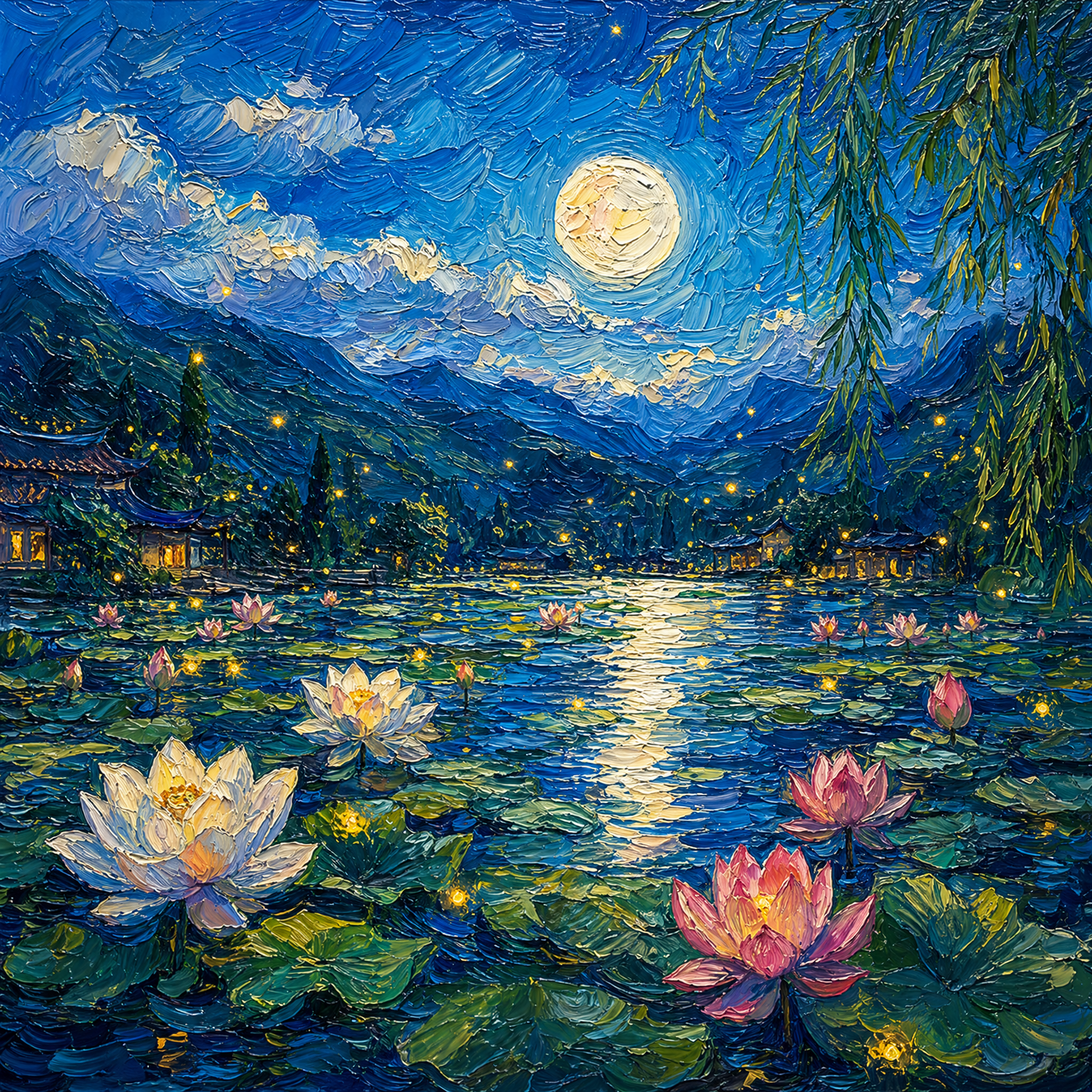
Give the picture a job before you generate it. Describe a moonlit landscape for a wall print, a bold illustration for a T-shirt, or a decorative scene for a UV-printed panel. Include the subject, composition, palette, and space for lettering. The generated image becomes the foundation of the production artwork, with room to refine the design for UV, DTF, or DTG printing on the canvas.
For a guided start, open All Recipes, choose a theme or making process, and click a recipe to use its preset prompt. Generate with that starting direction, or adapt the subject and composition to your own product brief.

A wide landscape, a small card, and a garment graphic need different focal points. Compare composition and mood while considering where the picture will be used. Keep important subjects clear, simplify competing details, and leave room for a name or message. Choosing the layout around the final product helps you prepare a useful picture file rather than only an attractive image at screen size.

Use the intended process to guide the next visual treatment. A richly colored scene suits printed artwork; a restrained tonal image can support engraving; an outline-based design can become the starting point for a cutting workflow. Explore styles and recipes around the same idea, then prepare the image or vector paths needed for that process. Each production version deserves its own review before export.

Check the generated picture on a relevant product mockup to see how its crop and focal point sit on the surface. Export the artwork itself for your POD provider or manufacturer, and use the mockup to communicate the intended placement. Match the file to the supplier’s dimensions, resolution, background, and format so the handoff contains a usable design as well as a presentation image.

When the written idea needs physical depth, continue with its image in the separate Atomm 3D editor. Develop a relief, object, or model and refine the form for the dimensional project you have in mind. Prepare the 3D file for the intended cutting or engraving workflow, while keeping flat graphics in the 2D editor for printing and image-based production.

Choose the product, generate its picture, and prepare the file for the business or equipment that will make it.
Open All Recipes and browse a theme or making process that fits the picture you need. Click a recipe to use its default prompt, then add your subject or reference. For a custom scene, describe the subject, setting, and style in your own words.

Review the image, adjust its position and scale, and add a short caption or customer name where needed. Check that the focal point remains clear and that the chosen treatment suits printing, engraving, or the cutting design you plan to prepare.

Use a mockup to check the picture on the product. Export the artwork file separately from the preview, check your supplier’s requirements, and send the design for printing or further production preparation. Keep the mockup as a placement reference.

Develop a clear image brief into artwork for your own production workflow or an external supplier.
Find scenic artwork, imaginative compositions, and maker projects that show how a picture can become a decorative print, an engraving, or a layered creation.
Choose another image-generation direction, or convert your finished picture with Pixel Art Maker.

Generate pictures from prompts or references, then refine the design.

Explore painterly, ink, paper, and other artistic image treatments.

Develop original anime-inspired portraits, characters, and scenes.

Create cartoon-inspired people, pets, mascots, and illustrated scenes.

Adjust pixel detail, palette, dithering, and product previews.
Explore people and pet portrait projects in different styles for creative inspiration. Each project has its own files and instructions.
Learn how to write stronger visual prompts, refine generated artwork, and adapt pictures for creative projects.
Learn how to generate an image from text with a clear prompt workflow. Compare Atomm, Adobe Firefly, Microsoft Designer, and Midjourney.
Learn how to generate a new picture from a picture with image-to-image AI. A step-by-step guide to creating multiple photo variations free, no prompt needed.
The best AI image-to-image generators of 2026 compared - Atomm, Gemini, Firefly, Midjourney, and more, ranked by use case with pricing and pros.
Compare 10 AI art and photo generators for text prompts, photo edits, illustration, graphic design and craft projects.

Move from a written brief to a picture file for printing, laser work, or print & cut, and deliver the artwork to your workshop or production partner.


